Oracle Berkeley DB XML support
The support for Oracle Berkeley DB XML database includes resource management and editing, XQuery execution, and debugging/profiling. See configuration details.
Data Source Explorer View
The Data Source Explorer view can be used to browse the database content.
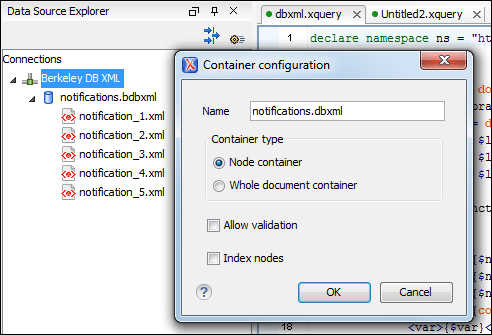
Each node from the Data Source Explorer view features a set of operations that are available on the contextual menu. One of the operations available on the connection node is the possibility to add a new container.
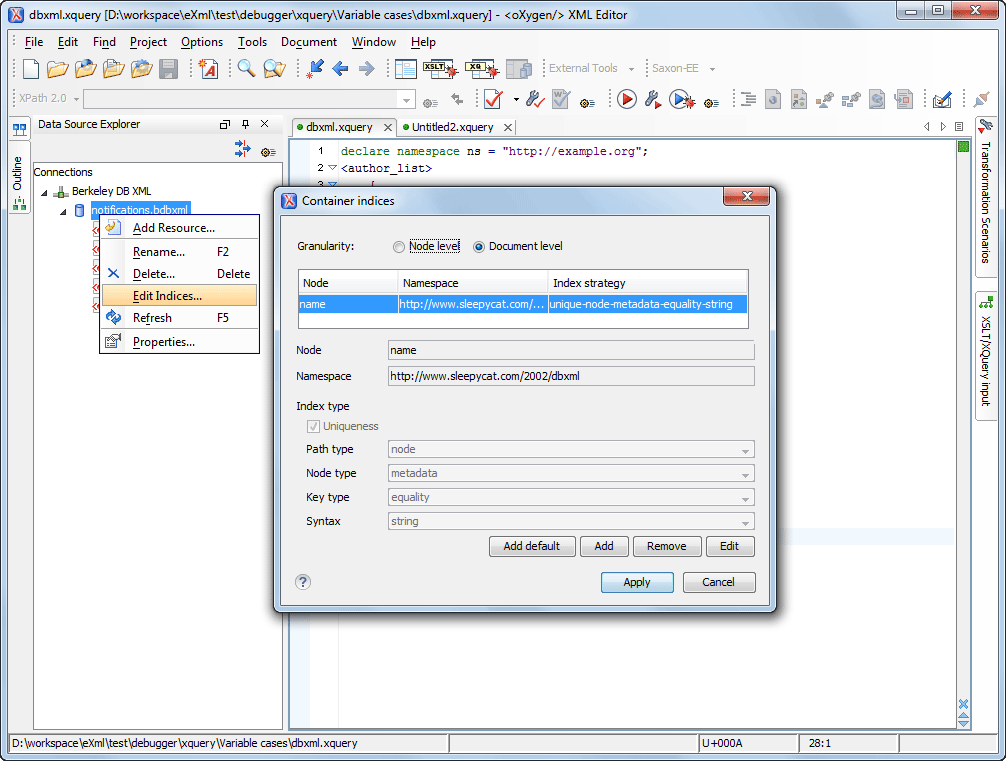
The contextual menu of a container node features operations such as add resource, rename, delete, or edit indices.
A database resource node features operations such as rename, move, delete, or open the content to be edited in Oxygen. When the editor content is saved, the changes are stored back in the database.
XQuery Editing Support
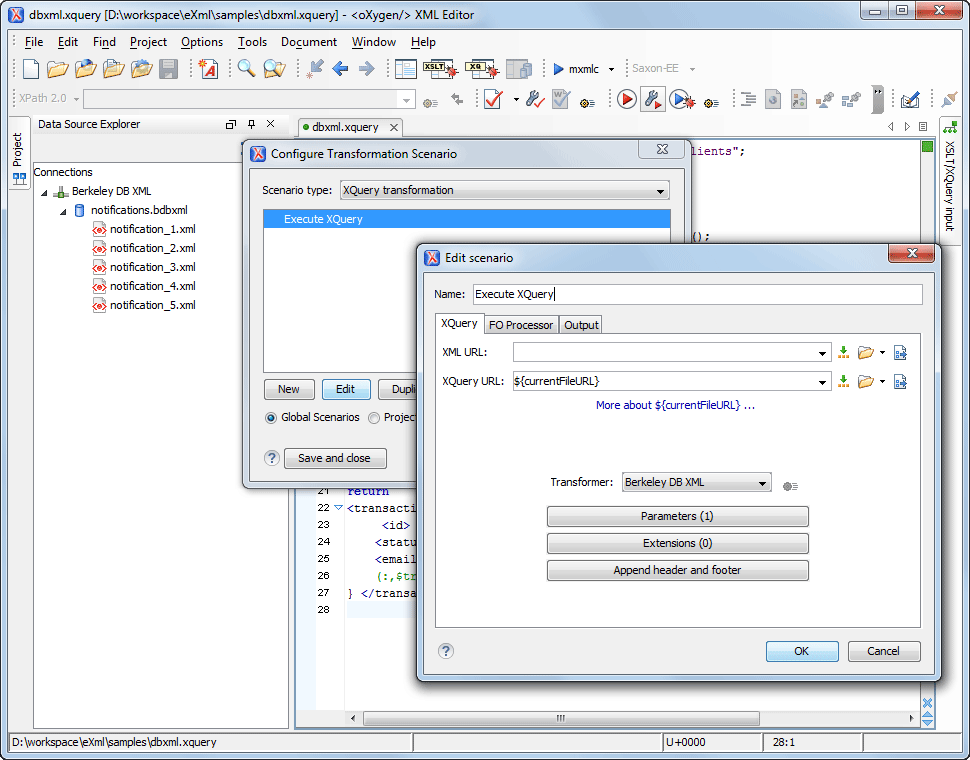
Oxygen runs XQuery interrogations against the stored XML content of a Berkeley DB XML database as a transaction through the transaction support of the server. For example, if you want to create an XQuery to generate a report with the billing contact data from the latest purchase notifications, you can open an XQuery document (an XQuery template is available from the File/New menu), configure the transformation scenario to match the Berkeley DB XML connection for the transformer field, write the XQuery, and then run the scenario.
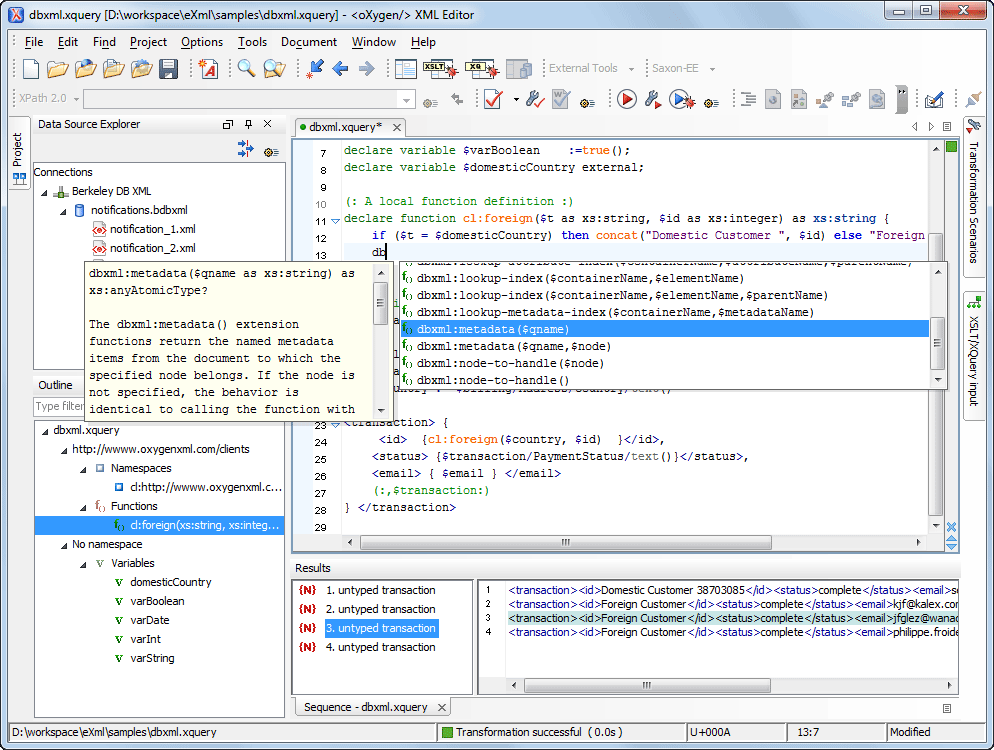
The XQuery editor features an XQuery Outline view as well as a powerful Content Completion Assistant, including descriptions of Berkeley DB XML predefined functions.
XQuery Debugger for the Oracle Berkeley DB XML Database
The debugging interface of Oracle Berkeley DB XML 2.5 database has been integrated with the Oxygen XQuery Debugger and Profiler. All the debugging and profiling views (Stack, Trace, Conditional Breakpoints, Breakpoints, Hotspots, Invocation Tree, etc.) are available.
When entering in the XQuery Debugging mode, Oxygen provides a special layout that displays the XML source (optional) and the XQuery documents side by side. It can also show the debugging output and specific XQuery debugging views and toolbars that allow you to set breakpoints, inspect variable bindings, or evaluate expressions in the request context.

More details about the Oxygen XQuery Debugger can be found here: https://www.oxygenxml.com/xquery_debugger.html
Two special views (Hotspots and Invocation Tree) enable profiling of the XQuery execution.

More details about the Oxygen XQuery Profiler can be found here: https://www.oxygenxml.com/doc/ug-editor/topics/working-with-XSLT-profiler.html