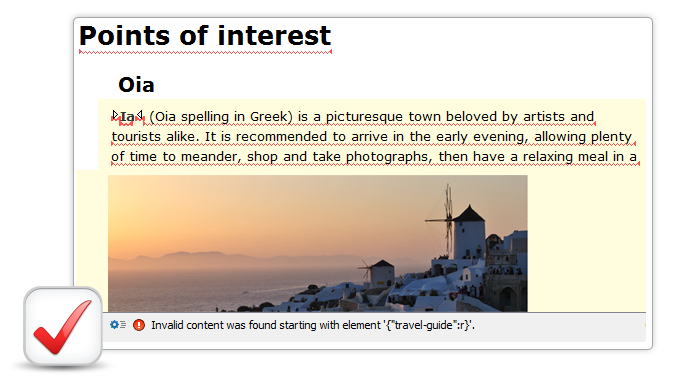
The Author mode of <oXygen/> XML Editor demonstrates a new productive way of authoring XML documents, similar to a word processor.
<oXygen/> makes XML document authoring easier than editing with an unstructured word processing application. The author's focus is on the semantics of the XML content he/she enters while the formatting and layout is performed automatically by <oXygen/> XML Editor.
As always, <oXygen/> does not try to reinvent the wheel and does not lock users into custom formats. The WYSIWYG like rendering is driven by CSS stylesheets conforming with the W3C CSS 2.1 specification. Some enhancements introduced by the W3C CSS 3 working draft like CSS XML namespaces and the attr function are also supported.
The simplest way to edit an XML document visually is to associate it a CSS that defines the styles for the XML elements the document is using. The association is done by inserting in the document header the standard xml-stylesheet processing instruction.

The same file, in the Author visual editing mode:

The tagless editor comes with ready to use support for largely used XML frameworks: DITA, DocBook 4 / DocBook 5, TEI P4 / TEI P5, XHTML. This support includes document templates for easily creating new XML instances, CSS for WYSIWYG like editing, interface actions for creating and editing lists, tables and marking up specific content, XML Catalogs for faster access to resources, schema files for validation, transformation scenarios to convert from XML to HTML and/or PDF.
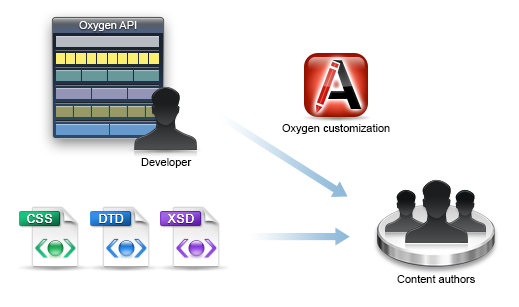
You can create your own editing framework, similar to the ones that are preconfigured in <oXygen/>. See this section: Extensible XML Editor .
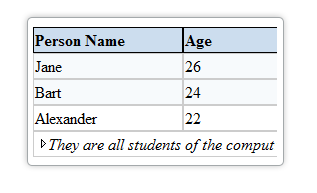
The CALS Table Model is a standard for representing tables in SGML/XML. The editor supports the CALS table model for DocBook and DITA. The HTML table model is supported for XHTML and DocBook.

In case you are customizing the editor for an XML framework that uses other types of tables, you can write a Java extension for describing the number of rows and columns a cell may span. To describe what elements enter the tables, rows and cells you must use the standard CSS display property with the values: "table", "table-row", "table-cell", etc.. For more information, see the User Manual.
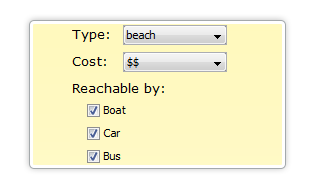
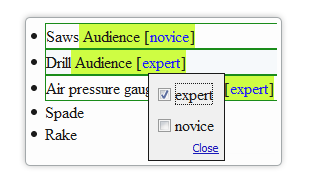
Using a form control is the most convenient way of presenting and entering data into a document. This allows less technical users to interact with the content of a document without being intimidated by the XML structure. oXygen XML Editor introduces form controls as a way of inputting/entering content and attribute values while working in the Author mode.
The oxy_editor CSS extension function allows you to edit XML attribute and element text values directly in the Author mode using form controls. Various implementations are available out of the box: text fields, pop-ups, comboboxes, checkboxes, buttons which invoke custom Author actions, date pickers, or URL choosers. You can also implement JAVA custom form controls.
Just press the Enter key and you will have the list of all XML elements that can be inserted at the caret position.
In the following figure it was selected the word W3C. By pressing ENTER, the word can be enclosed in XML markup. In our case, the acronym element.

The Author mode allows drag and drop editing. You can select the XML content then drag and drop it in the desired location to move or copy that content.
Hiding the XML markup can have the disadvantage of losing the visual markers (the element tags) between text nodes. Fortunately, <oXygen/> has a solution for this: the location tooltip combined with the marks from the XML outliner and with the location bar allows you to know at each moment what is the current location in the document. Additionally, there are several levels of display for XML element tags ranging from no tags to full tags.

<oXygen/> combines the easy way of working in a visual WYSIWYG like XML editor with the full power of XML source editing. Also, the Outline view, which is synchronized with the edited XML document, shows the entire markup structure.

With the navigation links support it becomes easy to go from a DITA conref to the referred content, from a DocBook link to the target element or from an XInclude reference to the included content, etc. by just a single click.
The links are specified in the associated CSS using the custom property link . <oXygen/> can open the referred document and show the linked element each time you click on a link in the Author mode. The DITA, TEI and DocBook CSS stylesheets were updated to this new support. Links are automatically created for the included/referenced XML content: for XInclude, for DITA conref, DocBook link and xref elements.
<oXygen/> identifies the target element using its ID attribute or using an XPointer element scheme expression. You may read more about adding links and how to use them for your type of XML documents in the User Manual.

In the above figure clicking the blue text makes the editor place the caret at the position of the referred element. Navigating through a large XML document had never been so easy!
The Find All Elements action is available in all the XML editor modes: Text, Author and Grid. It represents an easy way to search for XML elements by their tag names, attribute names and values.

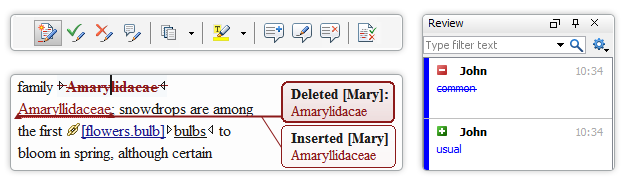
The WYSIWYG like editor was closely integrated in <oXygen/> as an editor tab called Author next to the Text and Grid editing modes. All <oXygen/>'s powerful editing actions are also available in the Author mode. These include: spell checking (on request and as you type), XML validation (continuous, on request), search and replace, XPath execution, etc. Also all side views that <oXygen/> provides are offering information when editing in Author mode.