Miscellaneous
Configurable Document Templates
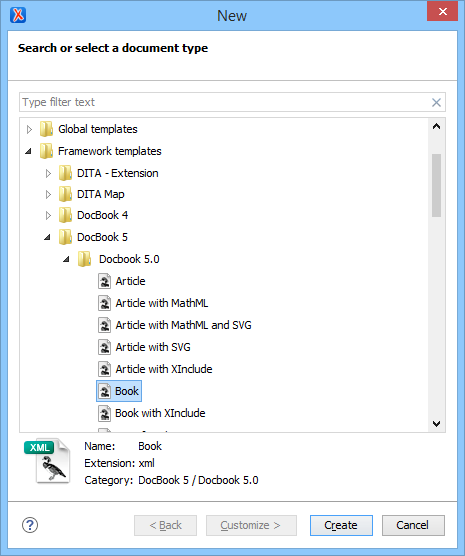
Oxygen allows a flexible document creation process through document templates. You can easily create new document templates, publish your templates, and share them with other users. Organisations can maintain a central document templates repository and all the users will be able to create documents using them. Also, Oxygen provides a set of predefined document templates for the most commonly used types of documents (DocBook, DITA, TEI, XSLT stylesheets, etc.)
Spell Checking
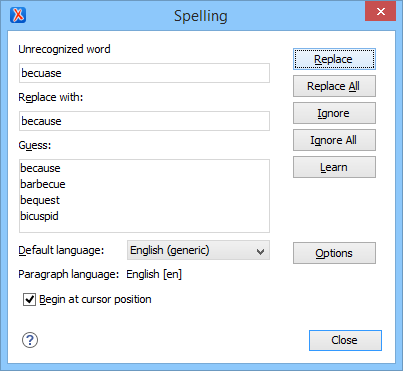
You can check the spelling of your document content from within Oxygen. This is very important when you write a lot of text content. The spell checking support is XML aware (it can check only the text and skips the markup). The supported languages for the spell checking feature are English, German, Spanish, and French including locale variants.
The spell checking takes into account the value of the xml:lang attribute and switches the dictionary automatically.
Auto-Correct Misspelled Words
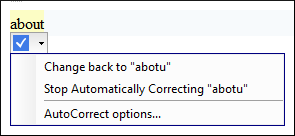
Oxygen includes an AutoCorrect feature that automatically corrects misspelled words. It also can be used to insert certain symbols or other text as you type in Author mode.
A default list of commonly misspelled words and symbols is included, but you can modify the list to suit your specific needs. You can also choose to have the AutoCorrect feature use suggestions from the main spell checker.
When this feature is enabled and Oxygen detects a word or character that is listed in the AutoCorrect Replacement Table, it automatically replaces it and presents a widget under the word that offers various options.
Syntax Highlighting
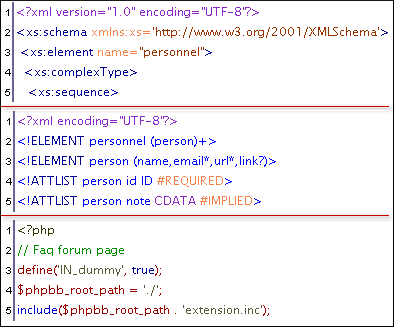
The documents are more readable if the tokens can be assigned different colors. Oxygen provides syntax coloring support for all XML documents but also for DTD, Relax NG schema in compact syntax, Java, C++, C, PHP, Perl, Properties files, SQL, Shell and Batch documents. The colors are customizable for each type of document.
Multi-Line Find/Replace
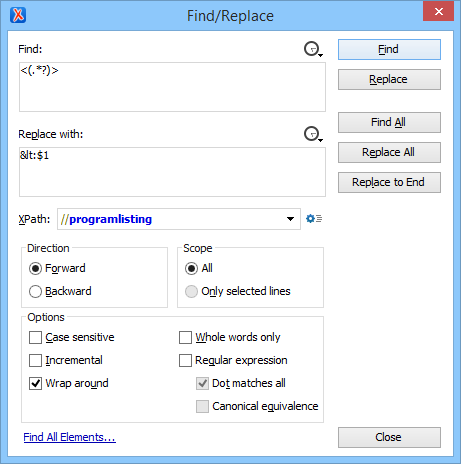
The Find/Replace is enhanced with multi-line capabilities. Both the find and the replace expressions can cover multiple lines of the document. Along with the regular expressions and XPath filtering support, this allows powerful changes to be applied on the document content.
The replace expression can include group variables ($1, $2, etc.) for re-using regular expression groups matched by the find expression.
If find operations are executed frequently and the dialog box hides too much of the editor panel, a reduced version of the dialog box is available on request as a floating toolbar displayed by default at the bottom of the editor panel. The toolbar takes less screen space so it is easier to use in such cases.

MathML Editing Support
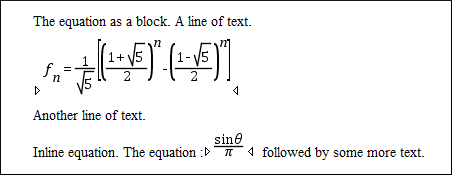
Oxygen includes built-in support for rendering and editing MathML equations.
Built-in MathML Editor
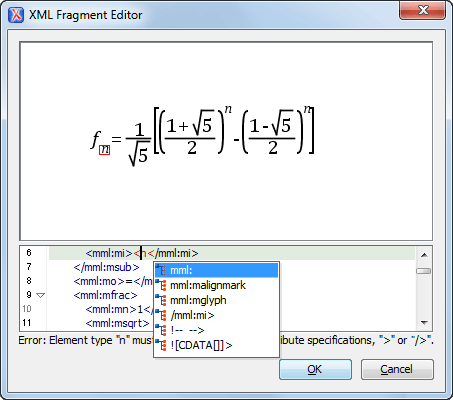
Equations can be edited in the Oxygen built-in MathML editor. Features include:
- Visual indicator of the currently edited element within the equation
- Mapping from the equation to the Math ML source (if you click the equation, the corresponding MathML code is selected)
- Content completion assistance and validation of the MathML source
Math Flow MathML Editor Integration
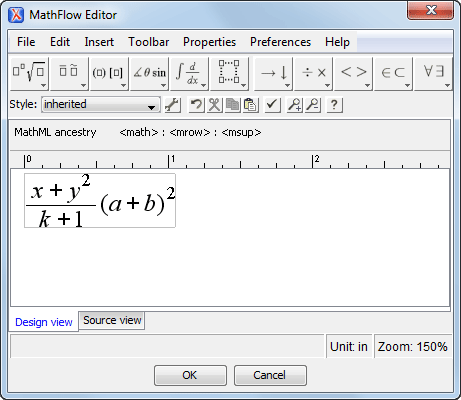
The MathFlow editor (Structure Editor, Style Editor, or Simple Editor) is presented when you have a licensed installation of the MathFlow SDK on your computer and configured in Oxygen. The Structure Editor targets professional XML workflow users. Such users need precise control over visual presentation, as well as its underlying MathML structure. It is the best choice for demanding publishing workflow applications. The Style Editor is tailored to the needs of content authors, and the Simple Editor is designed for applications where end-users can enter mathematical equations without prior training and only the meaning of the math matters.
An equation edited with the MathFlow Structure Editor:
Large File Viewer
Very large files (larger than a Gigabyte) that cannot be opened in the editor panel can be viewed in the Large File Viewer without loading the file in the memory. The Viewer is available from the Tools menu.
Very large files (larger than a Gigabyte) that cannot be opened in the editor panel can be viewed in the Large File Viewer without loading the file in the memory. The Viewer is available from the Tools menu.
Maximum Performance with Minimal Memory Use
The viewer does not load the opened file into the memory. Using a caching algorithm, it is able to read only the displayed section of the file. This leads to a small burden on your system resources while not compromising the speed.
Regular Expression Find
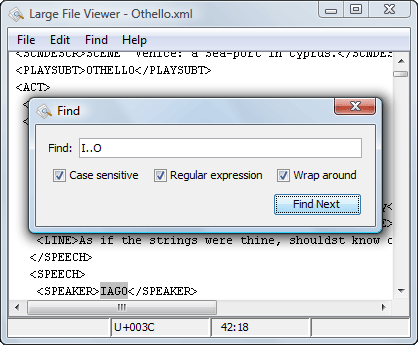
Opening a very large file means nothing if you are not able to search for the relevant piece of information. The Find dialog box allows to specify a plain text to find or a regular expression. The find operation is executed at line level to keep the memory usage low.
Aware of Text Encoding
The Large File Viewer detects the text encoding in XML files or files that have a UTF mark (byte order mark). If you are trying to open a plain text file (with no encoding marks), you can specify the encoding in the options.
Tree Editor
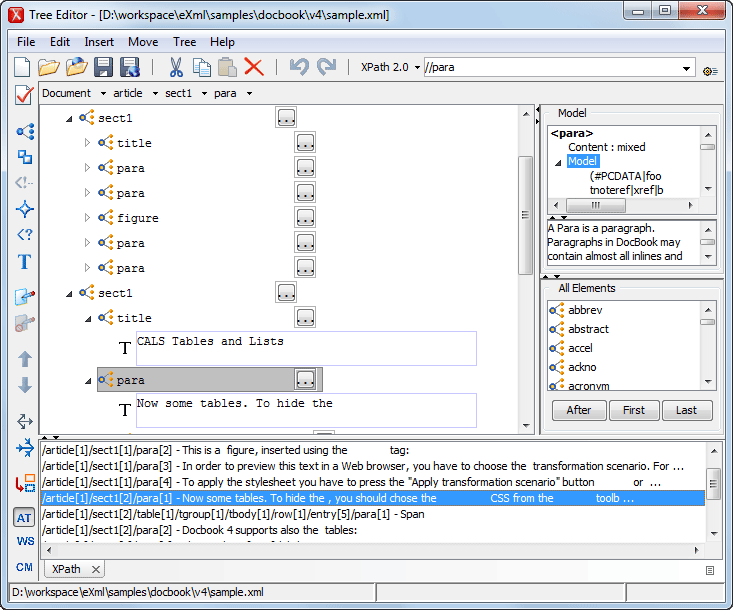
XML documents can be viewed or edited in a graphical Tree Editor. The Tree Editor is very helpful when you are working with large documents due to its small memory footprint.
For quick navigation in a document you can use the upper left panel, which displays the current path of the document. Each button from the panel gives you access to all the XML nodes at the same level.
The Model view shows detailed information about the attribute or element that you are working with. Element and attribute annotations are also presented here, if they are available in the XML Schema of the document.
The Entities view displays a list of defined entities that you can insert within your document. It allows you to insert the selected entity after the current node as the next sibling, first child of the current element, or last child of the current element.
The All Elements panel displays a list of the defined elements that you can insert into your document. It allows you to insert the selected element after the current node as the next sibling, first child of the current element, or last child of the current element.
Import from Databases, Text Files, and Spreadsheets
Oxygen XML Editor adds support for importing database content, spreadsheets, and text files (comma separated value files, for instance) into XML documents that can be further converted into other formats using the transformation features.
Importing from Databases
It is possible to connect to: Oracle, IBM DB2, Microsoft SQL Server, MySQL, or any other database server that supports JDBC connectivity.
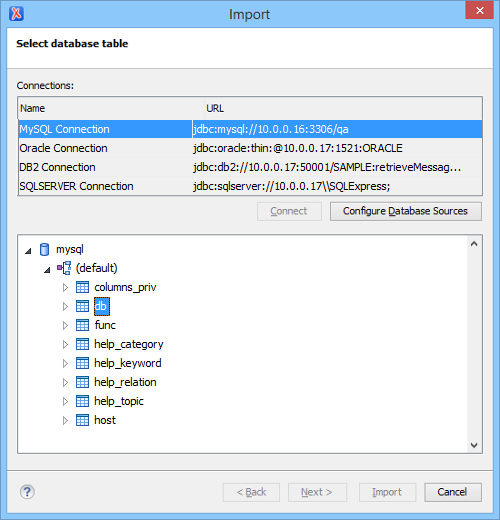
You can examine the database contents and select the table to be imported using the database browser. It is possible to refine the data source by editing the generated SQL select statement to suit your needs. You can join multiple tables or use advanced SQL expressions. You also have the possibility to generate an XML Schema from the database structure.

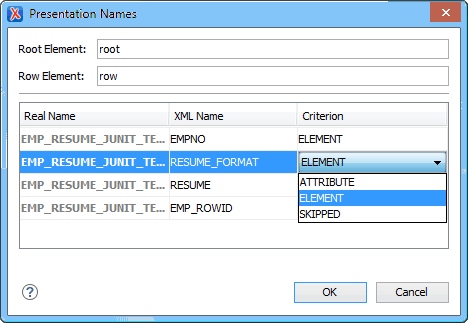
Mapping of the database fields as elements or attributes is very simple and you can easily change the names used in the XML file. A preview of the first rows in the SQL result and of the generated XML document is available. If the preview shows what is expected, you can choose to open the imported data directly into the editor and save it to a file.
Importing from Text Files and Spreadsheets
You also have the possibility of importing data from text documents and spreadsheets.
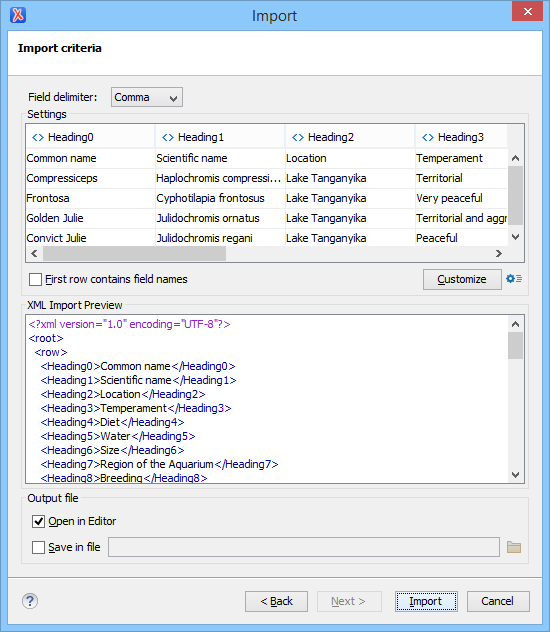
The Import dialog box allows you to choose what sheets you want to import. This dialog box also displays the content of a spreadsheet in a tabular form, a preview of the generated XML document, and provides options that allow you to customize the output.
Convert Database Structure to XML Schema
Oxygen XML Editor enables you to create a W3C schema based on an external database structure accessed through a JDBC driver. This can be done either when importing data from a database or directly by selecting the database tables.
You can do this using the database import feature or using the Convert DB Structure to XML Schema action from the Tools menu.
You can select the tables, establish criteria for the table fields (such as generate it as element, attribute, skipped, or set a new presentation name), and select between two types of database schema representation: flat (based on an ISO-ANSI SQL/XML draft) and hierarchical.

Database relationships and constraints (e.g. primary and foreign keys) are converted into proper W3C schema constraints (such as identity constraints, key and keyref entries).
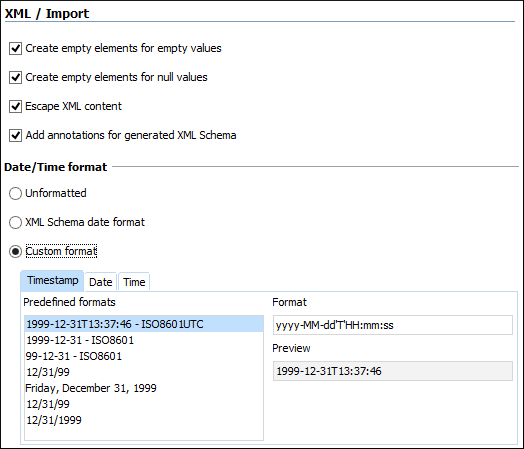
The way the database types are mapped to W3C XML Schema types is presented through annotations in the resulting schema. Other options to control the conversion are available in the Import preferences page, as shown below:
Remote Editing over FTP, HTTP/WebDAV and HTTPS/WebDAV
Documents can be stored on WebDAV or FTP servers. Using Oxygen XML Editor you can browse the content of the repositories, and load or save the documents.
FTP & WebDAV Support
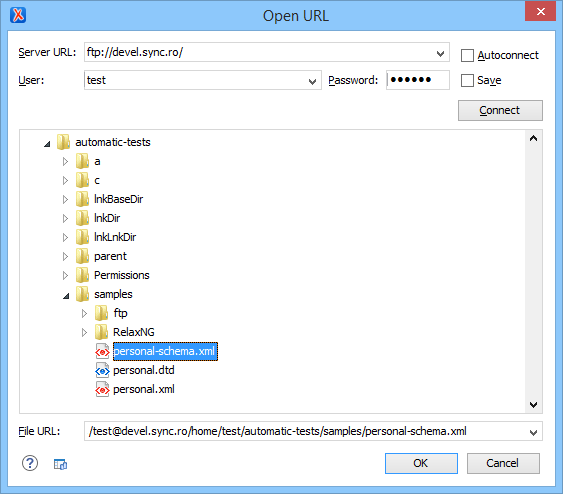
Oxygen supports remote editing, using the FTP/SFTP and WebDAV protocols. The remote files can be added to the project and can be subject to XSLT and XSL-FO transformations.
The WebDAV access is implemented using the Slide package of the Apache Software Foundation. The FTP part is using passive access to the FTP servers. Make sure the server you are trying to connect to supports passive connections.
The FTP/SFTP/WebDAV capabilities have been extensively tested with various servers running on Windows (IIS), Mac OS X, and Linux (Apache).
WebDAV over HTTPS
If you want to access a WebDAV repository across an non-secure network, Oxygen allows you to load and save the documents using the HTTPS protocol (if the server understands this protocol) so that any data exchange with the WebDAV server is encrypted.
Plugin Support
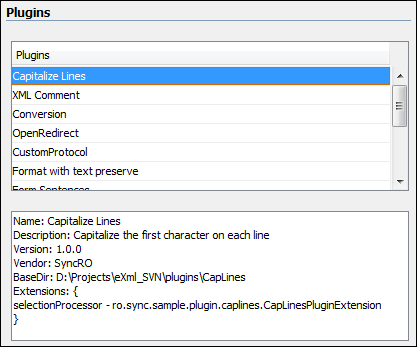
Users can extend the Oxygen functionality using the plugin support. This offers a generally available API anyone can use to integrate custom functionality in Oxygen. Also, being available itself as an Eclipse plugin, you may write other Eclipse plugins and integrate them with Oxygen inside the Eclipse framework.
Plugin/Framework Deployment
As a developer you will be able to distribute your plugins and frameworks to other users by publishing them as add-ons on your website. The users can easily install new plugins and frameworks by just pointing Oxygen to a repository URL. They will be able to browse available plugins and frameworks and select the ones they want to install. When an add-on is changed, an update notification is triggered in Oxygen.
Batch Convert Between Document Types
Oxygen offers a Batch Converter add-on that contributes actions for batch converting between various document formats.
The possible batch conversion options include:
- Excel to DITA
- Word to XHTML
- Word to DITA
- Word to DocBook
- HTML to XHTML
- HTML to DITA
- HTML to DocBook
- Markdown to XHTML
- Markdown to DITA
- Markdown to DocBook
- XML to JSON, vice versa
Mark Selected Text
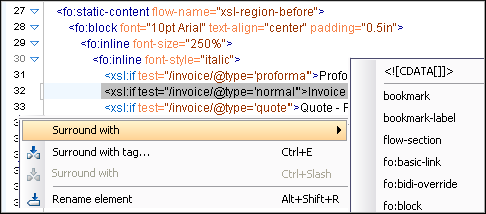
If you have an unstructured document and you want to obtain an XML document, you will find the Surround with option especially useful. This allows you to surround the currently selected text with a specified tag. A shortcut is also provided for the last Surround with operation that was performed.
Configurable External Tools
You can configure external tools and trigger their execution from Oxygen. In this process, you can use the defined editor variables to specify the path of the currently edited file, the currently edited file directory, the transformation result file, and the project directory. When the execution of an external tool is too long, you can stop its execution at any time.
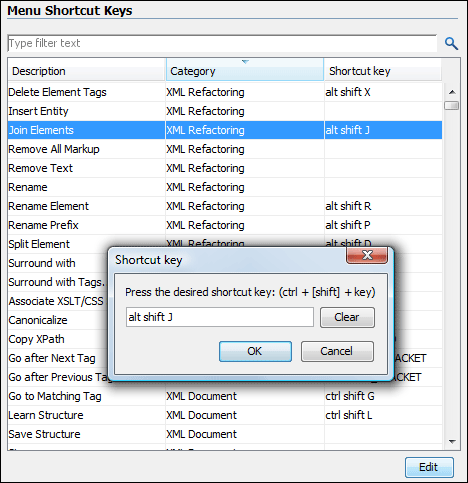
Configurable Key Bindings for Actions
If you are used to some shortcuts for performing certain actions, you can use them in Oxygen. The actions available in Oxygen are presented with the current key bindings and you can freely change them.
Print Support - Print Preview
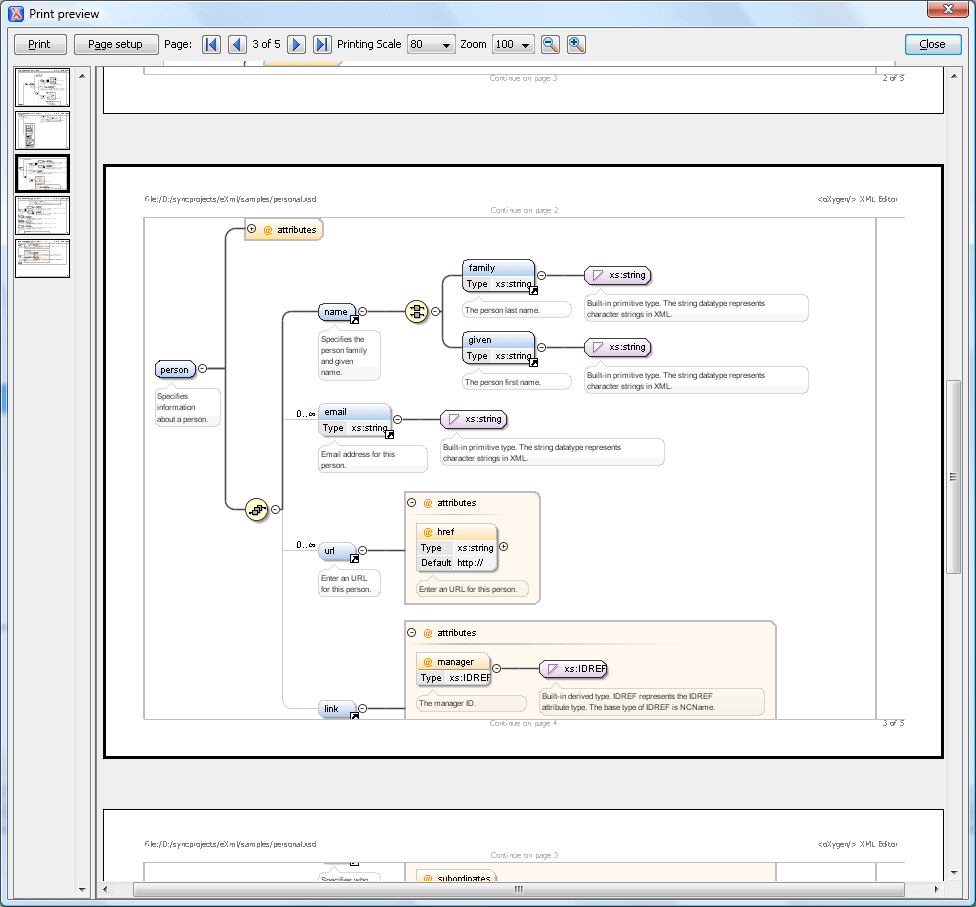
Oxygen allows you to print your XML documents and includes a Print Preview feature, as well as some specialized printing options. For example, you have the option to print selections of text rather than the whole document,you can choose to include line numbers, and you can print a document in its folded (collapsed) state.
You can setup the page, preview the result, and make scaling adjustments until you are satisfied with the result.
Sortable Tables
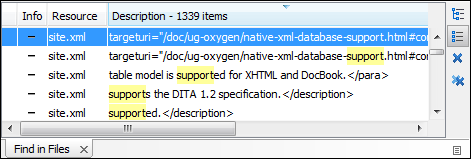
The tables that are presented as the results of searches, validations, or the debugger state are sortable. By clicking on the header of the column, the rows will be sorted ascending or descending according to the selected column data.
You can revert to the original order by clicking the header of the column until the arrow icon disappears.
In the following image you can see how the header of the "Resources" column changes when sorted.
Outline View Drag-And-Drop Editing Support
Entire XML elements can be moved or copied in the edited document using the drag-and-drop editing support of the Outline view.
Dragging an XML element in the Outline view and dropping it in the same panel will cause the dragged element to be moved after the drop target element. Holding the mouse pointer over the drop target for a short time will expand that element and then the dragged element will be moved inside the expanded element immediately after its opening tag. If the CTRL key is pressed during the operation, the dragged element will be copied instead of moved.
Extended Go to Options
Oxygen includes some quick navigation options that allow you to indicate the line and column (or offset) in the document where you want to place the cursor.
Specifying the column in addition to the line is useful when you are validating XML documents that have very long lines and you need to place the cursor at the exact location. Also, specifying the offset is useful because some processors report the error in terms of document offset.
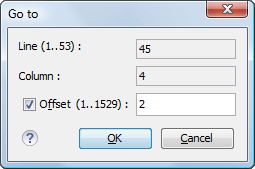
Image Preview View
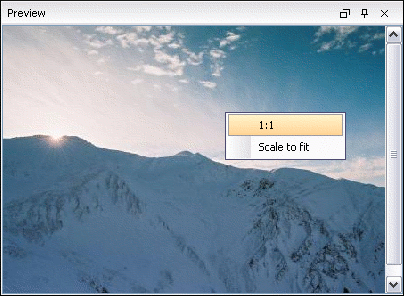
Images can be viewed in an image preview panel. It supports GIF, JPG, PNG, BMP and SVG images.