Project Support
Oxygen XML Editor helps you organize your XML-related files into projects. Accordingly, you can perform batch operations (such as validation and transformation) over sets of files. Another feature is that Oxygen allows you to share your project settings and transformation scenarios with your co-workers.
Project Folders (Logical Folders and Linked Folders)
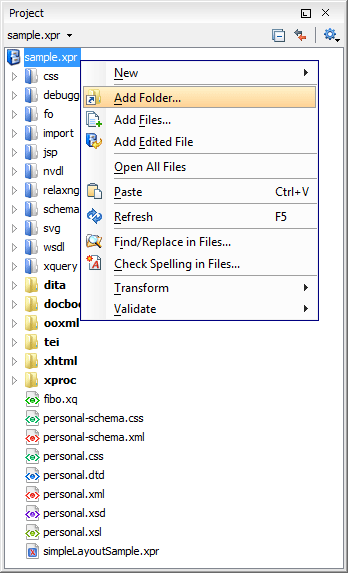
The most simple way to organize your XML working files is to place them in a directory and then to create a corresponding linked folder in the project. If you add new files to that folder, you can simply press refresh and the Project view displays the existing files and subdirectories.
If your files are scattered amongst several folders, but represent the same class of files, you might find it useful to combine them in a logical folder. For instance, having XSLT stylesheet files distributed in several folders, it may be a good idea to add them in a logical folder called "XSL".
The operations available on the files and folders in the Project view include validation, well-form check, and XSLT transformation.
Main Files
Oxygen introduces an innovative concept called Main Files that simplifies the configuration and development of XML projects. Main Files are the roots of an imported/included tree of modules. They are defined at project level and are automatically used to determine the context for validation, editing (Content Completion Assistant and Outline view), refactoring, and component search operations. This support is available for XSD, XSL, and RNG modules.
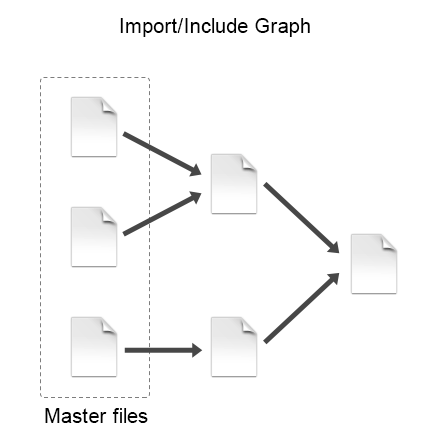
When you edit a module after defining the Main Files, you have the following benefits:
- When the module is validated, Oxygen automatically identifies the Main Files that include that module and validates all of them.
- The Content Completion Assistant displays all the components collected, from the Main Files to the modules they include.
- The Outline view displays all the components defined in the Main Files hierarchy.
- The Main Files defined for the current module determines the scope of the search and refactoring actions. Oxygen performs the search and refactoring actions in the context determined by the Main Files, improving the speed of execution.
Open/Find Resource
Oxygen provides a quick way to locate and open files from the project or from the current DITA Map, based on an index of the project file paths and DITA map references. This action is available as part of the File menu.
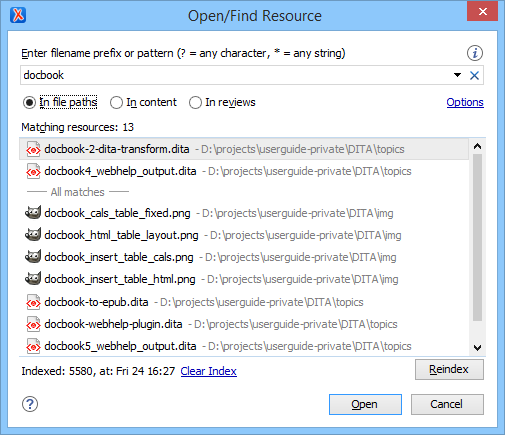
The index can be refreshed upon request, in order to reflect new additions in the Project or opened DITA map.
Project Level Options
You can specify almost all of the Oxygen settings at project level. This makes it possible to share XML Catalogs settings, transformation scenarios, formatting options, validation options, or editor layouts along with the project.
If you are creating a set of XML Schema files and XSLT stylesheets for editing and publishing a book, you can choose to configure various options at the project level (for example, the paths to the XML catalogs, transformation scenarios, XML formatting settings, XML parser, and XSLT transformer settings). Your colleagues can simply checkout the project from the source repository and start working immediately. None of them will have to spend time configuring the editor.
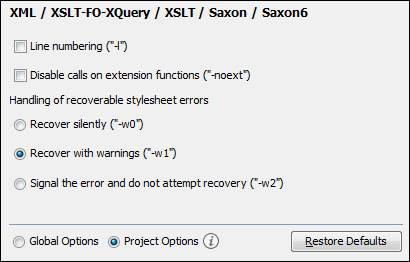
In the following image, you can see that the Saxon 6 options are set at project level.
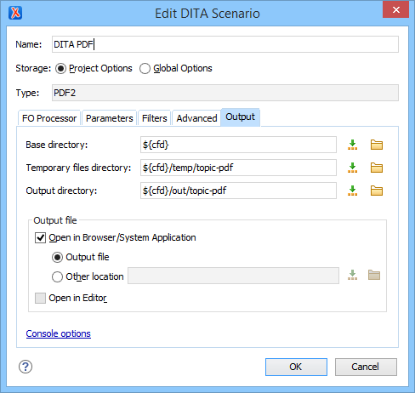
Similarly, the following image shows a transformation scenario with Project Options selected: