• Like it

WYSIWYG DocBook Editor

DocBook Documents Support

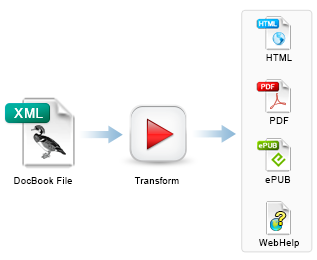
<oXygen/> comes with DocBook DTDs, XML catalog, XSL stylesheets and document templates so that one can start creating DocBook documents right away. The articles from our site are written using DocBook and their sources are available for download. You can use them as samples to start with! DocBook documents can be converted to HTML, PDF or PostScript and supports intelligent XML editing, validation, content completion.

WYSIWYG DocBook editor

DocBook to WebHelp

In addition to the standard transformation scenarios, <oXygen/> can convert DocBook to desktop and mobile WebHelp systems, providing a website-friendly presentation of the DocBook content, featuring a table of contents, index navigation and text search capabilities.
read more

DocBook Profiling/Conditional Text

<oXygen/> offers support for DocBook conditional text processing: profiling attributes can be easily managed to filter content in the published output. You can toggle between different profile sets to see directly in the Author what will be included in the output.

Conditional text is a way to mark blocks of text meant to appear in some renditions of the document, but not in others. For instance you can mark a section of a document to be included in the manual designated for the 'expert' users, other for the 'novice' users manual while unmarked sections are included in any rendition.

You can use conditional text when you develop documentation for:

  • a series of similar products
  • different releases of a product
  • various audiences
The benefits of using conditional text include reduced effort for updating and translating your content and an easy way to customize the output for various audiences.

With <oXygen/> DocBook Editor you can define values for the DocBook profiling attributes. The profiling configuration can be shared between content authors through the project file. There is no need for coding or editing configuration files.

<oXygen/> allows you to aggregate a set of profiling conditions (attributes and their values) as Profiling Condition Sets. Using a Profiling Condition Set you can preview in the Author editing mode the text sections that will go into the published output.

Toolbar action showing the profiling/condtional text menu

The excluded text is grayed-out. The profiling attributes visibility was turned on for clarity.

Conditional Text in a Docbook article

To mark text for inclusion or exclusion, you can modify the profiling attributes of the parent element, using the contextual action "Edit Profiling Attributes":

Change Tracking

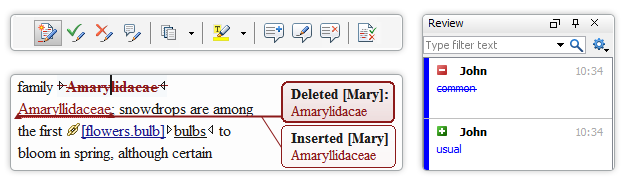
Change Tracking is a way to keep a history of the changes made to a document. When change tracking is enabled, the inserted and deleted content is highlighted in the document allowing you to easily identify the affected regions. Also, tracked changes can be rendered in callouts (balloons) displayed at the side of the document, with connecting lines pointing to the changed content.

Change Tracking Toolbar

Multiple Authors Support

<oXygen/> supports changes from multiple authors, rendering each author changes with different colors.

For each change <oXygen/> stores the author and the date when that change was performed. The name of the author who is currently making changes and the colors can be customized from the Track Changes preferences page. It is possible to add comments to the changes.

Change Tracking in the Author page

In the screenshot you can see how various insert/delete changes made by various authors are displayed (the option to display changes as balloons is on).

Change Management

You can review the changes made by you or other authors and then accept or reject them using the Track Changes toolbar buttons or by using the change management dialog.

Display Review Comments as Callouts

When you annotate your XML documents, the comments are displayed in the Author view as side callouts (balloons) showing also additional information like the author and the comment time.

The comment support is not limited to a document type (DocBook or DITA for instance). You can use it on any document that is opened in the Author editing mode. The comment data is stored in the XML document as processing instructions, so it will not interfere with your XML tool chain.

Comments in the Author page

You can access the comments actions from the application toolbar:Comments Toolbar

Preserve style markup on copy and paste from external applications

Styled content can be inserted by copying content from Office applications (Microsoft Word and Microsoft Excel, OpenOffice.org Writer and OpenOffice.org Calc) and Web browsers (Mozilla Firefox, Microsoft Internet Explorer) and pasting it in the DocBook editor. The styles and general layout of the copied content like: sections with headings, tables, list items, bold and italic text, hyperlinks, etc. are preserved by the paste operation as equivalent DocBook XML elements.

Discontinuous selection

You can select multiple text ranges (discontinuous selection) or multiple elements in the Author page and cut/copy/paste them.

Discontinuous Selection

Specific DocBook Actions

<oXygen/> is able to recognize the DocBook documents based either on the root element name or namespace. When you switch to the Author mode, the editor loads both the set of CSS files and the available actions that were associated in the DocBook configuration.

The action set include operations for emphasising text, creating lists, tables, sections and paragraphs.

More than this, you can create your own operations for inserting or deleting XML document fragments.

DocBook Toolbar

Table Support: CALS and HTML Table Model

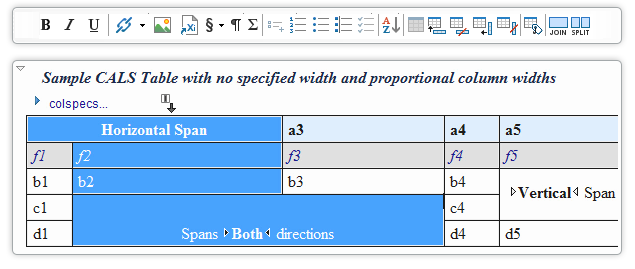
You can create CALS or HTML tables, join or split cells, add or remove rows easily. <oXygen/> will create all the column specifications for you.

Table Toolbar

A CALS table example. The caret is positioned between two cells.

CALS and HTML Tables

<oXygen/> can manage table width and column width specifications from the source document both in fixed and proportional dimensions. The tables and columns widths can be visually adjusted by dragging with the mouse their edges.

A HTML table example. The column widths are adjusted.

Adjusting Column Widths

Column and Row Table Operations

By allowing to select entire rows and columns <oXygen/> you can easily copy or move table data using copy/paste and drag and drop operations.

Table selection

MathML support in DocBook

There are available templates for creating DocBook documents with MathML support. The MathML equations included in DocBook documents are rendered in the PDF and XHTML output of the DocBook transformations.

MathML in Docbook

Built-in MathML Editor

See below an equation edited in the <oXygen/> built-in MathML editor. Features include:

  • Visual indicator in the equation about the currently edited element.
  • Mapping from the equation to the Math ML source. If you click the equation the corresponding MathML code is selected.
  • Content completion and validation of the MathML source.
Built-in Math ML Editor

Math Flow MathML Editor Integration

The MathFlow editor (one of Structure Editor, Style Editor, Simple Editor) is presented when you have a licensed installation of the MathFlow SDK on your computer and configured in oXygen. The Structure Editor targets professional XML workflow users. Such users need fine control over visual presentation, as well as its underlying MathML structure. It is the best choice for demanding publishing workflow applications. The Style Editor is tailored to the needs of content authors, while the Simple Editor is designed for applications where end-users can enter mathematical equations without prior training, and only the meaning of the math matters.

An equation edited with the MathFlow Structure Editor:

MathFlow Structure Editor

XML Source Editing

You can edit the DocBook files using the text/source editing mode of <oXygen/> XML Editor. The "as you type" validation and the powerful content completion are always on your side.

DocBook Source Editing

Filtering Support in the Outline View

You can control what elements are displayed in the Outline view by typing element names into a filter box. For example, entering the element name "figure" when editing a DocBook article results in getting immediately a short summary of all the figures from your document.

Filtering in the XML outliner, the flat presentation mode

The next image shows the filtered outliner as a tree. There are presented only the elements that are parents or children of the selected elements. The selected elements are boldfaced.

Filtering XML elements in the outliner

DocBook with XInclude Support

A new module file was added in the DocBook DTD distribution adding XInclude support to the DocBook DTD. There are also document templates (New from templates action) that allows easy creation of a DocBook document with XInclude support. An XInclude sample is provided.

DocBook Catalog

<oXygen/> adds by default a root catalog that refers the built-in catalogs for DocBook documents. These are located in the frameworks/docbook subdirectory of the installation directory.

Transforming DocBook documents to PDF

Before transforming the current edited XML document in <oXygen/> one must define a transformation scenario to apply to that document. A scenario is a set of values for various parameters defining a transformation.

<oXygen/> has two predefined scenarios for DocBook, one using the XSLs for FO-PDF output and the other using the stylesheets for HTML. These scenarios can be reused for any DocBook document. If the predefined settings are not exactly what you need you can easily change them.

The Apache FOP is bundled inside <oXygen/> and it does not require any special configuration. Thus you can convert DocBook to PDF just by selecting a scenario and pressing a button.

Configuring the docbook XSL/FO transformation

Always Up to Date!

Each <oXygen/> XML Editor release bundles the latest DocBook schemas and XSL stylesheets. At this time, both DocBook 4 and DocBook5 are included.