Oxygen Compare and Merge Tools
Oxygen provides a simple means of performing file and folder comparisons. The complete XML diff and merge solution offers directory, file, 3-way, and XML fragment comparisons, six different algorithms, and multiple levels of comparison.
In large teams composed either of developers or technical writers, the use of a shared repository is essential. It is common for numerous authors to be working on the same file simultaneously.
In this case, finding what has been modified in your files and folders can often be difficult. To help you with this, Oxygen includes diff tools for comparing files and comparing directories.
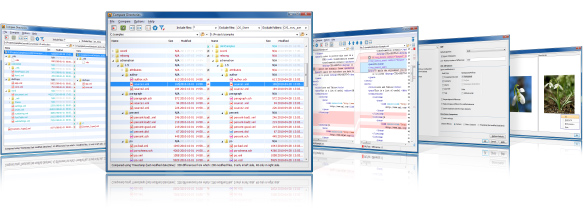
These are powerful and easy-to-use tools that will do the job fast and thoroughly. With the possibilities of comparison and merging, it is easy to manage multiple changes.
Compare Files Tool
The comparison of a pair of files is done by opening them in two editors arranged in a side by side layout. You can edit both files and the differences are refreshed when you save the modified documents. You can also compare XML fragments, without selecting files, by copying and pasting them into either side of the comparison tool. While comparing files or fragments, you can merge differences by using the toolbar buttons or actions from the contextual menu. File comparison and merging actions can also be performed on files inside ZIP-based archives.
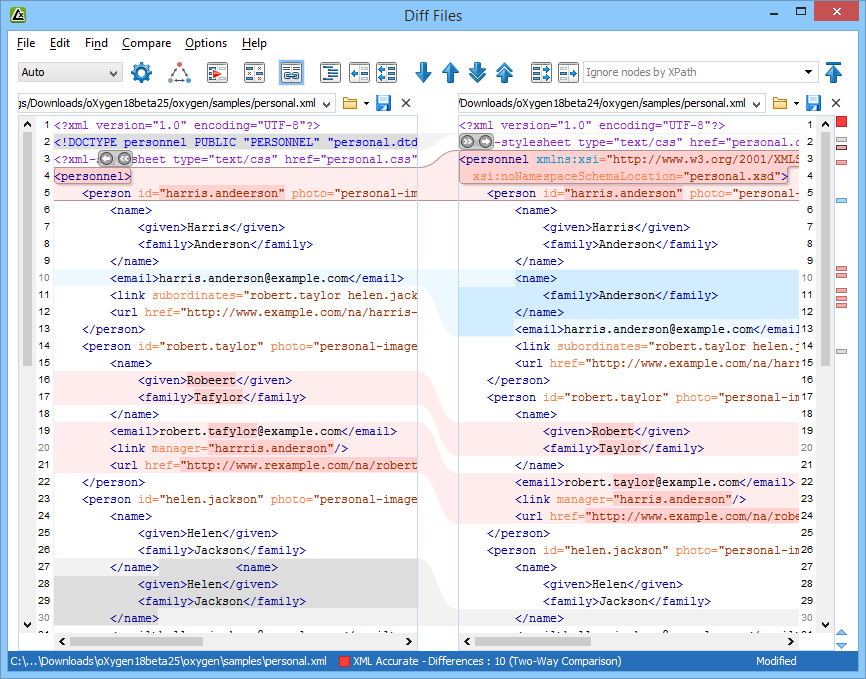
The differences are presented in a graphical format and scrolling is synchronized so that the matches are kept close to one another. Guiding areas are painted between the two files or fragments to allow you to easily locate the corresponding differences. An overview ruler helps track the changes.
Visual Author Mode
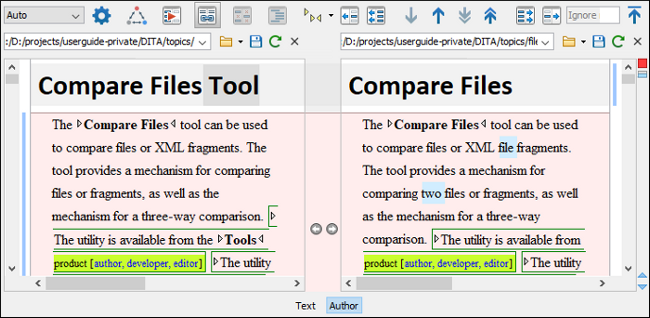
The file comparison tool includes an Author mode that displays the files in a visual mode similar to the Author editing mode in Oxygen. This makes it easier to see how the compared changes will look in the final output. This visual mode is available when the compared files are detected as being XML.
Three-Way Comparisons
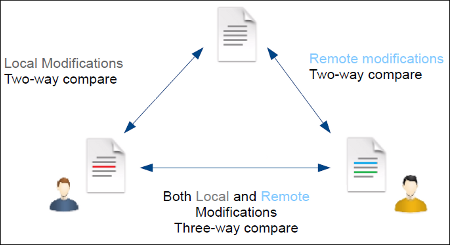
Oxygen also includes a three-way comparison feature to help you solve conflicts and merge changes between multiple modifications. It is especially helpful for teams who have multiple authors editing and committing the same documents. It provides a comparison between a local change, another change, and the original base revision.
Diff Algorithms
The comparison solution includes a variety of XML diff algorithms. It includes an XML Accurate algorithm for precise compare, a XML Fast algorithm for speed at the expense of some accuracy, and three algorithms that rely on the file structure (line-based, word-based, and character-based). It also includes a syntax-aware algorithm that provides comparison results for all file types and XML fragments that are recognized by Oxygen. Any algorithm can be used to perform differences on request, but the Oxygen Compare Files tool also offers an automatic selection that chooses the most appropriate algorithm based on the content and size of the files or fragments.
The XML diff algorithms are designed to help you with your specific needs for comparing XML documents or fragments. This means that you can specify whether or not namespaces, prefixes, namespace declarations, processing instructions, comments, CDATA, DOCTYPE, the order of attributes, or even text elements should be ignored.
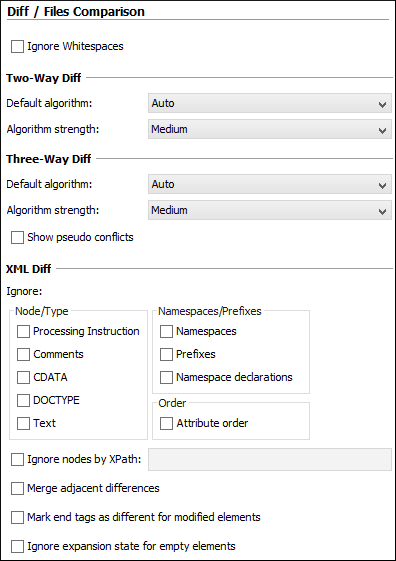
The comparison operations do not interfere with the user interface. They display progress information and allow the user to cancel them at any time. The multiple levels of comparison support allows you to go deeper into found differences and see what is actually modified, and all of the multiple levels include full merging support.
Word Level Comparison
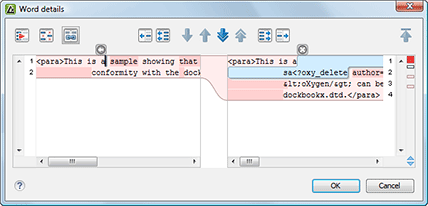
When there are modifications between the source and the target file or fragment, you can see them in detail, at word level, by selecting the Show Word Level details option from the Compare menu.
Character Level Comparison
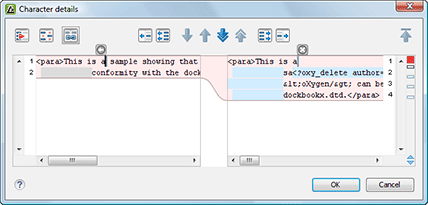
You can also see modifications in even deeper detail, at character level, by clicking the Show Character Level detail button from the Compare menu.
Both the Compare Files and Compare Directories tools are available as stand-alone applications and are also integrated into the Oxygen Tools menu.
Compare Directories Tool
The directory comparison results are presented using a tree-like view. The directories that contain differences in their file structure are expanded automatically, allowing you to focus directly on the differences. You can merge the content of the directories by using the copy actions from the toolbar, or you can examine the content of the files. The comparison and merging actions can also be performed inside ZIP-based archives (ZIP, JAR, ODF, OOXML).
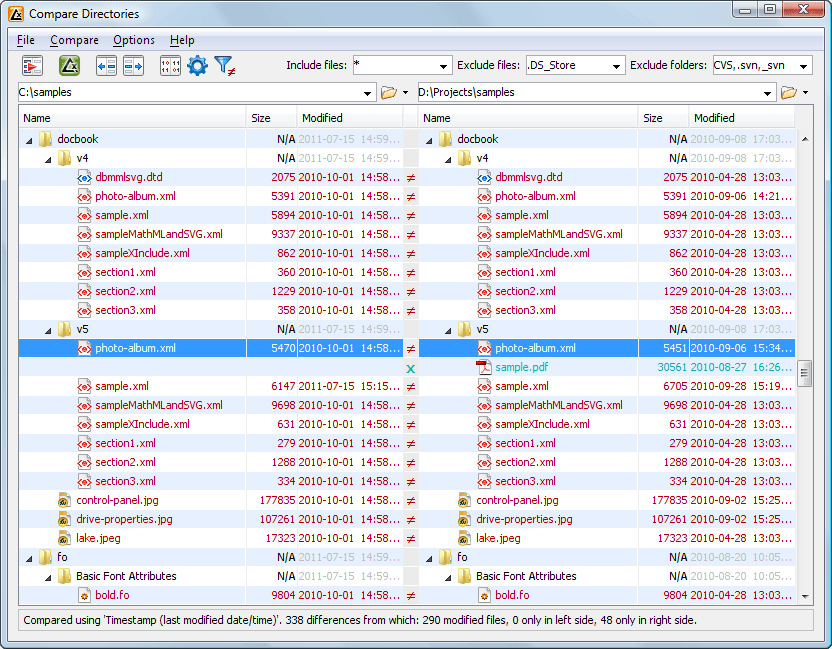
When performing a comparison between directories/archives, the files can be compared by using several methods:
- by timestamp - Only the file date and size are compared (fastest method). This is useful when the directories contain a lot of different files.
- by content - The file content is compared using the default diff algorithm. Depending on the selected algorithm, the appropriate options will be considered (such as ignoring the white-spaces, ignoring the namespace prefixes, etc.)
- binary comparison - The file content is compared byte to byte. This is faster than the by content method, but should especially be used for differences of importance.
Filters are included to help specify the set of files that will be used during the comparison operation. For example, you can choose to see only the differences from XML or XSL file types. By default, the comparison is made on all file types.
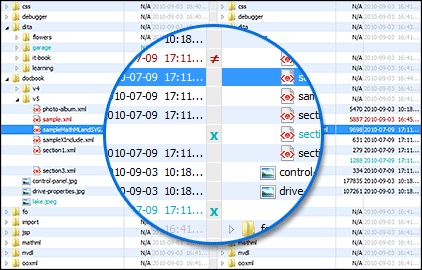
If a file or a folder exists only on one side of the compared directories, the name of the file or folder will be colored blue and marked with an "X". If a file exists in both directories but the content is different, the name of the file will be colored red and marked with a "not-equal" sign.
Compare Images
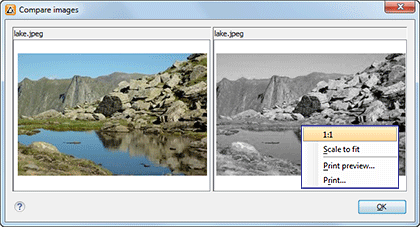
By double-clicking on a line that contains image files, a Compare Images dialog box will be displayed. The dialog box displays the images in both sides, scaled to fit the available area in the view. You can use contextual menu actions to scale the images to fit in the view. This is useful for visual comparison.
The supported image types are: GIF, JPG / JPEG, PNG, BMP.
3-Way Directory Comparison and Merging Changes from Multiple Sources
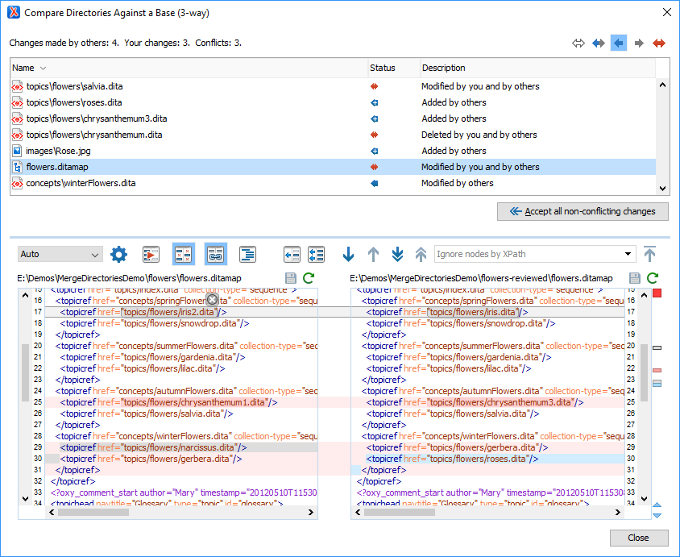
The Compare Directories Against a Base (3-way) tool allows you to perform three-way comparisons on directories to help you identify and merge changes between multiple modifications of the same directory structure. It is especially helpful for teams that have multiple authors contributing documents to the same directory system. It offers information about conflicts and changes, and includes actions to easily merge, accept, overwrite, or ignore changes to the directory system.
Generating File or Directory Comparison HTML Reports
The results of comparing files or directories from the Compare Files/Directories tools can be saved in HTML format. The generated HTML file contains detailed information about the comparison, including a report with the number of differences and filters for each type of difference. In addition, there is also a Generate HTML Report for Directory Comparison action in the Oxygen Tools menu. It can be used to generate an HTML report for a 2 or 3-way directory comparison. For more information about the HTML report generation for file and directory comparisons in Oxygen, watch our video demonstration:
Compare and Merge Files Command-Line Script
The Compare Files script can be used to compare and merge files and get the comparison results in various formats. In the simplest form of using the script, you only provide the paths (or URLs) of the files to be compared and the results of the comparison are automatically provided in the console. The output of the comparison operation can be controlled in various ways through many options that you can choose from, such as the algorithm to be used for the comparison, the "strength" of the comparison algorithm, various "ignore" type options to refine the comparison results, and various formats for the output (YAML, JSON, XML, HTML).
The merge operation is similar to the same process in any versioning system. Following the comparison between the first and second file (relative to the base file), all the incoming differences are considered and the content of the first file is updated accordingly. If conflicting changes are detected, the merge operation is aborted and the first file remains unchanged. After the comparison and merge, a report is created that provides some details about the changes that were made.
Compare and Merge Directories Command-Line Script
The Compare Directories script can be used to compare and merge directories and get the comparison results in various formats. In the simplest form of using the script, you only provide the paths of the directories to be compared and the results of the comparison are automatically provided in the console. However, as with the file comparison script, there are a lot of options to choose from, such as the comparison mode (content, binary, timestamp), the algorithm to be used for the comparison, the "strength" of the comparison algorithm, various "include/exclude" type file filters, various "ignore" type options to refine the comparison results, and various formats for the output (YAML, JSON, XML, HTML).
The merge operation is similar to the same process in any versioning system. Following the comparison between the first and second directories (relative to the base folder), all the incoming differences are considered and the content of the first directory is updated accordingly. Conflicting changes are not addressed. After the comparison, a report is created that provides details about the changes that were made.
Merge Documents and Directories with Change Tracking Highlights
Oxygen offers a range of powerful tools to enhance your content management workflow. Among these tools are two actions, namely "Merge Documents with Change Tracking Highlights" and "Merge Directories with Change Tracking Highlights". These actions enable you to effortlessly compare and merge content, ensuring a seamless collaboration experience. When you utilize these actions, the comparison results are saved as documents that showcase highlighted tracked changes. This feature allows you to easily review and evaluate the modifications made during the comparison process. You can then accept or reject these changes, ensuring that your final content is polished and error-free.
Merge Documents with Change Tracking Highlights
The Merge Documents with Change Tracking Highlights tool can be used to merge two XML documents. The files involved in the process are merged by saving the comparison results as documents with highlighted tracked changes that can later be reviewed and accepted or rejected.
Merge Directories with Change Tracking Highlights
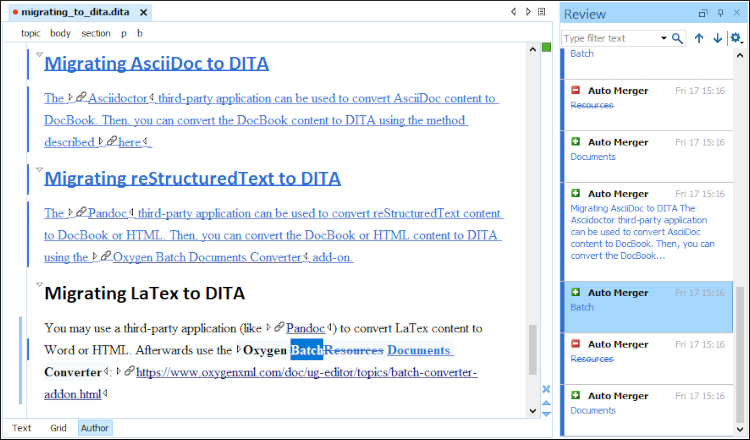
The Merge Directories with Change Tracking Highlights tool can be used to merge two directories. All pairs of modified XML files involved in the process are merged by saving the comparison results as documents with highlighted tracked changes that can later be reviewed, with the option to accept or reject these changes.
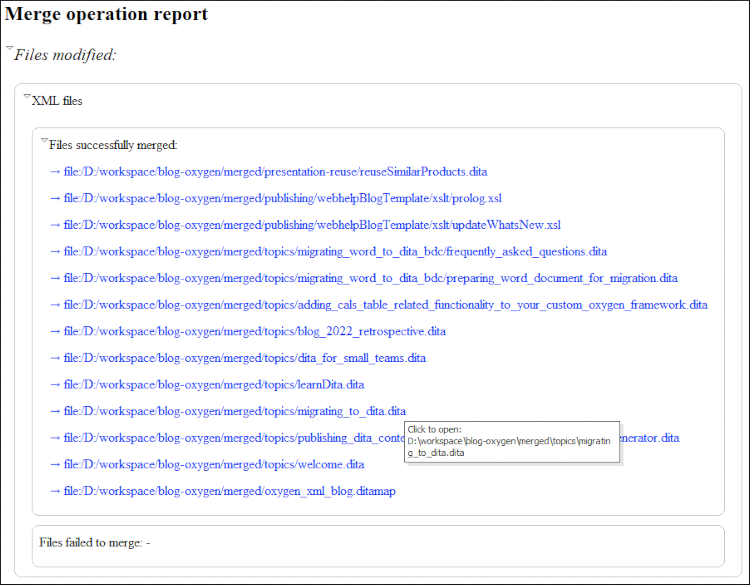
Once the merge operation is complete, loading the report file in Oxygen XML Editor provides additional functionality. Aside from the fact that the report provides an overview of the merge process, it also provides links to all the files in the resulting output directory. This is helpful for generating XML documents with tracked changes. For example, you can use the respective links to load these XML files in Author mode to review the tracked changes and accept or reject them.
To automate the merge process, you can also use the tools from Oxygen Scripting or by using the API.
Compare Documents API
An Oxygen plugin can compare documents either in memory or by opening a "Compare Files" tool using the available APIs.