Intelligent XML Editing
Context-Sensitive Content Completion Assistant
Oxygen offers the list of elements, attributes, and attribute values through the Content Completion Assistant. Unlike other editors that offer all the available entries (for example, all the element names defined by the document XML Schema), Oxygen shows only those entries that are valid in the current editing context. Therefore, the XML document always remains valid and the user does not need expert knowledge of the relationship between elements.
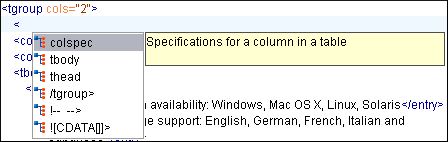
In the following image, you can see that the list of possible elements for the tgroup element contains colspec, tbody, and thead, which is exactly what the DocBook DTD has defined.
Support for Showing Recent Content Items
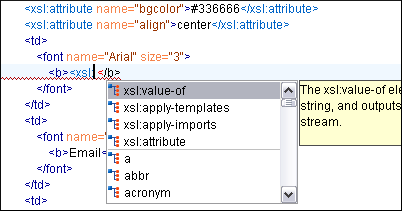
The proposals that have previously been used are promoted at the top of the content completion list, thus allowing for efficient re-use. For example, when editing an XSLT stylesheet, you use a small fraction from the entire set of XSLT and HTML elements. By sorting the recently used proposals to appear at the top of the list, it makes it easier to find them the next time you want to use them.
In the following image, you can see the four XSLT elements that were previously used and they appear above the other elements of the XHTML grammar.
Content Completion Assistant for Documents Without a Schema
If there is a schema associated with the edited document, Oxygen analyzes it and initializes the Content Completion Assistant. If the document has no associated schema, the Content Completion Assistant is initialized by examining the edited document and learning its structure. You can also specify the default XML Schema or DTD to be used for each document type.
Note that the learned structure can be saved to a DTD file and can be used as a skeleton for further development.
Configurable Content Completion Assistant Behavior
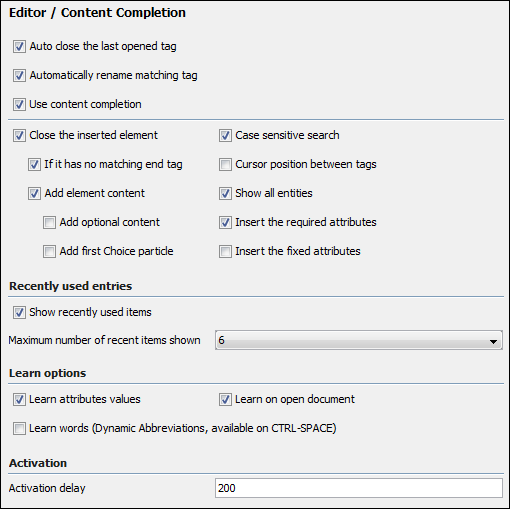
There are numerous settings that allow you to customize the behavior of the Content Completion Assistant. For example, you can enable or disable the generation of the required content or modify the way the cursor is positioned after an insertion.
Content Completion Assistant for IDREFS
Oxygen displays the ID values collected from the most recent validation in the list of content completion proposals where an IDREF or IDREFS type is specified. This not only works with documents that have an associated DTD but also with documents that have an XML Schema or Relax NG schema associated.
In the following image, you can see that when using the Content Completion Assistant on a link (for a linkend attribute value), it contains the IDs found elsewhere in the document.
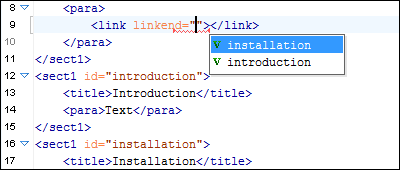
When an attribute value is of the type anyURI (in both XML Schema and Relax NG schema), Oxygen displays proposals of the form #ID for each defined ID value in the document.
Search/Refactoring Support for ID/IDREFS
Oxygen offers support for search and refactoring operations for ID/IDREFS in XML documents that have an associated DTD, XML Schema, or Relax NG Schema. These operations are available in the Text and Author modes.
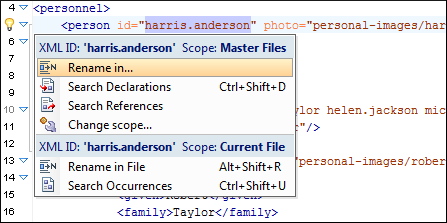
In Text mode, the easiest way to access the search/refactoring action is by using the Quick Assist support. It is available when you position the cursor inside an ID or an IDREF and click the yellow light bulb from the line-number stripe on the left side of the editor.
Highlight ID Occurrences in Text Mode
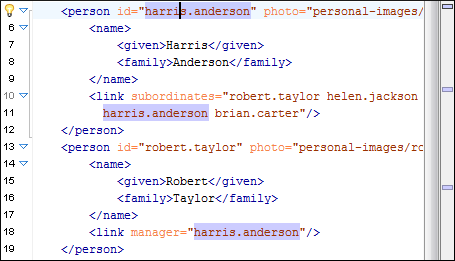
To see the occurrences of an ID in an XML document while in Text mode, you can simply place the cursor inside the ID declaration or reference. The occurrences are marked in the vertical side bar at the right side of the editor and you can click a marker to navigate to that particular occurrence. The occurrences are also highlighted in the editing area.
XML Quick Fixes
The Oxygen Quick Fix support helps you resolve errors that appear in an XML document by offering quick fixes to problems such as missing required attributes or invalid elements. Quick fixes are available for XML documents that are validated against XSD, Relax NG, or Schematron schemas.
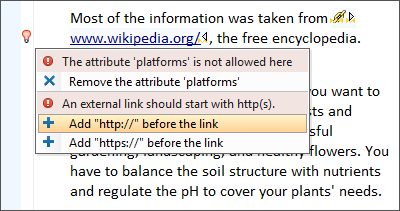
Oxygen automatically analyzes the current error and proposes quick fixes in order to solve it in a single step. The quick fixes are available in both Text and Author editing modes.
Support for Enumerations
The Content Completion Assistant offers proposals for attributes and element values with a type that is an enumeration of tokens. This is available for documents that use XML Schema or Relax NG schema.
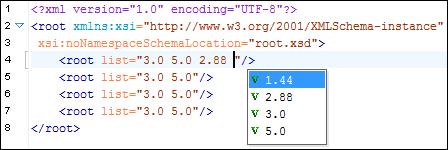
In the following image, the attribute list of the root element has been defined as a list of decimal values (1.44, 2.88, 3.0, and 5.0) and the Content Completion Assistant offers proposals accordingly.
Automatic Generation of Required Content
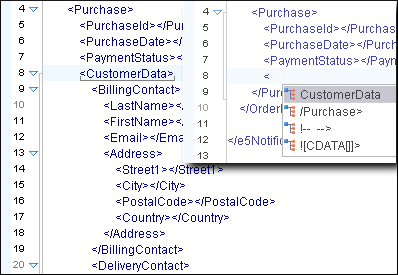
To speed up the content creation, Oxygen automatically inserts the required attributes or content of an element. In the following image, you can see how an entire subtree is generated just by selecting an element. This allows you to create valid content with minimum effort.
Code Templates
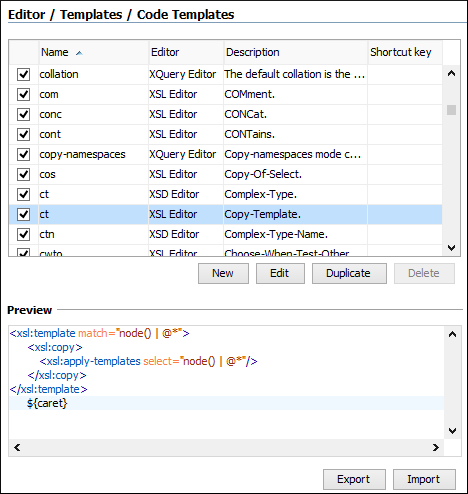
Document fragments can be defined and re-used while editing through code templates. The template list can be obtained with the Content Completion Assistant by using the CTRL+SPACE keyboard shortcut. Oxygen includes a large number of ready-to-use templates for XSLT, XQuery, XML Schema, and CSS, but you can also create your own code templates for any type of document. The templates can also be shared with others by using Export and Import actions.
In the following image, the Preview pane shows you how a Copy-Template code template has been defined. After insertion, the cursor will be positioned after the xsl:template closing tag line.
Resource Hierarchy/Dependencies View
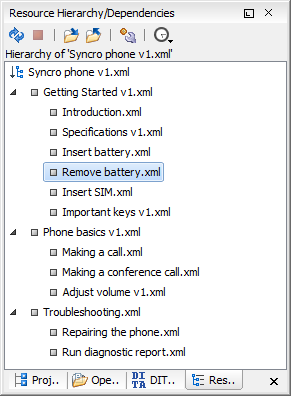
The relationship between XML resources that are referenced using XInclude and external entity mechanisms can be visualized and understood with the help of the Resource Hierarchy/Dependencies View.
Update References of Moved or Renamed Resources
When an XML, XSL, XSD, or WSDL resource is renamed or moved in the Project view, Oxygen gives you the option to update the references for that resource. The same option is available when you move or rename a resource in the Resource Hierarchy/Dependencies view.

Matching Tag Highlight and Navigation
When placing the cursor inside a tag name, both the start-tag and the end-tag are underlined to provide immediate focus on the current element. You can move the cursor to the matching tag using the Go to Matching Tag action from the contextual menu and Oxygen includes a variety of helpful shortcuts to help to easily identify and navigate XML tags.
Automatic Editing of the Matching End-Tag
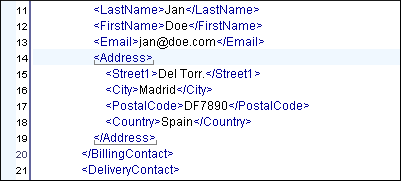
It is easy to rename elements in Oxygen. When the start-tag of an XML element is edited, the matching end-tag is automatically changed, thus keeping the XML document "well-formed" and saving you a few keystrokes.
Lock/Unlock XML Tags
The Lock/Unlock XML Tags option allows you to protect the markup from accidental changes and to limit modifications to text sections. This is especially useful when editing XML documents or templates with fixed markup where only text content is allowed to be modified.
Folding
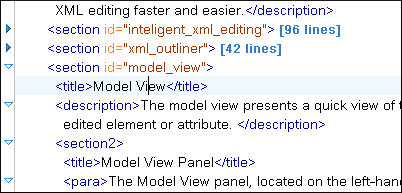
XML documents have a tree-like structure. Folding allows you to collapse elements, leaving only those that you need to edit in the focus. A unique feature of Oxygen is the fact that the folds are persistent (the next time you open the document the folds are restored to the last state so you can continue to work from where you left off). For non-XML files, the folding strategy is to collapse blocks of text that have the same indent.
In the following image, you can see that only one section is expanded and the rest are collapsed. The number of lines that were collapsed are listed in brackets on the right side of the folded elements.
You can also use contextual menu actions to collapse or expand a selected fold, its child folds, or all other folds
Optional Content Generation
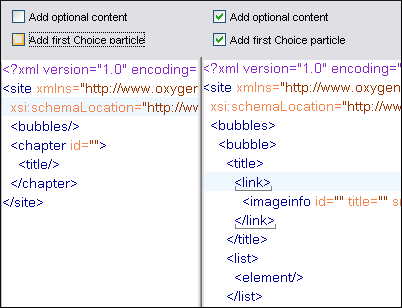
When creating a new XML document, the editor generates the content of the root element based on the required elements as it was specified in the associated schema or DTD. Two options are also available to make the content generation process take into account optional content and choice models, thus allowing you to obtain more content for the new document.
In the following image, the site element was chosen as the root of the new document. The checkboxes above the text show the settings from the New Document dialog box. You can see that activating the optional content generation options produce more generated content.