XSL / XSLT Editor
XSL Editor
With <oXygen/> XSL Editor you can easily create, edit, test and
validate XSLT documents. The content assistant will provide the
elements, attributes and attribute values specific for XSL and
additionally the elements from the target document. Transformations can
be configured to run the XSL you are creating.
XSL Outline View
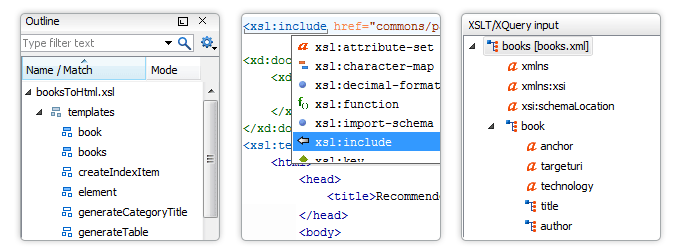
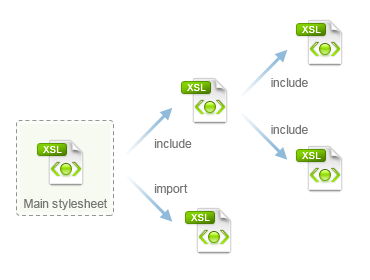
The Outline view for XSLT presents the stylesheet
components (templates, functions, variables, parameters, attribute-sets,
character-maps) from the currently edited file and from the included and
imported stylesheets. Components can be sorted by name and grouped by
type, location and mode.
The XSLT stylesheet components information are presented in two
columns: the first column present the name and
match attributes, the second column the
mode attribute. If you know the component name,
match or mode, you can search it in the outline view by typing one of
these information in the bottom filter text field.
XSL Content Assistant Shows the Output Document Elements
While creating an XSL document you are creating as output, in general,
HTML, FO or another XML format. The XSL standard allows specification of
the elements from the target output directly, that is you can specify
something like <table> ... </table> instead of
<xsl:element name="table"> ... </xsl:element>. The
content assistant provided by <oXygen/> shows the elements from the
target output wherever an element can be inserted. The target output
document type can be easily configured from options. You can choose from
XHTML, FO or you can specify the path of a custom XML Schema or
DTD.
These settings define what elements are suggested by the content
assistant in addition to the XSL ones.
XPath Aware Content Assistant
Editing XPath expressions for the "match",
"select", or "test" attributes is not always straight forward.
<oXygen/> makes this task easier by showing in Content Assistant
proposal list the XPath functions and axes, all documented with sections
from the W3C specifications.
If you have configured a scenario for the edited
stylesheet, then the proposal list contains also the names of the
elements from the input document that are currently accepted in the
XPath expression.
The next image shows a list of functions. The stylesheet had the
version 2.0, so the list is populated with the XPath 2.0
functions.
The next image shows how the input elements presented in the list are
filtered depending on the context node.
The template selects the "personnel", the xsl:for-each selects
"person" elements. The "person" element is thus the context for the
evaluation of the test. The context is further changed by the partial
XPath expression edited so far, the result being the "family" added to
the completion list.
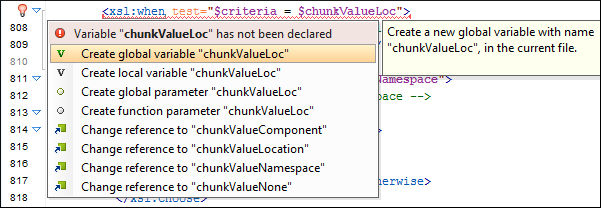
Content completion offers the list of components from
included/imported XSLT stylesheets
The content completion offers XSLT variables,
templates, functions and modes not only from the current stylesheet but
also from the included or imported ones.
Allow Different Element Colors Depending on XML Prefix
This allows for instance to have the XSLT elements
in a different color than the result elements, or the XML schema
elements different from the elements used inside annotations.
You can add your own prefixes to the list of prefix to color mappings.
In the next image, the "fo" prefix has been mapped to green.
XSLT Input Document View
This view presents the tree structure of the XML
document set as input for the current stylesheet in the associated
transformation scenario.
You can create templates or other XSL snippets by
dragging the nodes from the tree into the stylesheet. The generated
XPath expressions are context aware.
For example dragging the node "/personnel/person/name" into a
xsl:template matching "person" will insert for instance an
"xsl:for-each" with the select attribute equal to "name", while dragging
the same node into a template matching "personnel", will set a
"person/name" as value of the select attribute.
Support for Multiple Transformations
Multiple transformation scenarios may be created. Before transforming
the current edited XSL document in <oXygen/> one must define a
transformation scenario that applies to the document. A scenario is a
set of values for various parameters defining a transformation. It is
not tied to any particular document.
The Configure Scenario dialog is used to associate a scenario from
the list of all scenarios with the edited document by selecting an entry
from the list. Use the XSLT tab to specify an input XML file to be used
for the transformation. You can also add XSLT parameters or optionally
specify the initial template for XSLT 2.0 stylesheets..
After starting a transformation the button will change from "Start"
to "Stop", so you can stop a time consuming transformation at any
time.
Flexible Input Configuration for Transformation Scenarios
You can specify both the transformation XML source
and the stylesheet locations, it is not required anymore for the edited
document to be one of the transformation XML source or stylesheet. This
allows editing a module and invoking a transformation on the master
files.
The editor variable ${currentFile} can be used to indicate the current
file.
Inline Documentation for the XSL Elements
The content completion was improved to show you the schema annotation
documentation for the element and attribute proposals. <oXygen/>
bundles an annotated schema for XSLT stylesheets, this way making the
documentation instantly available. Together with the outliner and the
model view, this new feature transforms <oXygen/> XML / XSL Editor in
one of the best XSL editors available.
Support for Multiple XSL Java Transformers
You can choose between two of the most popular Java XSLT engines:
Xalan and Saxon EE which are bundled with <oXygen/>. You can also
configure any JAXP compliant XSLT processor and use it to perform
transformations.
In this way you can easily work in development with the engine you
choose for your production system. Other XSLT engines can be configured
as external tools.
Support for XSLTProc and MSXML XSLT transformers
<oXygen/> can perform XSLT transformations using MSXML 3.0/4.0/.NET and
XSLTProc transformers. Usually on the Windows platform any Microsoft
Office application installs the MSXML 3.0 or 4.0 package. The <oXygen/>
installation kit includes adapters for these transformers.
XSLTProc is part of libxslt (the XSLT C library for GNOME) and is
packaged in the Windows, Mac OS X and Linux standalone <oXygen/>
distributions. In case you want to use it from the Eclipse plugin, you
have to copy the executable files into the plugin directory.
Additional XSLT Stylesheets
The transformation scenarios allow you to specify additional XSLT
stylesheets that will be executed in cascade on the output of the main
stylesheet of the scenario. It is possible to define complex scenarios
that involve more than a single stylesheet, thus a single action can
execute multiple XSLT transformations and eventually a FOP
transformation. The list of additional XSLT stylesheets can be edited in
the dialog opened by the button "Additional XSLT
stylesheets".
Easy Configuration of XSLT Extensions
XSLT processor extensions are added easily with an
intuitive user interface.
If you need processing functions not available in
the XSLT language it is easy to configure the jars containing their
implementation: edit the list of XSLT extensions available in Edit
Scenario Dialog.
The Default Scenario
If you press the Apply Transformation Scenario toolbar button and if
there is no scenario associated with the edited document and the
document contains a "xml-stylesheet" processing instruction
referring to a XSLT stylesheet (commonly used for display in Internet
browsers), then <oXygen/> will prompt asking to create a default
scenario containing in the XSL URL field the URL from the href attribute
of the processing instruction. This scenario has the "Use
xml-stylesheet declaration" checkbox set. It uses Saxon as
transformation engine and does not perform FO processing. The result is
stored in a file with the same URL as the edited document except the
extension which is changed to html.
Import/Export Transformation Scenarios
You can share the transformation scenarios with other <oXygen/>
users. The option to Export Transformation Scenarios is used to save all
the scenarios in a separate file. The file will also store the
associations between document URLs and scenarios.
Preview Transformation Results
<oXygen/> offers three integrated views to show the XSLT transformation
results. One is text based and will render XML or text results, other is
XHTML based and will render XHTML results, the last one being able to
display SVG results. You can also choose to see the transformation
results in the application associated with the output file type.
|