XML Outline View
Outline View
Oxygen XML Editor includes a powerful Outline view that is automatically synchronized with the document changes. The Outline view displays the tree structure of the document as it is edited and modified elements are immediately revealed and selected in the view. An element can also be selected in the main editor by clicking the corresponding node in the Outline view. The Outline view uses an extremely fast and robust parser that is even able to handle XML documents that are not "well-formed".
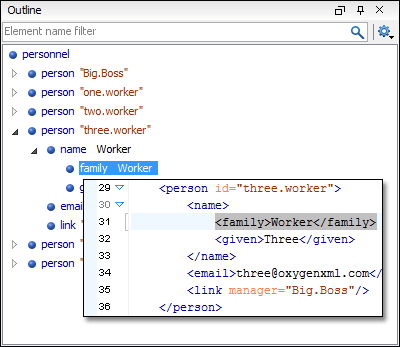
By default, the Outline view is located in the bottom left part of the main editor window and offers a variety of features.
Document Overview
The XML Outline view displays a general overview of tags within the currently edited XML Document. It shows the hierarchical dependencies between the elements and makes it easy for you to see the structure of the document.
When hovering over elements in the Outline view, a short text is displayed that describes each element from the tree. The description is composed of the value of the first attribute of a rendered element or the first few words from the text content. You can also filter attribute and text values by using the options in the Settings drop-down menu that is located at the top-right corner of the view.
Modification Follow-up
When editing documents, the Outline view dynamically follows the introduced modifications and scrolls to the node that is currently being modified. This gives you a better insight on how the document is affected by the modifications.
Element Selection
The Outline view can be used to search for specific element locations and content in the edited document. When you select a node in the outline tree, the document is scrolled to the position of the selected element and the content of the tag is highlighted in the document.
Filtering Support in the Outline View
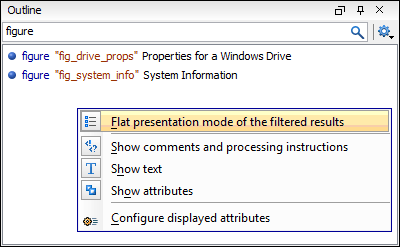
You can control which elements are displayed in the Outline view by entering element names in the filter box at the top of the view. If you type a text fragment in the filter box, the view only displays the relevant components. In the following image, the element name figure is entered in the filter box, thus all elements corresponding to that name are displayed in the Outline view. For more advanced filtering, you can use wildcard characters (*,?) and separate multiple patterns with commas.
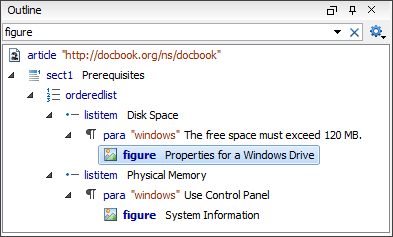
The following image shows another example where the filtered outline is displayed as a tree. Only the elements that are parents or children of the element figure are displayed and the filtered elements are in bold.
Error Markers in the Outline View
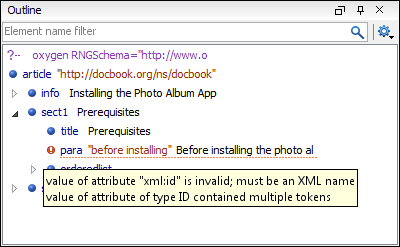
The Outline view displays XML validation errors and warnings by marking elements that have problems with a red or yellow icon. Additional details in regards to an error is displayed in a tooltip, as illustrated in the following image.