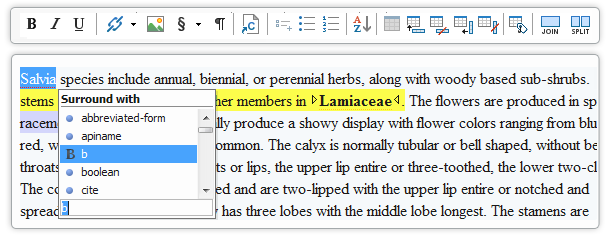
<oXygen/> offers the most advanced DITA editing support covering both DITA 1.1 and 1.2 standards and allows even users with less knowledge of XML to edit DITA documents in a visual interface similar to a word processor. The DITA Open Toolkit publishing engine (usually the latest) is bundled with the application.
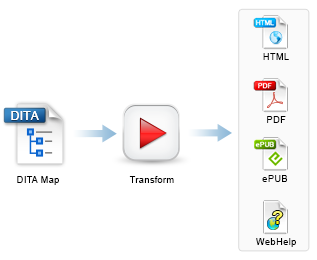
<oXygen/> offers intelligent DITA editing assisting the user with content completion, DITA specific actions, validation and a number of predefined transformation scenarios to immediately publish DITA to PDF, WebHelp, EPUB and other DITA output formats.
New DITA documents can be easily created using predefined and user defined document templates. The predefined templates cover all the DITA standard information types including topics, tasks, concepts, composites, references, maps and learning content.
Visual table builder, in-place expansion of content references, link navigation and conditional processing are just a few of the DITA specific features provided by <oXygen/>.
<oXygen/> is specialization aware and once a DITA specialization is integrated in the bundled DITA-OT it will just work in <oXygen/> for editing, validation and publishing.
The DITA Maps are key components for authoring DITA content. Managing these files and the referenced topics is an important feature for a DITA aware editor.
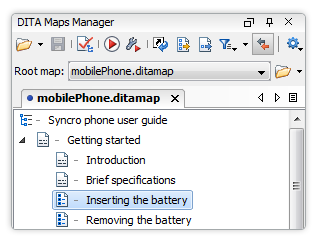
The DITA Maps Manager allows viewing and editing of DITA map files. It acts also similar with a project manager allowing you to easily open different topics/concepts for editing. The DITA maps manager is shown each time you open a .ditamap file in <oXygen/> and it will appear as a tab in the same stack as the Project view. A double click on a file reference listed in a DITA map opens that file in the editor.
Note that when working with large projects and multiple DITA map files you can easily find resources by using the dialog Open/Find Resource.

The selection in the DITA Maps Manager is synchronized with the currently edited topic, so you can easily identify the parent or the siblings of the current topic.
To help keeping all the inter-topic references consistent when working with large DITA maps, <oXygen/> provides validation and completeness checking for the entire DITA Map's topic hierarchy. This action is available from the DITA Maps Manager toolbar and from the contextual menu.
The following checks are performed:
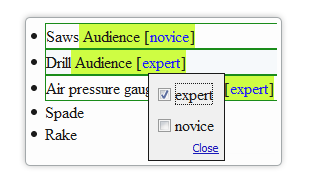
<oXygen/> offers full support for DITA conditional text processing: profiling attributes can be easily managed to filter content in the published output. You can toggle between different profile sets to see directly in the Author what will be included in the output.
Conditional text is a way to mark blocks of text meant to appear in some renditions of the document, but not in others. For instance you can mark a section of a document to be included in the manual designated for the 'expert' users, other for the 'novice' users manual while unmarked sections are included in any rendition.
You can use conditional text when you develop documentation for:
DITA offers support for profiling/conditional text by using profiling attributes. With <oXygen/> you can define values for the DITA profiling attributes or you can use directly the values default provided by <oXygen/>. The profiling options can be shared between content authors through the project file. There is no need for coding or editing configuration files.
You can easily set or modify profiling attributes using the contextual action "Edit Profiling Attributes":

<oXygen/> allows you to aggregate a set of profiling conditions (attributes and their values) as Profiling Condition Sets.

Using a Profiling Condition Set you can:


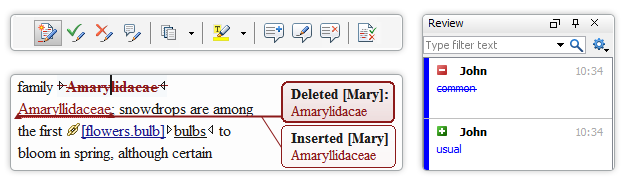
Change Tracking is a way to keep a history of the changes made to a document. When change tracking is enabled, the inserted and deleted content is highlighted in the document allowing you to easily identify the affected regions. Also, tracked changes can be rendered in callouts (balloons) displayed at the side of the document, with connecting lines pointing to the changed content.
<oXygen/> supports changes from multiple authors, rendering each author changes with different colors.
For each change <oXygen/> stores the author and the date when that change was performed. The name of the author who is currently making changes and the colors can be customized from the Track Changes preferences page. It is possible to add comments to the changes.
In the screenshot you can see how various insert/delete changes made by various authors are displayed (the option to display changes as balloons is on).
You can review the changes made by you or other authors and then accept or reject them using the Track Changes toolbar buttons or by using the change management dialog.
When you annotate your XML documents, the comments are displayed in the Author view as side callouts (balloons) showing also additional information like the author and the comment time.
The comment support is not limited to a document type (DocBook or DITA for instance). You can use it on any document that is opened in the Author editing mode. The comment data is stored in the XML document as processing instructions, so it will not interfere with your XML tool chain.

You can access the comments actions from the application toolbar:![]()
Styled content can be inserted by copying content from Office applications (Microsoft Word and Microsoft Excel, OpenOffice.org Writer and OpenOffice.org Calc) and Web browsers (Mozilla Firefox, Microsoft Internet Explorer) and pasting it in the DITA editor. The styles and general layout of the copied content like: sections with headings, tables, list items, bold and italic text, hyperlinks, etc. are preserved by the paste operation as equivalent DITA XML elements.
You can select multiple text ranges (discontinuous selection) or multiple elements in the Author page and cut/copy/paste them.

The tool chain to generate output in a multitude of formats (XHTML, PDF, HTML, JavaHelp, Eclipse Help, DocBook, etc.) is ready to use out of the box as <oXygen/> includes the latest version of the DITA-OT. Also, <oXygen/> adds a new format, called WebHelp, which provides a navigable table of contents and searchable content.
Power users have also the possibility to fine tune the transformations by using the advanced options like specifying parameters for the ANT build files, filtering content using a DITAVAL file or a Profiling Condition Set, providing a custom build file, etc.

In addition to the standard DITA-OT transformation scenarios, <oXygen/> can convert DITA Maps to WebHelp, providing a website-friendly presentation of the DITA content, featuring a table of contents, index navigation and text search capabilities.
Starting with version 14, <oXygen/> added the ability to transform DITA and DocBook documents into Feedback-Enabled WebHelp systems, being the first XML Single Source Publishing solution which supports this technology. This means that the communication is bidirectional. The users that visit the documentation pages are able to see the added comments and reply to them.
If you already used forum systems before, you will find a similar graphical interface and familiar concepts that should ease the interaction with the Feedback-Enabled WebHelp system even further.

The <oXygen/> user guide was published using this technology. For a smaller sample, please see the Growing Flowers demo.
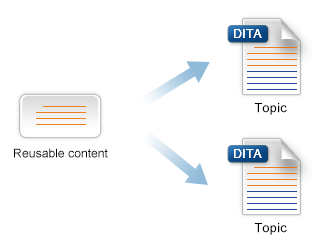
Content referencing (conref) is a convenient DITA mechanism for reuse of content from other topics or maps. You can easily insert a conref in a DITA document using the "Insert a DITA Content Reference" action. It allows you to choose the target ID by selecting it from the list of IDs defined in a topic.
To quickly insert a link or a content reference in a DITA topic you can use one of the contextual menu actions: Paste as Link or Paste as Content Reference. Other way to create links is by using drag-and-drop. Dropping an image file onto a topic will create an image element, while dropping other type of file will create an xref element.
<oXygen/> supports the new DITA 1.2 indirect referencing based on key references and key definitions (keyref and conkeyref ) to increase reusability of content. There is also support for inserting and rendering of content referred through the pair of attributes conref / conrefend.
The XML content referred with DITA conref is presented in place as a read only block that can be collapsed/expanded. In this way the XML editor shows a picture of the entire XML document with all the XML references resolved.

In the above screen-shot the referred XML element appears selected. If you need to edit a referred element content, you can click the link that is placed before it. <oXygen/> will open the file and place the caret at the beginning of the referred element.
The action "Open Map in editor with resolved topics" is available on the DITA map root when opened in the DITA Maps manager. This action opens the map in the editor, with all the referenced topics and maps expanded in-place. In this way you have a preview of the publishing result.
<oXygen/> is able to recognize the DITA documents based either on the root element name or the DITAArchVersion attribute. When you switch to the Author mode, the XML editor loads both the set of CSS files and the available actions that were associated in the <oXygen/> DITA configuration.
The action set includes operations for emphasising text, creating lists, tables, sections and paragraphs.

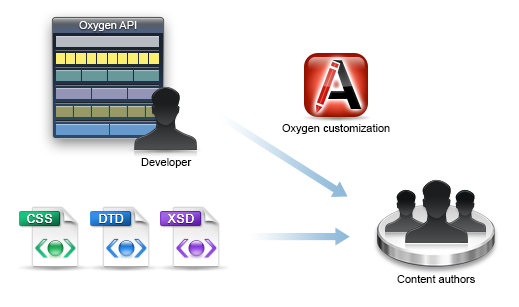
The CSS files, DTDs and even the actions from the toolbar and menus can be changed. You can create new operations either customizing the default ones - used for the insertion of XML fragments - or by creating new Java Implementations. For more information, see the User Manual.
The next figure shows how the "Insert Paragraph" action has been added to the menu.
You can easily create CALS tables, join or split cells, add or remove rows. <oXygen/> will create all the column specifications for you.

A CALS table example. The caret is positioned between two cells.

<oXygen/> can manage table width and column width specifications from the source document both in fixed and proportional dimensions. The tables and columns widths can be visually adjusted by dragging with the mouse their edges.
In the figure below the column widths are being adjusted.

By allowing to select entire rows and columns <oXygen/> you can easily copy or move table data using copy/paste and drag and drop operations.

Please note that DITA does not support MathML out-of-the-box. You will have to create a DITA specialization that supports it, and also to modify the DITA Open Toolkit processing chain in order to convert the embedded MathML document fragments to a format that is supported by the Formatting Objects processors.
If your DITA specialization DTD allows using MathML elements in your documents, oXygen can render and edit the MathML equations.

See below an equation edited in the <oXygen/> built-in MathML editor. Features include:

The MathFlow editor (one of Structure Editor, Style Editor, Simple Editor) is presented when you have a licensed installation of the MathFlow SDK on your computer and configured in oXygen. The Structure Editor targets professional XML workflow users. Such users need fine control over visual presentation, as well as its underlying MathML structure. It is the best choice for demanding publishing workflow applications. The Style Editor is tailored to the needs of content authors, while the Simple Editor is designed for applications where end-users can enter mathematical equations without prior training, and only the meaning of the math matters.
An equation edited with the MathFlow Structure Editor:

The access to document repositories can be made through WebDAV, FTP, SFTP. More, <oXygen/> supports access to native XML databases (eXist, Berkeley DB XML, MarkLogic, etc.. ) and relational databases (Oracle, IBM DB2). If you are accessing a different content management system, the editor can be extended by writing a Java URL protocol handler.
<oXygen/> supports DITA version 1.2. Here are some of the editor capabilities: