Organization Subscription Page
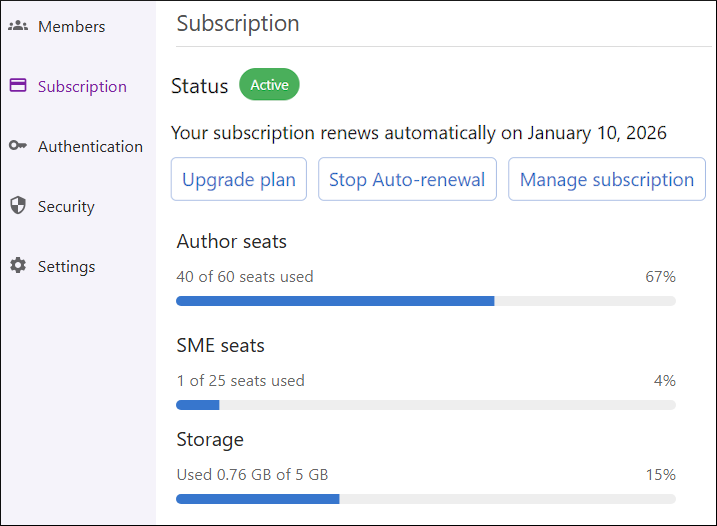
The Subscription page in Oxygen Content Fusion allows organization administrators to view and manage their organization's subscription status, monitor license usage, and handle subscription-related actions.
Accessing the Subscription Page
- Click on your user profile name in the top-right corner of the interface.
- Select Manage organization from the drop-down menu.
- In the organization management interface, click on Subscription in the left navigation panel.
Page Layout and Components
The Subscription page provides comprehensive information about the current subscription state and available actions based on the subscription type and status.
The subscription page is organized into two main sections:
- Subscription Status Section
- Displays the current subscription status, renewal information, and available
management actions. This section includes:
- Status indicator - A colored chip that shows the current trial/subscription state (Active, Expired, or Cancelled)
- Status description - Detailed information about the subscription state and expiration/renewal date.
- Action buttons (e.g. Upgrade plan, Stop Auto-renewal, Manage subscription, Buy subscription) - Context-sensitive buttons for managing the subscription.
- Contact information - Direct link to sales support for additional assistance.
- Seat Usage Section
- Shows the current allocation and usage of license seats for both Author and
Subject-Matter Expert (SME) roles. This section includes:
- Author seats - Progress bar and percentage that shows the used vs. total Author licenses.
- SME seats - Progress bar and percentage that shows the used vs. total SME licenses.
- Storage - Shows how much space (in GB) is used by the tasks, projects, and deliverables from the organization, with a percentage that is relative to the subscription's disk quota. For a per-project breakdown, see the Projects page in the organization administration area.
Subscription Status Types
The subscription can be in one of several states, each with different visual indicators and available actions:
- Trial - Active
- Indicates that the organization is currently using a trial subscription. This status
shows:
- A yellow/orange status chip with warning icon.
- The trial expiration date information.
- A Buy Subscription button to upgrade to a paid plan.
- Trial - Expired
- Indicates that the trial period has ended. This status shows:
- A red status chip indicating the trial has expired.
- The expiration date information.
- A Buy Subscription button to purchase a paid plan.
- A Restart Trial button (if available) to extend the trial period.
- Subscription (Paid) - Active
- Indicates an active paid subscription. This status shows:
- A green status chip indicating an active status.
- The renewal date information.
- Manage Subscription button to access Verifone account management.
- Renew Plan button (if auto-renewal is disabled).
- Stop Auto-renewal button (if auto-renewal is enabled).
- Upgrade Plan button to increase the number of available seats.
- Subscription - Cancelled
- Indicates that the subscription has been cancelled. This status shows:
- A red status chip indicating the subscription has been cancelled.
- The cancellation information.
- A Buy Subscription button to purchase a new subscription.
Purchase and Management Flow
The subscription management system provides different flows based on the current subscription state:
Upgrading from Trial to Paid Subscription
- Click the Buy Subscription button in the Subscription Status section.
- You will be redirected to the Verifone payment system to complete the purchase.
- After successful payment, your subscription status will automatically update to "Active".
Managing Paid Subscriptions
- Click the Manage Subscription button in the Subscription Status section.
- The resulting dialog box provides instructions for accessing your Verifone account. It displays your order reference number with a copy button for easy access.
- Click Go to Verifone Account to open the Verifone My Account page in a new window.
- In Verifone, you can:
- Update payment methods.
- Enable or disable auto-renewal.
- View billing history.
Subscription Renewal
- Click the Renew Plan button in the Subscription Status section.
- A new browser tab will open and redirect you to the Verifone payment system.
- Complete the renewal process through the Verifone checkout system using your preferred payment method.
- After successful payment, you will be redirected to a confirmation page.
- Close the renewal tab and return to the Oxygen Content Fusion subscription page.
- Wait up to 10 minutes for the system to process the renewal and update your subscription details.
- Refresh the subscription page to see the updated expiration date.
Stopping Auto-renewal
- Click the Stop Auto-renewal button in the Subscription Status section.
- The system will immediately disable auto-renewal for your subscription.
- The button will disappear and your subscription status will update to reflect that auto-renewal is disabled.
- You will need to manually renew your subscription before the expiration date to continue using the service.
Subscription Upgrade
- Click the Upgrade plan button in the Subscription Status section.
- The Upgrade Subscription dialog box will open, showing your current seat allocation.
- In the dialog box, specify the new number of seats for each role
type:
- Author Seats - Enter the desired number of Author licenses (must be equal to or greater than your current allocation).
- SME Seats - Enter the desired number of SME licenses (must be equal to or greater than your current allocation).
- Review the seat counts to ensure they meet your organization's needs.
- Click Continue to proceed with the upgrade.
- A new browser tab will open, redirecting you to the Verifone payment system to complete the upgrade purchase.
- Complete the upgrade process through the Verifone checkout system using your preferred payment method.
- After successful payment, you will be redirected to a confirmation page.
- Close the upgrade tab and return to the Oxygen Content Fusion subscription page.
- Wait up to 10 minutes for the system to process the upgrade and update your subscription details.
- Refresh the subscription page to see the updated seat allocation in the Seat Usage section.
License Usage Monitoring
The Seat Usage section provides real-time monitoring of license consumption:
- Author Licenses
- Shows the usage of Content Fusion Author licenses, which are user-based. The display
includes:
- Number of active Author users out of total available.
- Visual progress bar indicating usage percentage.
- Percentage display for quick reference.
- SME Licenses
- Shows the usage of Subject-Matter Expert licenses, which operate on a floating seat
model. The display includes:
- Number of active SME users out of total available.
- Visual progress bar indicating usage percentage.
- Percentage display for quick reference.
- Active members - Users who are currently active in the organization.
- Pending invitations - Users who have been invited but not yet accepted.
- Platform role assignment - Whether users are assigned as Authors or SMEs.
Cancelling Subscriptions
German shoppers (localized via billing address country) can cancel their subscriptions by themselves from their Verifone MyAccount. Others should contact their payment provider.
- Click the Manage Subscription button in the Subscription Status section in the Content Fusion Subscription page.
- The resulting dialog box provides instructions for accessing your Verifone account.
- Click Go to Verifone Account to open the Verifone My Account page in a new window.
- Schedule a cancellation.
Organization Impact After Subscription Expiration / Cancellation
- Organization Suspension - When a subscription expires or becomes cancelled (either manually by the user or through the payment provider), the organization automatically enters a suspended state. This suspension prevents normal access to the organization's resources and data.
- Subscription Status Visibility - The expiration or cancelled status is clearly displayed on the organization's Subscription page, showing users that their subscription is no longer active. The status appears with appropriate warning indicators to make the situation immediately clear.
- For Organization Administrators - When an administrator logs into a suspended organization, they are automatically redirected to the Subscription page. This ensures they can immediately see the subscription status and take action to resolve the situation. The system recognizes that administrators need direct access to subscription management tools.
- For Organization Members (Non-Administrators) - Regular members who log into a suspended organization see an informational page that explains the current situation. This page clearly communicates that the organization's subscription is no longer active and provides context about why they cannot access their usual workspace.
- Automatic Reactivation - When a new subscription becomes active (through purchase or reactivation), the organization is automatically restored to normal operation. The suspension is lifted, and all users regain full access to their organization's resources.
- Manual Subscription Renewal - Administrators have access to a Renew plan button on the Subscription page when their organization is suspended due to subscription expiration. This button opens the subscription renewal flow, allowing them to quickly resolve the suspension by renewing their subscription plan.
- Purchase New Subscription - Administrators have access to a Buy subscription button on the Subscription page when their organization is suspended due to subscription cancellation. This button opens the subscription purchase flow, allowing them to quickly resolve the suspension by purchasing a new subscription.
Troubleshooting and Support
- Contact Sales - Use the contact information provided on the subscription page for direct assistance with subscription-related questions.
- Organization Access - Ensure you have Organization Administrator privileges to access subscription management features.
- Upgrade Issues - If the Upgrade plan button is not visible, verify that your subscription is active and paid. The upgrade feature is only available for paid subscriptions with Verifone account information.
- Seat Validation - When upgrading, ensure that the new seat counts are equal to or greater than your current allocation. The system prevents downgrades through the upgrade interface.
- Processing Delays - After completing an upgrade, allow up to 10 minutes for the system to process the changes. If seat allocation doesn't update after this time, refresh the page or contact support.