
Organization Settings Page
Organization administrators can use the Settings page to manage general settings, AI feature availability, and organization deletion options.
The Organization Settings page in Oxygen Content Fusion allows organization administrators to manage their organization's basic information, AI feature availability, and organization deletion.
Accessing the Organization Settings Page
Only users with an Organization Administrator role can access the organization settings page. To access this page:
- Click on your user profile name in the top-right corner of the interface.
- Select Manage organization from the drop-down menu.
- In the organization management interface, click on Settings in the left navigation panel.
Page Layout and Components
The Settings page provides comprehensive control over organization-level settings and includes important warnings about subscription impacts when deleting an organization.
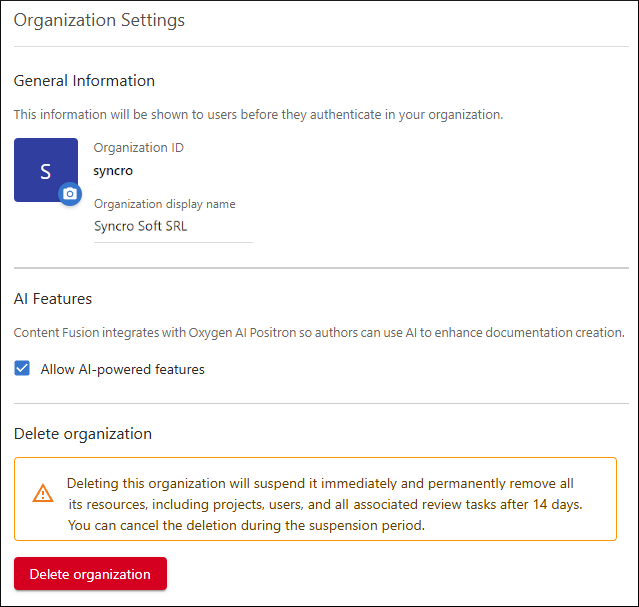
The organization settings page is organized into these main sections:
- General Information Section
- Displays and allows editing of basic organization details:
- Organization Avatar - Visual representation of the organization with the option to upload a custom image.
- Organization ID - Unique identifier for the organization (read-only).
- Organization Display Name - Editable name that appears throughout the interface.
- Allow AI-powered features
- If selected (default), organization members have access to the AI features contributed by the Oxygen AI Positron.
- Delete Organization Section
- Provides options for organization deletion with important alerts:
- Deletion Warning - Orange warning box that explains the consequences of deletion.
- Auto-renewal Info - Blue information box (appears when applicable) that explains deletion will disable auto-renewal.
- Delete Organization button - Red button to start the deletion process.
Managing General Organization Settings
The General Information section allows you to customize your organization's appearance and identification.
Organization Avatar
You can upload a custom image to represent your organization.
- Click the camera icon in the organization avatar area.
- Select an image file from your computer.
- The image is automatically resized and applied as your organization's avatar.
Organization Display Name
You can change how your organization name appears throughout the interface.
- Click the current display name or the edit icon next to it.
- Enter the new display name in the text field.
- Click Save to apply the changes.
Organization Deletion
The organization deletion feature allows administrators to permanently remove their organization and all associated data. This process includes important considerations regarding subscription management.
Deletion Warnings and Information
- Primary Deletion Warning - An orange warning box that explains the immediate suspension and permanent removal of all organization resources, including projects, users, and review tasks after a 14-day grace period.
- Auto-renewal Impact Info - A blue information box that appears when your organization has an active paid subscription with auto-renewal enabled. This warning states: "Deleting this organization will also disable the auto-renewal of your subscription."
Deleting an Organization
- Review all warning messages carefully, including the auto-renewal impact if applicable.
- Click the Delete organization button.
- If your organization has auto-renewal enabled, the system will automatically disable auto-renewal as part of the deletion process.
- The organization will be immediately suspended and scheduled for permanent deletion after 14 days.
- All users will lose access to organization resources immediately.
- You will receive email notifications about the deletion schedule.
Cancelling Organization Deletion
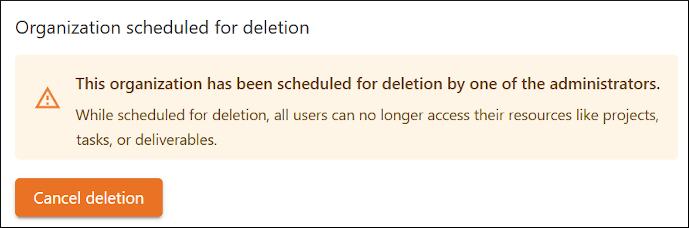
- Navigate to the Organization Settings page.
- You will see a warning section titled "Organization scheduled for deletion" with an orange warning box.
- Click the Cancel deletion button.
- The organization will be restored to active status.
- Users will regain access to organization resources.
Auto-renewal and Subscription Impact After Organization Deletion
Organization deletion has specific impacts on subscription management that administrators should understand:
Automatic Auto-renewal Disable
- The system automatically disables auto-renewal as part of the deletion process.
- This prevents future automatic charges for a subscription that will be deleted.
- The auto-renewal disable occurs before the organization is suspended.
- If auto-renewal cannot be disabled, the deletion process will fail with an error message.
Subscription Status After Deletion
- Your subscription remains active until its natural expiration date.
- Auto-renewal is permanently disabled.
- If you cancel the deletion, the subscription remains active but auto-renewal stays disabled.
- You must manually renew before expiration if you want to continue using the service.
Troubleshooting Organization Settings
If you encounter issues with organization settings management:
- Access Issues - Ensure you have Organization Administrator privileges to access settings management features.
- Avatar Upload Problems - Verify that your image file is in a supported format (JPG, PNG, WebP) and is not too large (recommended maximum 100kB).
- Display Name Changes - If display name changes do not appear immediately, refresh the page or check that you have the necessary permissions.
- Deletion Process Issues - If organization deletion fails, check that auto-renewal can be disabled successfully. Contact support if the issue persists.
- Auto-renewal Note - If you do not see the auto-renewal warning when expected, verify that your subscription is paid and purchased through Verifone with auto-renewal enabled.