
Organization Management
Information about organizations in Oxygen Content Fusion Cloud, how to create or join them and how administrators can manage them.
What Is an Organization
An organization groups the people and resources that work together in Oxygen Content Fusion Cloud. It provides a shared workspace for users to access projects and review tasks, and for administrators to control settings. Each organization has its own URL, members, and administrative settings.
Users work in an organization after they create one or join an existing one.
How to Create or Join an Organization
When you open the Oxygen Content Fusion Cloud main page, you can either create a new organization or join an existing one.
-
To set up a new workspace, use Create new organization. The user who creates the organization becomes its admin.
-
To join an existing organization workspace, use an invitation link or log in to an organization. After you log in, you can access the organization workspace.
Note:To manage the organization, you need the Organization Administrator role. If needed, ask an existing administrator to assign you the Admin organization-level role on the Organization Members page.
Getting Started Widget
The Getting Started widget helps new organization administrators set up their workspace. It appears in the organization dashboard and lists the main setup tasks that help you start working quickly.
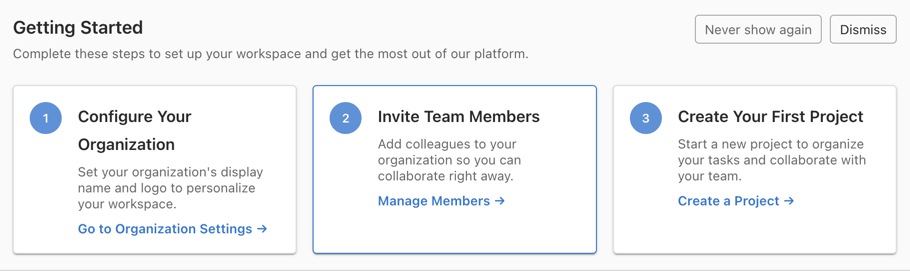
The widget includes a short introduction, action cards for the main setup tasks, and controls to hide or dismiss the widget.
- Header and Description
- The top of the widget shows the Getting Started title and a short message that explains its purpose. The message tells you to complete the listed steps to set up your workspace and get the most out of the platform.
- 1. Configure Your Organization
- This card helps you personalize the organization workspace. Use the Go to Organization Settings link to open the Settings page, where you can set the organization display name and logo.
- 2. Invite Team Members
- This card helps you add other users to the organization so that they can collaborate with you. Use the Manage Members link to open the Members page, where you can invite users and manage their roles.
- 3. Create Your First Project
- This card helps you start a new project for your team. Use the Create a Project link to open the project creation workflow described in Creating a New Project.
- Hide Controls
- The top-right corner includes two controls. Use Never show again to hide the widget permanently for your account. Use Dismiss to close it for the current view.
What Organization Administrators Can Manage
Organization administrators manage the settings and users for their organization. Depending on the available features, administrators can manage areas such as:
-
Members and organization-level roles.
-
Subscription, license allocation, and storage usage.
-
Authentication and security settings.
-
Projects and general organization settings.
For details about permissions, see Organization-Level Roles.
Organization Management Areas
The organization management interface includes several pages for specific administration tasks:
- Members
- Manage members, assign organization-level roles, assign platform user roles, allocate licenses, and control account access.
- Subscription
- Review subscription status, manage renewals and upgrades, and monitor license and storage usage.
- Authentication
- Configure authentication providers, OIDC single sign-on, and trusted email domains for joining and logging in.
- Security
- Configure trusted hosts for secure editing and publishing connections.
- Projects
- Review per-project storage usage in the organization.
- Settings
- Manage general organization settings, AI feature availability, and organization deletion options.