
Organization Members Page
Use the Members page to invite members, assign roles, allocate licenses, and control account access.
The Members page in Oxygen Content Fusion allows organization administrators to manage user access, assign roles, and allocate licenses within their organization.
Accessing the Members Page
Only users with an Organization Administrator role can access
the members management page. To access this page:
- Click on your user profile name in the top-right corner of the interface.
- Select Manage organization from the drop-down menu.
- In the organization management interface, click on Members in the left navigation panel.
Note:
If you do not see the Manage
organization option in your user menu, you do not have administrator
privileges for your organization.
Page Layout and Components
The Members page provides a centralized interface for viewing and managing members, their roles, and license usage.
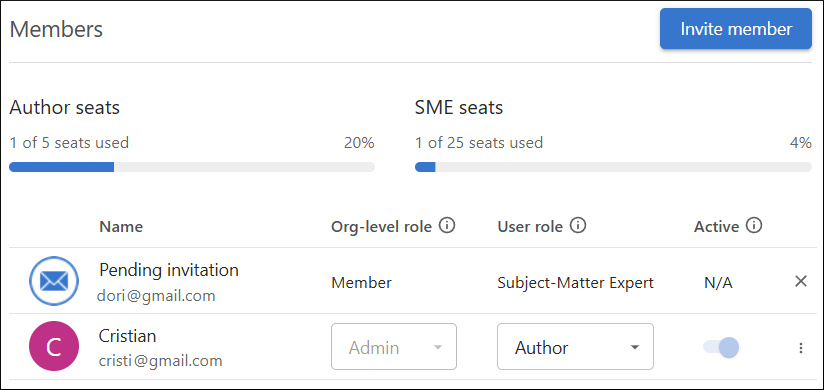
The members page contains the following sections and components:
- Invite Member Button
-
Click the Invite member button in the top-right corner to invite new members to your organization. In the resulting form, enter the email address of the person you want to invite and choose the platform user role (for example, Author or Subject-Matter Expert) from a drop-down list.Note:A license seat based on the platform user role you specify is automatically allocated when you invite the user, even before they join the organization.
Pending invitations are listed in the members list. You can click
 Cancel to cancel an invitation.
 - License Allocation
- The top section displays how your license seats are allocated. Two progress bars display the current usage of your organization's Author license seats and SME (Subject-Matter Expert) license seats.
- Members List
-
The bottom section displays all current members of the organization, including the following columns and actions:
- Name
- The member’s name and email address.
- Org-level role
- The member’s role at the organization level (e.g. Admin, Member). Use this drop-down menu to change a member’s organization-level role.
- User role
- The member’s platform user role (for example, Author or Subject-Matter Expert). Use this drop-down menu to change a member’s platform user role.
- Active
- Indicates if the user is currently active. Use this checkbox to activate or
deactivate a member’s account. Note:Inactive users cannot log in, do not count against license seat limits, but they keep their data. An administrator can reactivate them at any time.When a user account is deactivated:
- The user is immediately logged out and can no longer access the application, including the web interface, desktop app, or any connected tools.
- The user will not receive any email notifications, even if there is activity on tasks or projects they previously contributed to.
- The user cannot be assigned to new projects or tasks while deactivated.
- Their name will appear in the members list and other relevant areas of the interface with the label (Inactive) to indicate their status.
- The license seat previously allocated to the user becomes available for reassignment to another member.
- All user data, contributions, and history remain intact and visible to other members, but the user cannot interact with the system until reactivated.
- Deactivation is a reversible action. It is recommended for temporarily suspending access without deleting user data or history.
Reactivating a user account:- An administrator can reactivate a deactivated account at any time using the same checkbox.
- Once reactivated, the user regains access to the application and all previous permissions and assignments are restored.
- The user will resume receiving notifications and can be assigned to new projects or tasks.
- More Options
- You can click the ellipsis (three-dots) menu in the far-right column to
access additional actions:
- Get password reset email
- Generates a password reset link for the selected member. You must send
this link to the selected member manually. The password is reset only when
the member opens the link and chooses a new password.Important:Anyone who gets access to this link can take over the account of the selected member. Ensure that only the selected member can access the link.
- Anonymize user - This action
removes user data. It is irreversible and can only be performed on users
who are already inactive.Note:Oxygen Content Fusion anonymizes the user data stored in the database, but does not anonymize data stored in Git repositories (both stored internally by Content Fusion and linked repositories).
- Delete user - This action permanently removes the user from the system.
- Get password reset email
- Generates a password reset link for the selected member. You must send
this link to the selected member manually. The password is reset only when
the member opens the link and chooses a new password.