
Sharing Review Tasks
How to share a review task by copying its link, controlling access, and adding collaborators.
Task owners can share review tasks by copying the task link and sending it to reviewers or by adding reviewers as collaborators in the sharing dialog box. When you add a collaborator, the system sends an invitation email.
Sharing a Review Task
- Open the review task that you want to share.
-
In the review task header, click Share.
Step Result: The Sharing settings dialog box opens. You can copy the shareable link, control who can access the task, and add collaborators.
Figure 1. Sharing Settings Dialog Box 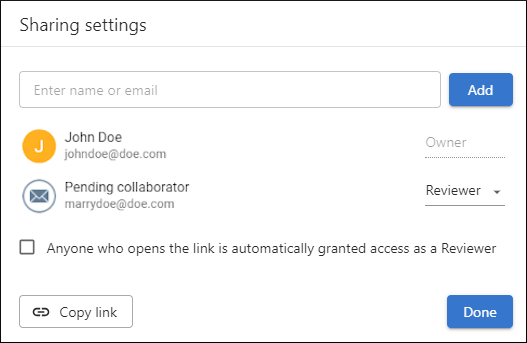
This dialog box includes the following options:
- Add collaborator field
- Start typing a name or email address in the field at the top of the dialog box. The system searches for assignable users and shows matches in a drop-down list. Click Add to add the selected user. If you type an email address is not yet in the system, the user is listed as a Pending reviewer until they sign up. An invitation email is sent automatically, or you can send the task link yourself after you click Copy link.
- List of collaborators
- The middle area of the dialog box shows the task owners and all assigned collaborators.
- Anyone who opens the link is automatically granted access as a Reviewer
- If this option is selected, anyone who opens the task link is automatically added to the task as a Reviewer. This option is available only if the Tasks can be shared publicly toggle option is enabled on the Administration page.
- Copy link
- Click Copy link to copy the task link to the clipboard so that you can send it to collaborators.
- Click Done when you finish configuring the sharing options.