
Assigning an Additional Owner to a Review Task
How to add another owner to a review task so that more than one collaborator can manage the task and complete owner actions.
The user who creates a review task is assigned as an owner automatically. You can add another owner to an existing task so that more than one user can manage that task.
To assign an additional owner to a review task:
- Open the review task.
-
In the review task header, click Share.
Step Result: The Sharing settings dialog box opens, where you can add collaborators and change their roles.
Figure 1. Sharing Settings Dialog Box 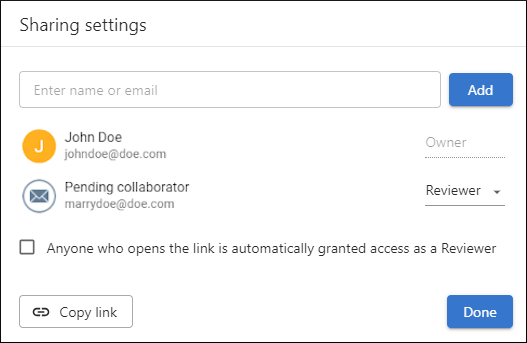
- If the person is already listed, change their role from Reviewer to Owner.
- If the person is not listed, start typing the name or email address in
the add collaborator field at the top of the dialog box. The system searches for assignable
users and shows matches in a drop-down list. Click Add to add the
selected user. If the email address is not yet in the system, the user is listed as a
Pending Reviewer until they sign up and open the task. After the collaborator is no
longer pending, change the role to Owner.Note:Assignable users are based on validated email addresses for each Oxygen Content Fusion Enterprise Server installation. If you need to limit assignable users to a specific department, consider using a separate Oxygen Content Fusion Enterprise Server installation for that department.
- Click Done to save the change.
Result: The new owner is added to the task. The task then appears in that user's list of owned tasks, the task workflow is updated to reflect the new owner role. If the user works with the desktop tools integrated with Oxygen Content Fusion, then the task is also added to the Content Fusion Tasks Manager view of the Oxygen Content Fusion Connector add-on for Oxygen XML Editor or Oxygen XML Author.