
Review Task Header
Use the review task header to view task details, check status, and access actions such as sharing, viewing owners, and requesting re-review.
When a review task is open, the review task header remains available no matter which page you open inside the task. This keeps the main navigation options and the breadcrumb available at all times.

Header Overview
The top part of the header contain the review task name along with the general Oxygen Content Fusion shortcuts to the application home screen, to the list of projects and review tasks, access to user profile and the help menu.
The lower part of the header changes depending on the page context and your role in the
task. It can show the task name, the review
status, the task owners, the number of reviewers who have finalized the task, and the due date, if a due date is
configured in the task settings
page. You can click the three-dots  More details control to the left of
Share to see additional information such as the creation time for
all task types and the current branch for project review tasks.
More details control to the left of
Share to see additional information such as the creation time for
all task types and the current branch for project review tasks.
Review Status Information
The header includes the review task status information for the current user, as described in Review Task Status. For reviewers, if they marked the task as finalized, their individual reviewer status is also displayed next to the review status.
Workflow Actions
The header can include one or more workflow action buttons next to the review status. The available actions depend on your role and the current task status. In some cases, owners can both move the task forward in the workflow or return it to a previous status. For example, task owners can see actions such as Mark as integrated and Reopen review. Reviewers may see the Finalize my review action that changes their individual reviewer status to Finalized. For details, see Review Task Status.
Owners
You can click the Owners widget to see information about the task owners. If you are an owner, the widget will show also an action to add additional owners.
Reviewer Status Widget
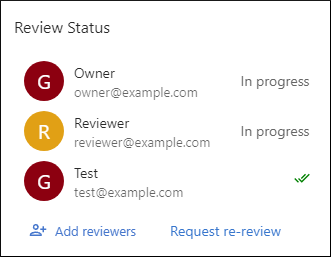
The individual reviewer status information is shown in a widget that provides an overview of how many reviewers finalized the review. Click the widget to open a list of the individual reviewer status information for each assigned reviewer. The status can be Pending, In progress, or Finalized. If a reviewer makes more changes after finalizing, the status changes back to In progress. These statuses are reset when the task owner starts a new review cycle. For more details, see Review Task Status.
Start a New Review Cycle
If at least one reviewer has Finalized their review, the task owner can use the Request re-review button to reset the individual review status for all reviewers and start a new review cycle. If the task owner reopens a closed task, the individual review status is also reset for all non-pending reviewers to In progress.