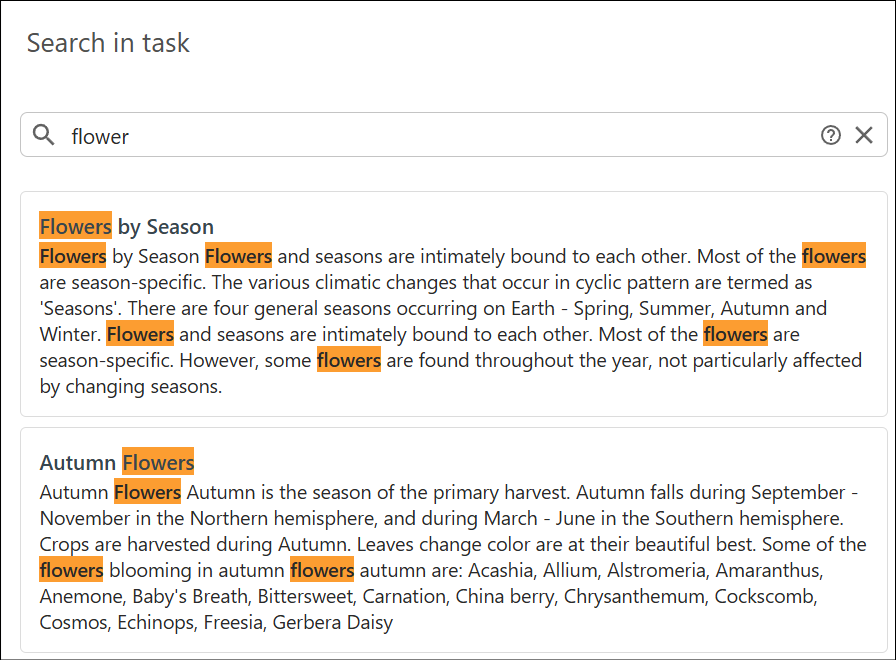
Task Search Page
Clicking on Search in the left stripe opens the Search in Task page that allows you to search for specific content in all files attached to the task. If a file is open in the visual editor, clicking on Search opens the page in a side-view to the left of the editor.
Tip:
To search or filter review items (comments, highlights, and so on), use the
separate Reviews side
view.
Enter the text you want to search for in the search field at the top of the page. The search looks for matches in the text of all task files. See Advanced Search for advanced options. A short reference is also available in the UI via the help icon next to the search field.
You can click on a result to open that file in the visual editor (the Search in task page becomes a side-view located to the left of the editor).