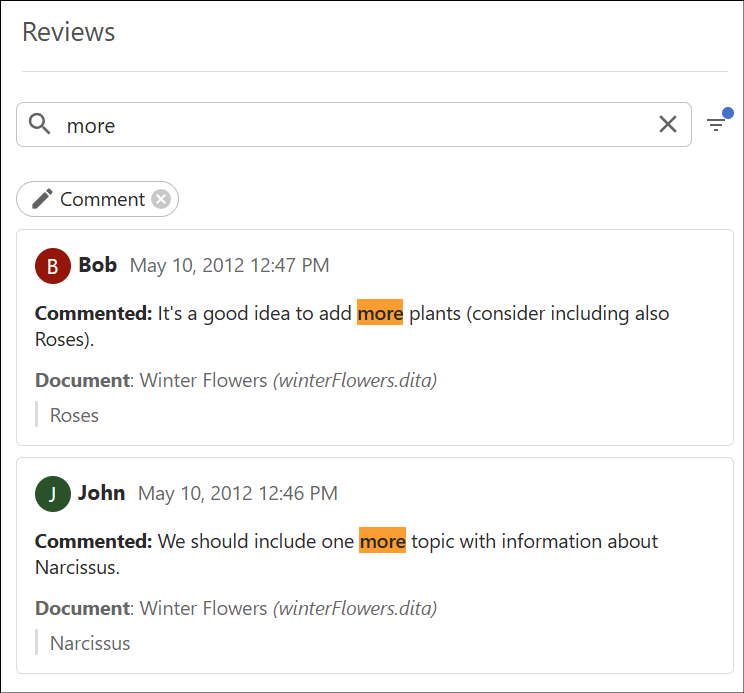
Reviews View
Use the Reviews view in a review task to search and filter comments and other review items across task files.
Click Reviews in the left stripe to open the Reviews view, which lets you search and filter review comments and other review items in all files attached to the task.
Enter the text you want to search for in the search field at the top of the view. Next to the search field, the Filters button opens a pop-up where you can set values for the following filters:
- Type - The type of review item (for example, comment or highlight). Default: All.
- Status - The status of the review item (Open or Done).
- Author - The user who wrote the review. Default: Anyone.
- Mentioned user - Restricts results to review items that contain an @-mention of the selected user (not just any occurrence of the name in text). The list is built from mentions indexed in the task. New mentions appear after re-indexing. Matching is case-insensitive. The current user is listed first in the list. Mentions are available only in review task comments. See Mentions and Email Notifications for Review Task Comments for how mentions and related notifications work. To find reviews where you are mentioned, see How to Find Reviews Where You Are Mentioned. Default: Anyone.
- Time - The time range for the review. Default: All Time.
When you have one or more filters set, they appear as chips below the search field (each chip shows the filter icon and value). The Filters button may also show a badge when filters are active.
Results are ordered by date (newest first). Each result shows the date, author, document title, and relative file path. For comments, the topic text where the review was added is also shown. Click a result to open the file in the visual editor.