
Files View
Use the Files view in a review task to open the task files, see who is working in them, upload or create new files, and download the task content.
The Files view lists all files that are attached to the task.
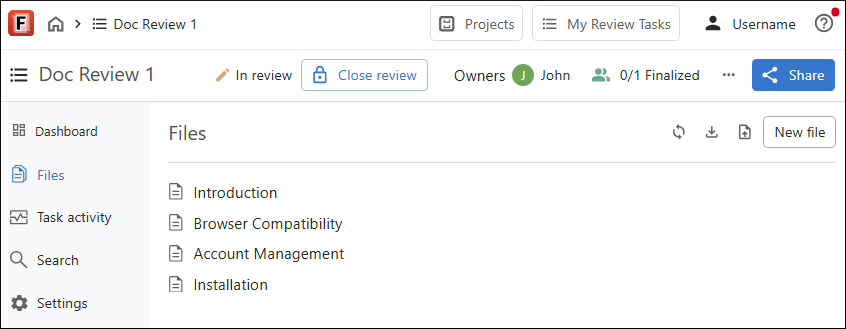
The review task header remains available while you move between views in the task. It provides task information and quick access to task-level actions.
Click a file to open it in the review task visual editor. If other users have the file open, their avatars appear next to the file. Hover over an avatar to see the user name.
For DITA projects, if the task owner specified a context DITA map, the Files view shows the hierarchy of the attached files as they appear in that map.
If the Concurrent Editing feature is enabled for the task, multiple users can work in the same file at the same time. Otherwise, only one user can edit a file at a time. If another user is editing a file, a  Lock icon appears on the left side of the file entry and that user's avatar has a red border. Hover over the lock icon to see who currently holds the lock. For details about how file locking works, see How file locking and unlocking work.
To refresh the file list, click  Refresh in the Files header.
To download the task, click  Download. This downloads a ZIP archive containing all
task files together with the Git metadata (
Download. This downloads a ZIP archive containing all
task files together with the Git metadata (.git folder) that preserves the
change history. To inspect the history, extract the archive and open the root directory in
your Git client. The history includes the name and email address of the user associated with
each change made in Oxygen Content Fusion.
To upload a file to the task, click  Upload. This opens the system file browser so you can select the file to upload.
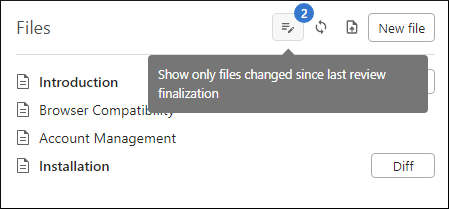
Changed Files Only Filter
When a reviewer opens a task after the owner requested another review, the Files view includes a Changed files only filter. This makes it easier to identify the files that changed and need another review.
Creating a New File Inside a Review Task
You can also create a new file from this view and add it to the current review task:
- Click New File to create a file from a
template. Select a template, enter a title, and click OK.
Step Result: The new file opens in the review task visual editor with some of the XML structure already added. A filename will be generated automatically based on the provided title.
- Use the visual editor to add or revise content.Tip:If you are the task owner, you can use
 Toggle Change Tracking. You may want to turn change tracking off when you add initial content to a new file.