
Project Members Page
The Project Members page shows the project members and roles, and allows owners to manage them.
The Project Members page displays the Members associated with a
particular project.
Note:
This page is only available for private projects, and only
project Members with the Owner role can access it.
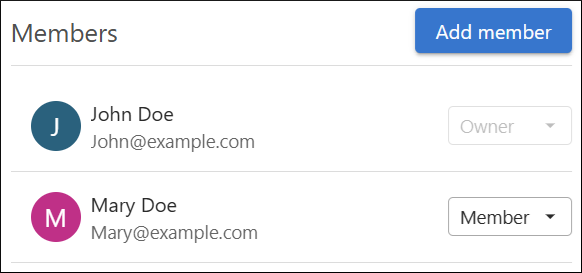
Project Member Roles
Each user that is added to a project has one of the following project roles:
- Owner - Project Owners can invite other authors to the project and can access the project's Members and Settings views. Owners can manage project Membership and configuration.
- Member - Project Members can work with the project content, but they cannot access the Members or Settings views and cannot invite new Members. Only users with the Author platform user role can be assigned as Member.
For public projects, only users with the Owner role are displayed in this page. All other users with the Author platform user role have the project Member role.
To add a new Member, a project Owner can use the Add Member button and select the Member from the drop-down menu in the resulting dialog box. The Member must be configured and assigned the Author platform user role in the Users Management tab of the Administration Page.