AI Positron Pane
Oxygen XML Web Author offers a plugin to integrate an AI Positron pane that provides an advanced solution for using AI assistance to enhance the documentation content creation process. By leveraging the power of AI platforms, the AI Positron streamlines and enhances the writing experience by providing a variety of helpful AI-based actions and features, ways to chat and refine responses, and much more.
For on-premise deployments, the pane can be integrated via the Oxygen AI Positron for Web Author plugin that provides the ability to use a specific AI engine (OpenAI, Microsoft Azure OpenAI, or Claude) for chat purposes or to run useful predefined actions.
Using the AI Positron Pane
When you first open the pane, you need to use the Connect button to sign in.
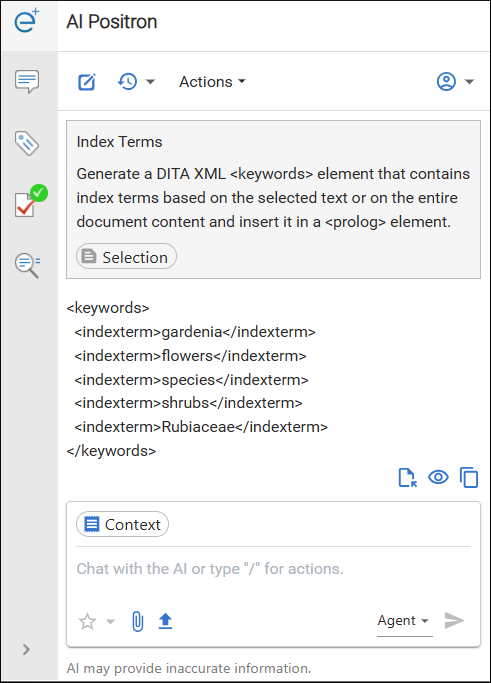
The AI Positron pane provides the following actions and functionality:
 New Chat
- Use this button in the header stripe to clear all information from the previous chat and start a new one.
 History drop-down
menu
History drop-down
menu- Use this drop-down menu to select and continue previous conversations or actions.
- Actions drop-down menu
- Use this drop-down menu to access the AI actions that are available.
- User drop-down menu
- Use this drop-down menu at the far-right side of the header stripe to access your account or to disconnect from AI Positron.
- AI Action Buttons
- The AI actions are also available as buttons in the main chat pane when you first log in or when the recent chat is cleared. When an action is triggered, this area within the pane becomes the response area where you see the AI's response from the server based on the particular action.
- Response Area
-
The main area under the header stripe becomes the response area when an action is triggered. This is where you will see the AI's response based on the conversation or triggered action. The response is received from the server in streaming mode (the AI sends chunks of the response as it is being generated rather than waiting to send the entire response after it is generated). Once the entire response is received from the server, the following actions are available under the response:
 Insert/
 Replace -
Inserts the response at the cursor location within the document (or replaces the
selected content). If the insertion generates validation errors in the document,
the AI model receives the validation errors and attempts to fix the
problems.Notice:This button is not available for Markdown documents. If you need to insert or replace content within a Markdown document with AI-generated content, use the
Replace -
Inserts the response at the cursor location within the document (or replaces the
selected content). If the insertion generates validation errors in the document,
the AI model receives the validation errors and attempts to fix the
problems.Notice:This button is not available for Markdown documents. If you need to insert or replace content within a Markdown document with AI-generated content, use the Copy button
and paste it in the Markdown editor.
Copy button
and paste it in the Markdown editor. Preview - Allows you to preview the content that would be
inserted at the cursor location within the document. This launches a file
comparison tool where you can clearly see the differences between your current
content and the changes being proposed by the AI. You can choose to accept some
or all of the proposed changes and click the Apply button
at the bottom to insert the response at the cursor location. If the insertion
generates validation errors in the document, the AI model receives the
validation errors and attempts to fix the problem.Notice:This button is not available for Markdown documents.
Preview - Allows you to preview the content that would be
inserted at the cursor location within the document. This launches a file
comparison tool where you can clearly see the differences between your current
content and the changes being proposed by the AI. You can choose to accept some
or all of the proposed changes and click the Apply button
at the bottom to insert the response at the cursor location. If the insertion
generates validation errors in the document, the AI model receives the
validation errors and attempts to fix the problem.Notice:This button is not available for Markdown documents.- Copy - Copies the response to the system clipboard.
You can edit the message you sent to the AI by clicking the
 Edit button that appears
to the right of your message in the response area. You would then edit your message
and click Submit to regenerate the response. For multiple
edited messages, you can use the
Edit button that appears
to the right of your message in the response area. You would then edit your message
and click Submit to regenerate the response. For multiple
edited messages, you can use the  Next/Previous buttons to
navigate between chat threads.
Next/Previous buttons to
navigate between chat threads.After the message is sent, the attached chips are also displayed in the chat conversation thread. You can hover over the chip area and use the
Edit button to modify the sent
message or remove attachments (using the
Backspace key). - Chat Box
-
You can also start chatting with the AI directly in the chat box at the bottom of the pane, without invoking an action. In this case, if there is content selected in the editor when a chat is initiated, the selection is passed to the AI along with the document type as context for the conversation.
The header of the chat box contains the following:
 Favorites
drop-down menu
Favorites
drop-down menu- Use this menu to store a favorite prompt during the editing session.
 Attachments
drop-down menu
Attachments
drop-down menu-
This menu contains the following attachment actions:
- Attach
- Use this action to select one or more images or other documents (in XML, Markdown, text, Word (.docx), Powerpoint (.pptx), Excel (.xslx), or PDF format) from your repository to be attached to the chat message. The AI will use the selected resource(s) for additional context for the conversation. For Word and PDF files, the included images are also sent to the AI engine.
 Attach from
computer
Attach from
computer- Use this action to select one or more images or other documents (in XML, Markdown, text, Word (.docx), Powerpoint (.pptx), Excel (.xlsx), or PDF format) from your local computer to be attached to the chat message. The AI will use the selected resource(s) for additional context for the conversation. For Word and PDF files, the included images are also sent to the AI engine.
The attached files are displayed as chips at the top of the chat input area.
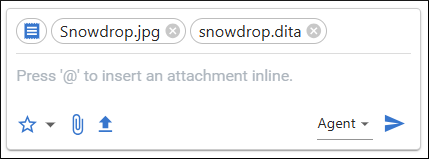
 Context
- You can hover over this control to see the context that is being sent to the AI.
The bottom footer of the chat box contains the following:
- Chat Mode drop-down menu
- Use this drop-down menu to change between chat modes to access more functionality. For details, see Chat Modes.
- AI Model drop-down menu
- Use this drop-down menu to choose the LLM model to use for chat or when invoking AI actions. If AI actions have a specific model specified in their definition, that model is imposed when running it.
 Token
Consumption
Token
Consumption- Shows the approximate fill level for the model's input context window for the next request and how many tokens are reserved for the model's reply. You can hover over the indicator to see specific details such as the context percentage, token count, total context size (when known), and reserved output tokens.
 Send
Send- Click this button when you are ready to send your message to the server.
Tip:You can invoke an existing action directly from the chat input box by providing general instructions to the AI. For example, to invoke the Correct Grammar action, you could type something similar to the following in the chat input box:Invoke the action to correct grammar in the current document and update the document based on the resultsAfter a response is received, you can also use the chat pane to refine the response by sending a message to the AI platform and it will generate a new response based upon your message.
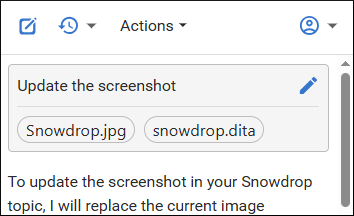
Various tools may be available for the AI that can be used to read the content of various documents and make changes to documents. Each time a tool call is made, you can see the tool name prefixed by a small button in the chat view. Clicking that button opens a custom dialog box where you can see details about how the tool call was made, what result it returned, and you can copy those details for further use.
Chat Modes
The Chat Modes drop-down menu allows you to select various modes for chatting with the AI:
- Agent - Chat with the AI about your project, set goals, or give instructions. The AI proposes changes, and you decide what to keep.
- DITA Agent - Chat with the AI about your DITA XML project, set goals, or give instructions. The AI explores your project to complete tasks efficiently, proposes a plan, and can make project-wide changes on your behalf, while you decide what to keep.
- Planner - Creates a comprehensive plan by exploring your
project, then invokes sub-agents to execute each part of the plan. This chat mode can
be used for making lots of project-wide changes without running into LLM context
limitations.Note:When using the Planner chat mode in Oxygen desktop, PDF and Word (.docx) attachments are automatically converted and split into multiple Markdown section files, while embedded images are extracted into a temporary folder, enabling Planner sub-agents to process, transform, or convert document components independently. This allows you to use the Planner to convert user manuals while also extracting and using the images from inside the manuals.
- Personas - Evaluates your task through multiple audience personas before producing a final recommendation. It identifies 2 to 4 relevant personas, consults each as a separate sub-agent, resolves tensions through a compromise round, and synthesizes a final recommendation that balances their needs. Use it for content, messaging, documentation, tutorials, or any task involving tradeoffs between different user needs.
- Ask - Find answers, get explanations, and make plans using the AI. This read-only mode has access to various search tools and uses them based on your current task.
While chatting with the AI, you can change between chat modes to access more functionality. All chat modes automatically receive contextual information about your project's location, the location of the current document, its document type, and the location of the context DITA map. Additionally, if there is content selected in the main editor area when a chat is initiated, the selection is passed to the AI along with the document type to be used as context for the conversation.
- Name and version of the Oxygen application.
- Operating system locale, name, and version (only available for Positron Desktop and Eclipse).
- Current date.
- Project directory (not available for Positron Web Author).
- Main files information (only available for Positron Desktop).
- Location of DITA Map currently opened in the DITA Maps Manager view.
- Location of the current edited document.
- Information about caret and selection intervals in the current edited document (Oxygen 28.1 or newer).
You can create your own custom chat modes.
AI Actions
The following AI-powered actions are available in the Actions drop-down menu at the top of the AI Positron pane:
- Accessibility
-
- Generate Image Alternate Text - Generates an alternate text for a DITA XML image that is selected in the main editing area or for all images in the entire document.
- Content Generation
-
- Update Content Based on Images - Updates the content of a DITA XML topic based on the images that it references.
-
Short Description - Generates a short description ( inside a
<shortdesc>element) based on a summary of the selected text (or the entire document if there is no selection). You can configure the style and the approximate number of sentences to be generated. - Formula/Equation - Generates an AI proposal for a MathML formula or equation based on information provided by the user when invoking the action (for example, a description of a substance, physics formula, mathematical expression, or LaTeX equation).
-
Index Terms - Generates a
<keywords>element that contains index terms obtained from the selected text (or the entire document if there is no selection).
- Rewrite
-
- Correct Grammar - Generates a suggestion for correcting the grammar and spelling within the selected content.
- Improve Readability - Modifies the selected content to improve readability and fix grammar/spelling errors.
- Use Active Voice - Generates a suggestion for replacing the selected content with content that has been converted from passive to active voice.
- Improve Structure - Improves the selected DITA XML content by adding additional structure or inline elements.
- Itemize - Generates a suggestion for converting the selected content into a list of items.
- Join Items - Generates a suggestion for converting the selected list of items into a paragraph.
- Review
-
- Proof Read Add comments over content which has logical consistency problems, grammar spelling mistakes or is hard to read and comprehend.
- Resolve Comments - Change the selected content based on the comment suggestions and then remove the comments.
- Overview
-
- Answer Questions - Generates answers to questions that the AI finds within the selected content (or the entire document if there is no selection).
- Generate Questions - Generates a list of five questions that are answered within the selected content (or the entire document if there is no selection).
- Summarize - Generates a summary of the selected content (or the entire document if there is no selection).
- Readability - Generates suggestions for changing the selected content (or the entire document if there is no selection) to improve its general readability.
- Translation
-
The actions in this category translate the selected text to the target language (English, German, French, Japanese), while preserving the original XML markup.
- Intelligent Agents
-
- Expand Draft - Enhances a draft of a DITA XML topic by refining the content, adding markup that is consistent with similar topics, and generating documentation based on the referenced images using Vision support. The AI looks for similar content in topics gathered from the related links or in WebHelp output with the Oxygen Feedback component deployed for search functionality.
- Split Topic - Analyzes the current DITA XML topic based on modular document development best practices. If the topic is too large or contains multiple subjects, the AI may split it into several topic files. References to the new topics are also added in the DITA map that is currently open in the DITA Maps Manager.
- Fix Validation Problems - Validates the entire content of the current document, finds problems, and then uses AI to fix all the reported problems.
- DITA Conversion
-
- Analyze and Update Topic - This action analyzes and optimizes your DITA topics to ensure modularity and consistency. It reviews and updates the topics to align with the DITA standards, generates new topics, and updates the DITA map as needed.
- Convert to [DITA_TYPE] - Actions that convert plain text,
Markdown, or DITA content to a specific type of DITA topic:
- Task - A topic type used to describe a series of steps to accomplish a specific goal. It is ideal for procedural information.
- Concept - A topic type used to explain an idea, definition, or concept. It is typically used for background or explanatory information.
- Reference - A topic type used to provide detailed, structured information such as tables, lists, or specifications. It is often used for quick look-up information.
- Troubleshooting - A topic type used to describe problems, their causes, and solutions. It is designed to help users resolve issues effectively.
- Glossary - A topic type used to define terms and provide explanations. It is commonly used to build a glossary of terms for a project or document.
- Marketing
-
- Release Notes - Creates release notes based on a set of features or issue ticket numbers with optional descriptions.
- Marketing Post - Creates a marketing post based on a list of ideas or release notes.
- Improve SEO - Rewrites the content to enhance search engine optimization.
- Pain-Agitate-Solution - Rewrites the content using a marketing style based on the Pain-Agitate-Solution framework.
- Features-Advantages-Benefits - Rewrites the content using a marketing style based on the Features-Advantages-Benefits framework.
Built-in Skills
AI Positron includes the following built-in skills. These skills are available in all chat modes without extra setup. The AI loads them automatically when it determines that a user request matches the skill description and needs that workflow.
- xml-review-comments
- The AI uses this skill when a request involves reviewing XML content without editing the text directly. It adds inline review comments for issues such as spelling, grammar, readability, logic, and technical accuracy. It can also resolve existing review comments by applying the suggested changes.
- translate-xml-content
- The AI uses this skill when a request involves translating XML technical documentation into another language. It keeps the XML structure intact, preserves markup, attributes, code elements, file paths, API names, and other technical identifiers, and then saves the translated result.
- personas-roundtable
- The AI uses this skill when a task would benefit from feedback from several audience
points of view before a decision is made. It selects relevant personas, gathers
feedback from each one, identifies conflicts between their needs, runs a compromise
round, and then gives final recommendations by priority. This is useful for content,
messaging, tutorials, onboarding, UX copy, and other work that involves tradeoffs
between user needs.Note:The Personas chat mode already embeds this workflow, so it does not need to load the skill separately. In other chat modes, the AI can load the
personas-roundtableskill when it determines that this type of analysis would help with the user's request.
Distributing and Filtering AI Actions
Plugins or frameworks installed in WebAuthor can contain a folder named ai-positron-actions where custom AI actions are automatically loaded from by the AI Positron add-on.
The ai-positron-actions folder can contain an extra file named excluded-action-ids.txt, which can list all action IDs (on a line-by-line basis) that should be filtered out of the AI Positron UI.
To know an action's ID, after you invoke an AI action you can press / in the chat input text area and choose to export the conversation to JSON.
The JSON exported representation of the action should contain the action ID.