
Fluenta DITA Translation Add-on
Introduction
Fluenta is a tool designed to simplify the translation of DITA projects. It parses a DITA map, resolves the references to all topics and subtopics, and prepares a unified XLIFF file that you can send to your Language Service Provider. The Fluenta DITA Translation add-on allows you to manage the Fluenta translation workflow directly from within Oxygen XML.
Quick Installation
You can drag the following Install button and drop it into the main editor in Oxygen to quickly initiate the installation process:

Manual Installation
- Go to to open an add-on selection dialog box. Enter or paste
https://www.oxygenxml.com/InstData/Addons/default/updateSite.xml in the
Show add-ons from field or select it from the drop-down
menu.Note:If you have issues connecting to the default update site, you can download the add-on package, unzip it, then use the Browse for local files action in the Install new add-ons dialog box to locate the downloaded addon.xml file.
- Select the Fluenta Dita Translation add-on and click Next.
- Read the end-user license agreement. Then select the I accept all terms of the end-user license agreement option and click Install.
- Restart the application.
Result: A  Translate (Fluenta) submenu
is now available in the contextual menu of the Project View and
DITA Maps Manager.
Translate (Fluenta) submenu
is now available in the contextual menu of the Project View and
DITA Maps Manager.
Translation Workflow
- Create a Fluenta project. A project contains metadata associated with a DITA map (for example, the languages that the project is translated into). This is a one-time action.
- At various milestones (for example, when a new version is released), you generate XLIFF files for each language you translate to.
- You send the XLIFF file to the translation service provider.Tip:Alternatively, you can translate the XLIFF file directly in Oxygen XML using the AI Translator add-on, which automates the translation process using AI models. For more information, see AI Translator Add-on.
- Once the XLIFF returns from translation, you import the XLIFF file. A translated version of your map and topics will be generated at the selected location from the XLIFF file.
Creating a Fluenta Project
- Open the main DITA map in the DITA Maps Manager.
- Right-click the map and select Translate (Fluenta) > Create project.Note:This action is visible only if there is no project detected for the open DITA map.
-
In the resulting dialog box, you need to provide a name for the project and the languages that the project will be translated into.
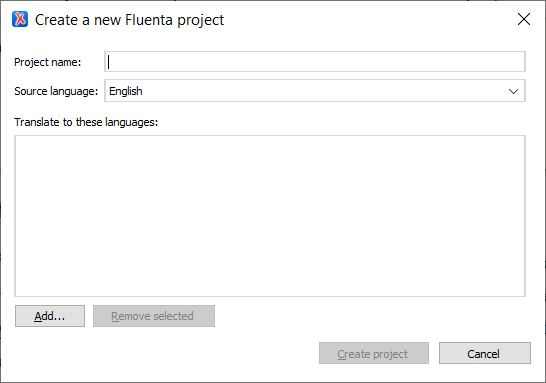
Result: A translation memory with the same name as the project will automatically be created. Also, only one project can be created for a DITA map file. Once created, you will be able to edit it to change certain information.
Generating XLIFF Files
- Open the main DITA map in the DITA Maps Manager.
- Right-click the map and select Translate (Fluenta) > Generate XLIFF.Note:This action is visible only if there is a Fluenta project associated with the current DITA map and the XLIFF files will be generated for this project.
-
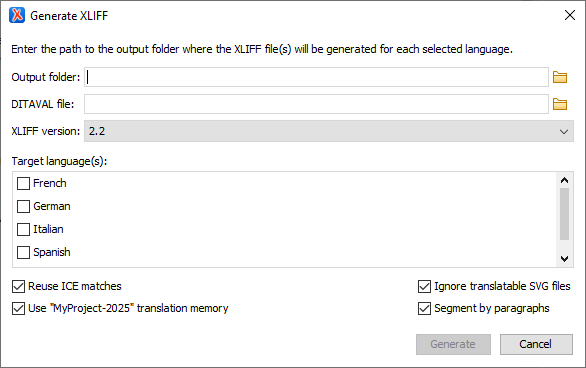
In the resulting dialog box, select the Output folder for the XLIFF file(s) and the Target language(s) for translation.
-
Configure the other XLIFF generation options as desired:
- DITAVAL file - Allows users to include a DITAVAL file. This file controls content conditionality, enabling exclusion of specific sections in the generated XLIFF files for translation. This option is useful in some use cases, such as when you do not want certain content translated into specific languages to reduce translation costs.
- XLIFF version - Choose the appropriate XLIFF version from this drop-down menu to ensure compatibility with your translation systems.
- Reuse ICE matches - Compares the current content with the content available the last time an XLIFF file was generated and reuses all existing translations.
- Use translation memory - Uses the translation memory associated with the project to recover translations for the segments not yet translated.
- Ignore translatable SVG files - Excludes the SVG files that contain translatable text from the generated XLIFF file.
- Segment by paragraphs - Enables paragraph segmentation instead of the default sentence segmentation for more accurate and contextually appropriate segmentation.
- Click Generate when finished.
Result: An XLIFF file will be generated in the output folder for each selected language.
Translating XLIFF Using Oxygen AI Translator
After generating the XLIFF file, you can translate it directly in Oxygen XML
using the AI Translator add-on. To access the action to translate
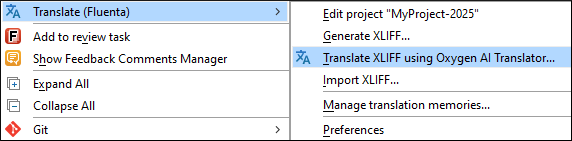
XLIFF with the AI Translator, right-click on a DITA map in the Project
View or DITA Maps Manager and select Translate
(Fluenta) > Translate XLIFF using Oxygen AI Translator. This action is visible only if there is a Fluenta project associated with
the selected DITA map. This add-on automates the translation process with AI models and
provides advanced translation management features. For more information, see AI Translator Add-on.
Importing XLIFF
- Open the main DITA map in the DITA Maps Manager.
- Right-click the map and select Translate (Fluenta) > Import XLIFF.Note:This action is visible only if there is a Fluenta project associated with the current DITA map and the XLIFF file will be imported for this project.
-
In the resulting dialog box, browse for the XLIFF file and set the options according to your needs:
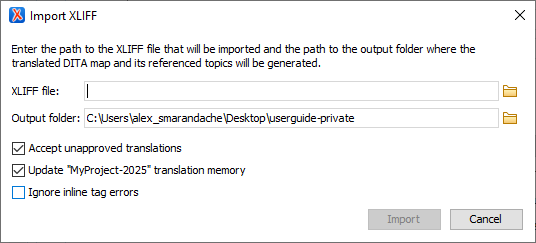
- Accept unapproved translations - Uses translations that are not marked as approved in the XLIFF file being imported.
- Update "{MemoryName}" translation memory - Stores the imported translations in the project translations memory.
- Ignore inline tag errors - If enabled, the
application checks for mismatches in inline tags (such as
<ph>,<bpt>,<ept>) between the source and target. This helps prevent formatting or structural issues in the translated content.
- Click Import when finished.
Editing a Fluenta Project
- Open the main DITA map in the DITA Maps Manager.
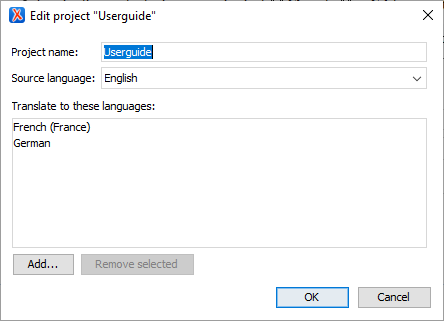
- Right-click the map and select Translate (Fluenta) > Edit project "{ProjectName}".Note:This action is visible only if there is a Fluenta project associated with the current DITA map and this project will be edited.
-
In the resulting dialog box, you need to replace the project information you want updated and click OK when finished.
Managing Translation Memories
- Open the main DITA map in the DITA Maps Manager.
- Invoke the contextual menu and select .
In the resulting dialog box, you will see a table with all the translation memories defined in Fluenta.
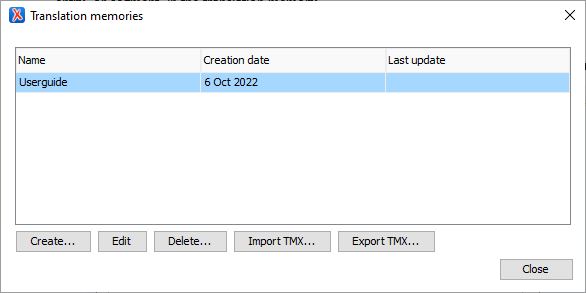
- In this dialog box, you can perform the following operations:
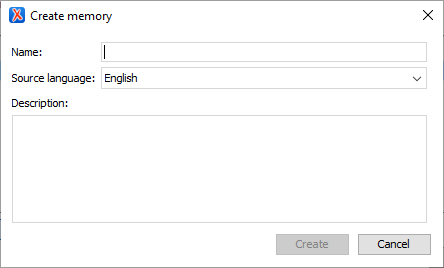
Create - This action will open a dialog box for creating a new translation memory.
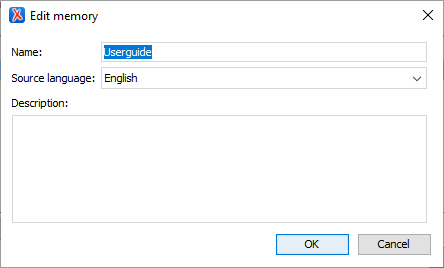
Edit - This action will open a dialog box for editing the selected translation memory from the translation memories table.
-
Delete - Deletes the selected translation memory. If a translation memory is associated with a project, it cannot be deleted.
-
Import TMX - Populates the content of the translation memory with content from a specified import file.Note:One or more files can be imported into a translation memory.
-
Export TMX - Exports the selected translation memory to TMX format to view its content and use at a latter time.
Preferences
- Open the main DITA map in the DITA Maps Manager or select it from the Project View.
- Right-click the map and select Translate
(Fluenta) > Preferences.
Result: In the resulting dialog box, you will see the Fluenta DITA Translation Add-on preferences page:
Figure 1. Fluenta DITA Translation Add-on Preferences Page 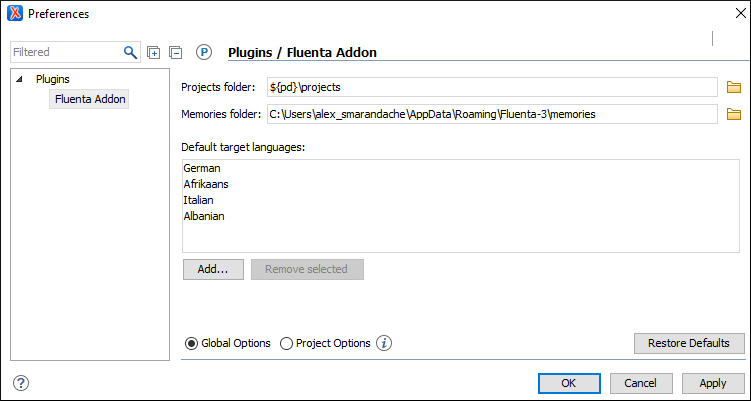
- Configure options as needed. You can set the folders where projects and translation memories will be saved. Both absolute paths and paths that contain editor variables can be used. Also, you can set some target languages that will be pre-filled when a Fluenta project is created.
- Click OK or Apply when finished.
Resources
- Fluenta website - Fluenta DITA Translation Manager
- Webinar - DITA Project Management, Validation, and Translation in a Docs as Code Environment