
AI Translator Add-on
The Oxygen AI Translator add-on is a powerful Oxygen XML extension that provides AI-powered translation capabilities for XLIFF (XML Localization Interchange File Format) files. This add-on streamlines the translation workflow by leveraging advanced AI models to produce high-quality translations while maintaining the structural integrity of your XML content.
What is a Translation Task?
When working with the Oxygen AI Translator add-on, a translation task represents a complete translation workflow that leverages the AI connectors and models configured in the Oxygen AI Positron to translate XLIFF translation units. Each task works with a specific XLIFF file, an optional translation memory (TMX), and custom user instructions. It applies the chosen AI translation configuration to ensure high translation quality.
Key Features
- AI-Powered Translation - Translation tasks use the AI connectors and models set up in Oxygen AI Positron, ensuring consistent settings across Oxygen tools. This integration lets you access different AI engines and select the model that best fits your translation needs.
- Quality Assurance with Built-in Checks - Every translation task includes a built-in quality check that reviews the accuracy and quality of translations. This system checks the translated content to make sure it keeps the original formatting and structure.
- Retry Translation System - If the quality check finds issues in a translation, the system can automatically try again using different models. This step-by-step approach allows the use of more advanced models to achieve the best translation quality.
- Parallel Task Execution - The add-on allows you to run multiple translation tasks at the same time, increasing productivity and speeding up large translation projects.
- Configurable Translation Settings - You can fully edit translation settings through the preferences interface, letting you customize AI models, retry options, and quality check parameters.
Installation
Prerequisites
The Oxygen AI Positron add-on must be installed for the Oxygen AI Translator to function properly. The AI connectors defined in Oxygen AI Positron can also be used for AI translations, providing a unified configuration experience across Oxygen tools.
Quick Installation
You can drag the following Install button and drop it into the main editor in Oxygen to quickly initiate the installation process:

Manual Installation
To manually install the add-on, follow these instructions:
- Go to Help > Install new add-ons to open an add-on selection dialog box.
- Enter or paste http://www.oxygenxml.com/InstData/Addons/default/updateSite.xml in the Show add-ons from field.
- Select the Oxygen AI Translator add-on and click Next.
- Read the end-user license agreement. Then select the I accept all terms of the end-user license agreement option and click Install.
- Restart the application.
Result: The AI Translator view is now available and can be selected from the menu.
AI Translator View
 AI
Translator from the menu.
AI
Translator from the menu.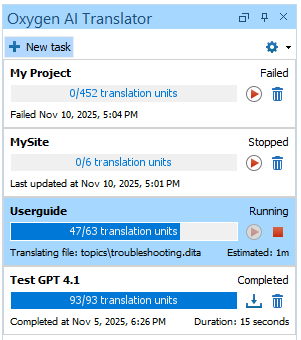
Main Toolbar
 New
task button
New
task button- Opens the New Translation Task dialog box where you can create a new task.
 Settings
drop-down
Settings
drop-down- Provides access to the following options:
- Preferences
- Opens the Preferences dialog box where you can configure various options for the AI Translator.
- Clear cache
- Clears the translation cache.
Task List Panel
- Task Name - Descriptive name of the translation job.
- Progress Bar - Visual indicator that shows the completion percentage and current file being processed.
- Status Badge - Color-coded status indicator (Queued, Running, Stopped, Completed).
- Task Details - Creation date, progress information, and duration.
The following actions are possible in the main panel, depending on the status:
 Resume Task
- Runs the task execution.
 Stop Task
- Runs the task execution.
 Delete Task
- Removes the task from the list.
 Save Translated XLIFF
(available for Completed tasks)
Save Translated XLIFF
(available for Completed tasks)- Saves the current translation work as an XLIFF file on your computer.
Context Menu Actions
The following contextual menu actions are available when right-clicking a task box:
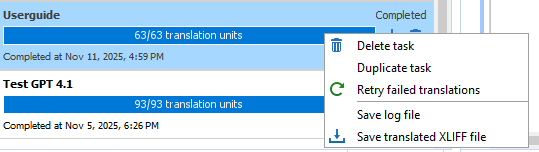
- Resume Task
- Runs the task execution.
- Stop Task
- Runs the task execution.
 Restart task
- Restarts the task from the beginning using the updated files from disk. This allows you to rerun the translation process with any changes made to the XLIFF, custom instructions file, or TMX files since the task was originally created.
- Delete Task
- Removes the task from the list.
- Duplicate Task
- Creates a new task with the same information as the selected task (user instructions, translation memory, XLIFF files, and the AI model configuration used).
- Retry Fails Translations
(available for Completed tasks)
- Allows you to create a new task with different settings and instructions to retry translating the failed translation units.
 Edit task
- Opens the task configuration dialog box where you can modify the task settings, including the AI configuration selection, custom instructions, and translation memory options.
- Save Log File
- Saves a log file with detailed information about the task execution, current status, and any problems encountered.
- Save Translated XLIFF
(available for Completed tasks)
- Saves the current translation work as an XLIFF file on your computer.
- Save Intermediate Translated XLIFF (available for Stopped or Failed tasks)
- Saves the current translation work as an XLIFF file on your computer after some parts have been translated.
Task Status States
Translation tasks progress through various states during their lifecycle:
- Queued - Task is created and waiting to be processed.
- Shows the creation timestamp.
- Task is in the processing queue.
- Running - Task is actively being processed.
- Displays real-time progress (e.g. "15/400 translation units").
- Shows the current file being processed.
- Provides the estimated time remaining.
- Updates the elapsed processing time.
- Stopped- Task has been paused or interrupted.
- Shows the last update timestamp.
- Can be resumed using the play button.
- Preserves the current progress.
- Completed - Task has finished successfully.
- Shows the completion timestamp and total duration.
- Displays the final statistics (e.g. "400/400 translation units").
- Task remains in the history for reference purposes.
Caching Mechanism
The AI Translator add-on includes a caching system that stores AI translation responses locally to optimize performance, reduce costs, and improve the overall translation experience.
Why Caching is Beneficial
- Cost Reduction - By caching AI engine responses, the system significantly reduces API calls to external services such as OpenAI, resulting in lower usage costs for repeated translation requests.
- Performance Improvement - Cached translations are retrieved instantly from local storage, eliminating network latency and API response times for previously translated content.
- Consistency - The caching mechanism ensures that identical translation requests always return the same results, providing consistent and reproducible translations across multiple runs.
Enabling and Configuring Caching
- From the Oxygen AI Translator view - Select
Preferences from the Settings drop-down.
- From the Oxygen menu - Go to .
Clearing the Cache
You can clear the cache from the Oxygen AI Translator view by
using the Clear cache button from the Settings drop-down.
Clearing cache might be useful after significant changes to AI model configurations or when experiencing inconsistent translation results.
Creating a New Translation Task
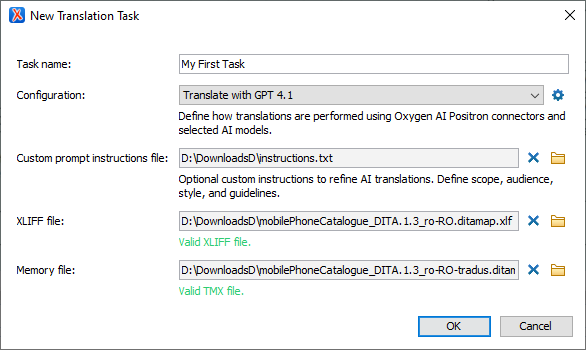
To create a new translation task in the AI Translator:
- Open the Oxygen AI Translator view (go to if it is not visible).
- Click the New task button in the AI Translator toolbar to open the New Translation Task dialog box.
- Configure the task settings:
- Task name - Enter a descriptive name for your translation task (e.g.
My First Task). - Configuration - Select the desired AI translation configuration from the drop-down menu (e.g. "Translate with GPT 4.1").
- Custom prompt instructions file (Optional) - Specify a text/markdown file with custom instructions to refine AI translations. Use this to define scope, audience, style, or guidelines for the translation.
- Task name - Enter a descriptive name for your translation task (e.g.
- Specify files:
- XLIFF file - Browse and select the XLIFF file you want to translate. Currently only XLIFF version 1.2 files are supported and must be valid to create the translation task.
- Memory file – (Optional) Specify a translation memory file in TMX format to improve translation consistency and leverage previously translated segments. The TMX file must be valid according to the TMX 1.4b Specification. Using a valid TMX file allows the AI Translator to reuse existing translations for matching segments, ensuring greater accuracy, consistency, and efficiency in your translation workflow. It does not skip AI translation when a match exists in the TMX.
- Click OK to start the translation process, or Cancel to abort.
Result: Before the task starts, you are prompted to confirm the estimated number of tokens required to complete the translation. This helps you understand the potential cost and resource usage for the task.
Once created, your translation task will appear in the Oxygen AI Translator view with status indicators that show the progress (e.g. Running, Stopped, or Completed) and processing time information.
Configuration and Settings
The AI Translator add-on provides comprehensive configuration options in the Preferences dialog box, allowing you to customize translation behavior, AI model settings, caching, and retry mechanisms.
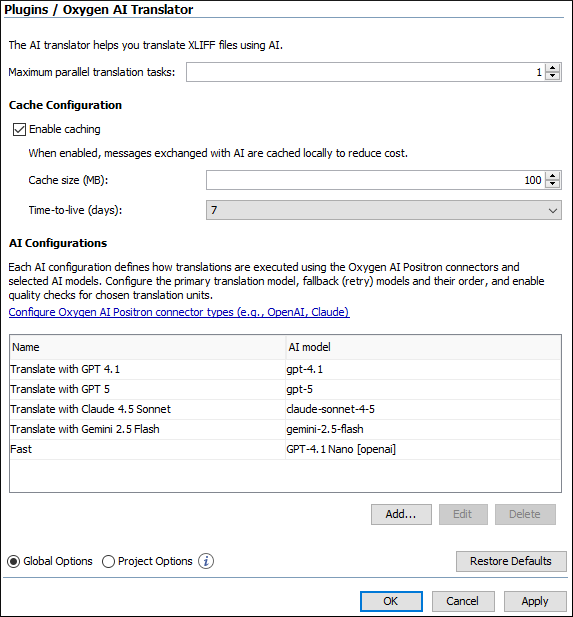
- From the AI Translator view - Select
Preferences from the Settings drop-down.
- From the Oxygen menu - Go to .
The Oxygen AI Translator preferences page contains the following options:
- Maximum Parallel Translation Tasks
-
Sets the maximum number of translation tasks that can run at the same time. Increasing this value can speed up the translation process by allowing more tasks to be processed in parallel, depending on your system resources and AI service limits.Recommendation:Adjust this value based on your computer’s performance and the capabilities of your AI provider. A higher value may improve throughput, but setting it too high could lead to resource contention or rate limiting.
- Enable Caching
-
Enables or disables the local caching of AI engine responses. When enabled, messages exchanged with AI engines are cached locally for reuse and faster translations.
- Size on Disk (MB)
- Specifies the cache size limit (default is
100MB). - Time-to-Live (Days)
- The cache entry expiration time (default is
7days). The drop-down offers the following options: 3, 5, 7, 15, 31, 90, 180, or 365 days. A cache entry expires after the configured time-to-live period. - Cache Configuration Options
-
- Checkbox - Toggle to enable/disable the caching system.
- Default - Enabled (recommended for optimal performance).
- Size on Disk
-
- Setting - Configure maximum cache size in MB.
- Default - 100 MB.
- Range - Adjustable based on available disk space and translation volume.
- Recommendation - Set to 100-500 MB for typical usage, higher for large-scale translation projects.
- Time-to-Live/Expiration
-
- Setting - Configure cache entry expiration time.
- Default - 7 days.
- Options - 3, 5, 7, 15, 31, 90, 180, 365 days.
- Recommendation - 7-15 days for active projects, longer periods for reference translations.
- AI Configurations
- Each AI configuration defines how translations are performed using the Oxygen AI
Positron connectors and selected AI models. You can configure the primary
translation model, fallback (retry) models, their order, and enable quality checks for
chosen translation units.The configuration table contains the following columns:
- Name - Descriptive name for the configuration (e.g. "Translate with GPT 4.1").
- AI model - The AI model used for translation (e.g. "gpt-4.1", "gpt-5.1", "claude-sonnet-4-5", "gemini-2.5-flash").
Default AI configurations:- Translate with GPT 4.1 Mini (gpt-4.1-mini)
- Translate with GPT 4.1 (gpt-4.1)
- Translate with GPT 5.1 (gpt-5.1)
- Translate with Claude 4.5 Sonnet (claude-sonnet-4-5)
- Translate with Gemini 2.5 Flash (gemini-2.5-flash)
The following buttons are available under the table:- Add - Create a new translation configuration.
- Edit - Modify an existing configuration.
- Delete - Remove a configuration.
Translation Configuration Dialog Box
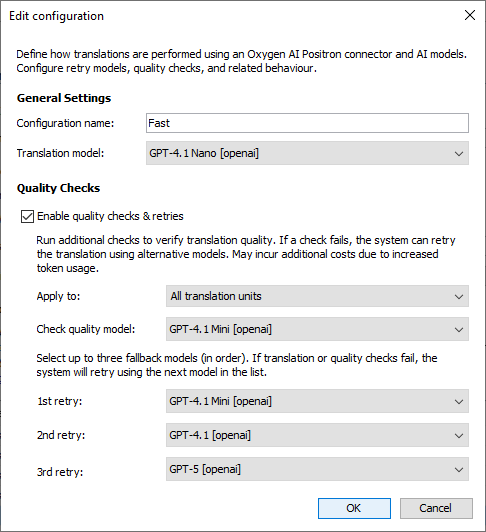
The Add/Edit Configuration dialog box defines how translations are performed using an Oxygen AI Positron connector and AI models. You can configure retry models, quality checks, and related behavior.
General Settings
- Configuration name - Enter a custom name for this configuration (e.g. "Fast Config").
- Translation model - Select the primary AI model to use for translation (e.g. "GPT-4.1 Nano").
Quality Checks
-
Enable quality checks & retries - When checked, the system will run
additional checks to verify translation quality. If a check fails, the translation is
marked as needs review (the
stateattribute is set toneeds-review-l10n) and the system can retry the translation using alternative models. This may incur additional costs due to increased token usage. -
Check quality model - Select the AI model used for quality checks (e.g. "GPT-4.1
Mini"). Important:It is recommended to use AI models that support structured output for quality checks, as the quality assessment functionality may not work properly without structured output support.
Retry Models
If translation or quality checks fail, the system will retry using the next model in the list. You can select up to three fallback models, in order:
- 1st retry - First fallback model to use (e.g. "GPT-4.1 Mini").
- 2nd retry - Second fallback model to use (e.g. "GPT-4.1").
- 3rd retry - Third fallback model to use (e.g. "GPT-5").
Click OK to save your configuration or Cancel to discard changes.
Best Practices
Caching Configuration
- Enable caching for faster repeat translations and reduced API costs.
- Set a size limit based on available disk space and translation volume.
- Balance the expiration time between freshness and reuse (7-15 days recommended).
Model Selection
- Choose the Primary model based on translation quality requirements and cost considerations.
- Use quality check for complex documents that require a high level of accuracy.
- Configure a mix of Retry models for fallback scenarios.
Retry Strategy
- A number of 3 max retries is typically sufficient for most scenarios.
- For the model sequence, start with cost-effective models, then escalate to premium models for retries.
This configuration system provides flexibility to optimize translation quality, performance, and cost based on your specific requirements and available AI models.