
Task Activity View
Use the Task Activity view to review task-level messages, track file changes, and open earlier or current file versions.
Click Task Activity in the left stripe to open the Task Activity view for the current review task.
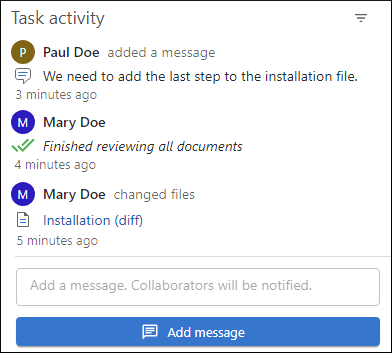
Task Activity shows task messages and file activity. Each activity includes an icon that shows the type of activity, the name of the user who made the change, and when it happened.
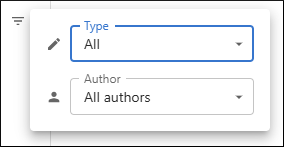
You can use the  Filter button in the top-right corner to open a pop-up control where you can
select the Type of activity to show (All,
Comments, or Changes) and you can select a
particular Author to show the activity for that particular
collaborator.
Filter button in the top-right corner to open a pop-up control where you can
select the Type of activity to show (All,
Comments, or Changes) and you can select a
particular Author to show the activity for that particular
collaborator.
For added files, click the file name in Task Activity to open the file. For changed files, click the file name to open a comparison view that shows the changes for that activity.
For changed files, if you hover over the file name, you can click  Open latest version to open the current version of the file in the visual editor. You can also click the ellipsis (3 vertical dots) on the far right to access the following actions:
- Open latest version
- Opens the current version of the selected file in the visual editor.
- Compare with latest version
- Opens a comparison between the selected file change and the latest version of the file.
- Open this version
- Opens the version of the file that existed when the selected file change was made.
- Compare with previous version
- Opens a comparison between the selected file change and the previous version of the file.
To communicate with other collaborators in the review task, use the Add message button at the bottom of the view. Task messages are attached to the review task, not to individual files. To annotate a specific file, use the Add Comment button in the editor. For more information, see Adding a Task Message.