
Filtering Profiling Values with a DITAVAL File
You can use a DITAVAL filter file to control the filtering or flagging of profiled content or to identify which values are to be used for conditional processing during a particular output.
DITAVAL Filtering Use-Case
Suppose that a medical publication uses the audience profiling
attribute to profile the content for the following types of users: therapist,
physician, and surgeon. Suppose that in the output, you want to exclude any
content that is profiled as surgeon value for the @audience
attribute.
You could use a DITAVAL filter file to exclude anything that is profiled
as surgeon:
<val>
     <prop action="exclude" att="audience" val="surgeon"/>
</val>
If you then transform the main DITA map and specify the DITAVAL filter
file in the transformation scenario, the output will exclude anything that is profiled as
surgeon).
How to Create a DITAVAL Filter File
- Click the New button in the Dashboard for your particular file repository to open the new document template wizard.
- In the left pane, select DITA for the category.
- Find and select the Filter template file. You can use the search field at the top to search for "Filter" (once in the DITA category).
- Choose a file name and click Create.
- Define your filters in the DITAVAL file.
- Save the DITAVAL file.
DITAVAL Filter File Editor
When editing a DITAVAL file in the visual editor, a variety of inline actions, drop-down menus, and text fields allow you to easily define the filters.
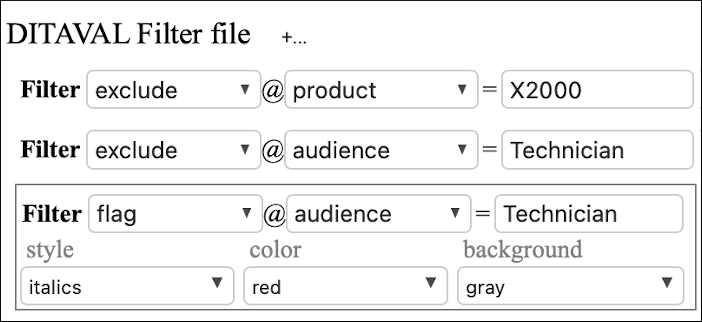
- Style Conflict - Inserts a
<style-conflict>element that declares behavior to be used when one or more flagging methods collide on a single content element. You can use the simple drop-down menus to select values for the@foreground-conflict-colorand@background-conflict-colorattributes. - Filter - Inserts a
<prop>element that identifies an attribute to apply a filtering action on. The possible actions that you can select are include, exclude, passthrough, and flag. If you select the flag action, you can use the drop-down menus to select values for the@style,@color, and@backgroundattributes. - Flag - Inserts a
<revprop>element that Identifies a value in the@revattribute that should be flagged in some manner. The allowed actions are include, passthrough, and flag. If you select the flag action, you can use the drop-down menus to select values for the@style(italic, bold, underline, overline),@color,@background(color), and@changebarattributes.
See the DITAVAL Element Specifications for more details about the allowed filters and flags.
Specifying a DITAVAL Filter File in the DITA Map Pane
There are several use cases for specifying a DITAVAL in the DITA Map pane:
View Results of Filter - Click the filter button ( ) in the DITA Map pane to open a file chooser dialog box
where you can specify the path of a DITAVAL filtering file to show how the filtering or
flagging of profiled content are applied. Any styles configured in the selected DITAVAL file
are applied directly in the visual editor and the DITA Map pane.
) in the DITA Map pane to open a file chooser dialog box
where you can specify the path of a DITAVAL filtering file to show how the filtering or
flagging of profiled content are applied. Any styles configured in the selected DITAVAL file
are applied directly in the visual editor and the DITA Map pane.
Configure DITA Context - You can specify a DITAVAL file along
with a DITA map to define the context. Click the settings button ( ) at the top-right corner of the pane to open the
Configure DITA Context dialog box where you can specify the DITA
map and a DITAVAL filtering file. There is also a Show excluded
content option to display the content that is excluded by a DITAVAL context
filter as grayed out.
) at the top-right corner of the pane to open the
Configure DITA Context dialog box where you can specify the DITA
map and a DITAVAL filtering file. There is also a Show excluded
content option to display the content that is excluded by a DITAVAL context
filter as grayed out.