
Browsing Archives
Oxygen XML Editor includes a helper view called the Archive Browser that allows you to view the contents and structure of an archive, and it offers a variety of toolbar and contextual menu actions. If the view is not displayed, it can be opened by selecting it from the menu.
To open an archive in the Archive Browser view, use one of the following methods:
- Open an archive from the Project view.
- Select an archive in one of the file chooser dialog boxes in Oxygen XML Editor (such as the Open dialog box).
- Drag an archive from a system file explorer and drop it in the Archives Browser view.
When displaying an archive, the Archive Browser view locks the archive file. It is then automatically unlocked when the Archive Browser view is closed.
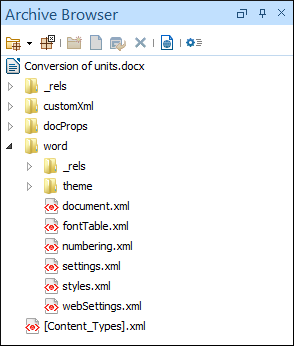
Archive Browser Toolbar Actions
The following actions are available on the Archive Browser toolbar:
 Open
Archive menu
Open
Archive menu- Provides access to the Open Archive action that opens a new archive in
the browser. If the extension is not known as an archive extension, you will be
directed to the Archive
preferences page to add a new extension. The submenu keeps a list of recently
open archive files and a Clear history action that allows you
to delete the list.
 Close
Close- Closes the browsed archive and unlocks the archive file.
 Validate
(available for EPUB archives only)
Validate
(available for EPUB archives only)- Checks the EPUB archive to see if its content and structure is valid.
 New folder
- Creates a folder as child of the selected folder in the browsed archive.
 New file
- Creates a file as child of the selected folder in the browsed archive.
 Add files
- Adds existing files as children of the selected folder in the browsed archive. Note:You can also add files in the archive by dragging them from the file browser or the Project view and dropping them in the Archive Browser view.
 Delete
- Deletes the selected resource in the browsed archive.
 Open in
System Application
Open in
System Application- Opens the selected resource in the default system application that is associated with that type of file.
 Archive Options
- Opens the Archive preferences page.
Archive Browser Contextual Menu Actions
The following additional actions are available from the contextual menu for resources in the Archive Browser view:
 Open
Open- Opens a resource from the archive in the editor.
- Extract
- Extracts a resource from the archive in a specified folder.
- New folder
- Creates a folder as child of the selected folder in the browsed archive.
- New file
- Creates a file as child of the selected folder in the browsed archive.
- Add files
- Adds existing files as children of the selected folder in the browsed archive.
Note:On macOS, the Add file action is also available and it allows you to add one file at a time.
- Rename
- Renames a resource in the archive.
 Find/Replace in
Files
Find/Replace in
Files- Opens the Find/Replace in Files dialog box that allows you to search for and replace specific pieces of text inside the archive.
 Cut
Cut- Cuts the selected archive resource.
 Copy
Copy- Copies the selected archive resource.
 Paste
Paste- Pastes a file or folder into the archive.
 Delete
- Removes a file or folder from archive.
- Preview
- Previews an image contained in the archive. See the Image Preview topic for more details.
- Copy location
- Copies the URL location of the selected resource.
 Refresh
- Refreshes the selected resource.
- Properties
- Shows the properties of the selected resource.
Resources
For more information, watch our video demonstration about working with an EPUB in the Archive Browser view: