
Creating Tasks and Uploading Files
Creating a task using the Content Fusion Tasks Manager view in Oxygen XML Editor/Author offers several advantages. You can add existing files, select a context root map to resolve keys and references, or specify a DITAVAL file for filtering purposes (for DITA content), you do not need to leave the application (other than to send the task link to reviewers), and you will be able to merge proposed changes back into your documentation.
- If the Content
Fusion Tasks Manager view is not already opened, click the
 Show Content
Fusion Task Manager toolbar button (or go to Window /
Show View / Content Fusion Tasks
Manager).
Show Content
Fusion Task Manager toolbar button (or go to Window /
Show View / Content Fusion Tasks
Manager). -
Add files to the New Task box:
Figure 1. Adding Files to the New Task Box 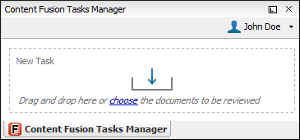 You can use any of the following methods:
- Drag files that you want to be reviewed from the Project view or your system file explorer and drop them in the New Task box (or click the Choose link to select the files) to add the files to a new task. If you drag and drop a folder from the Project view or system file explorer, all files in that directory will be added to the task.
- You can add the currently open document to a task by selecting
Add
File to Review Task from the Review submenu in
the contextual menu in Author mode.
- You can also add external resources (for example, WebDAV resources or DITA references to external resources). For example, you can drag resources from the Data Source Explorer view and drop them in the New Task box. However, only modifications to external resources can be applied when you merge the changes (you cannot add or delete external resources).
- For DITA files, drag the files from the DITA Maps
Manager and drop them into the New Task box (or
select Add
to Review Task from the contextual menu in the DITA Maps
Manager). If the topic reference has unselected child nodes, a dialog
box will be displayed that asks you whether or not you want to include the child
nodes.Note:By default, DITA resources that either have a
@processing-roleattribute set to resource-only or a@formatattribute set to something other than dita or ditamap are not automatically added to a new task. If either one of these scenarios is detected, a message will be displayed indicating that some files were not added and you can click a link to open a Manage Files dialog box where you can see the reason for each file and you can choose to manually add them to the new task, if desired.Figure 2. Manage Files Dialog Box 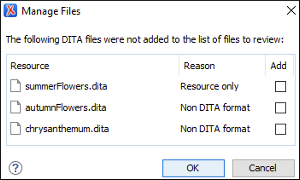
- Enter a Title for the task. This task title will help you differentiate between multiple tasks so each one should be unique.
-
[DITA Only] If you are working with DITA, you should attach the context root map (
 ) so that all references and defined keys can be resolved and
displayed properly for the reviewers. When you add files to the task, if a context root
map is specified in the toolbar of the DITA Maps Manager, it is
automatically added in the DITA Context section, but you can also
drag a DITA map file and drop it in that section or click the
) so that all references and defined keys can be resolved and
displayed properly for the reviewers. When you add files to the task, if a context root
map is specified in the toolbar of the DITA Maps Manager, it is
automatically added in the DITA Context section, but you can also
drag a DITA map file and drop it in that section or click the  Choose context root map
button to select a map. Specifying the root map also allows reviewers to edit content
referenced through a
Choose context root map
button to select a map. Specifying the root map also allows reviewers to edit content
referenced through a @conrefor@conkeyrefattribute.Figure 3. Creating a New Task 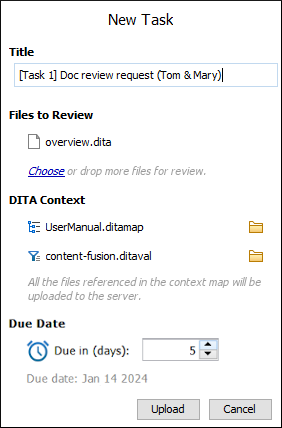
- [DITA Only] If you are working with DITA, you can specify a
DITAVAL file (
 ) so
that the content in the uploaded DITA topics is filtered based upon the conditional
profiling attribute values defined in the DITAVAL file. You can drag a DITAVAL file and
drop it in the DITA Context section or click the Choose DITAVAL button to
select a file. If a condition set is selected in the DITA Maps Manager, the corresponding
DITAVAL file will automatically be selected in the task.
) so
that the content in the uploaded DITA topics is filtered based upon the conditional
profiling attribute values defined in the DITAVAL file. You can drag a DITAVAL file and
drop it in the DITA Context section or click the Choose DITAVAL button to
select a file. If a condition set is selected in the DITA Maps Manager, the corresponding
DITAVAL file will automatically be selected in the task. - [Non-DITA] If the attached files are detected as any file type other than DITA (and a DITA map is not selected as the context root map in the DITA Maps Manager), an option (Also include all files that are referenced within the attached files) will be available. If you select this option, all files that are referenced within the attached documents will automatically be attached to the task so that reviewers will have access to the referenced content. Also, when this option is selected, you can click the Next button to preview the referenced files and you can choose to remove any that you do not want uploaded.
- Optionally, you can specify a Due Date. Within the browser interface, the amount of time left before the due date arrives is displayed under the review task's title when you have navigated inside the task and also in the table in the My Review Tasks page. Also, any reviewers who have not finalized the task will receive an email notification when the due date is within 3 days, 1 day, and 12 hours of its expiration.
- Click the Upload button to finish the task creation process and upload the information to the Content Fusion server.
Uploading a Review Task Takes Too Long
When uploading a review task that contains DITA files, along with the files explicitly selected for review, the task also contains the DITA map and all the files referenced from it (directly or indirectly). For large projects, this set of files is also large and can take a long time to upload.
To improve the loading time, go to and enable the Upload only resources that are directly referenced in the files to be reviewed. option.
When this option is enabled, only resources such as other topics and images that are directly referenced from the files to review are uploaded, including all the submaps that are referenced in the context DITA map. This may lead to a smaller set of files, but there are some limitations:
- References that use the
@conkeyrefattribute are not uploaded. - References that use the
<xref>element will be uploaded and reviewers can open them. However, images and other references in these files will not be uploaded. - If the set of files to be reviewed is large, the upload will still take a long time.