
Content Fusion Projects View
The Content Fusion Projects view allows you to browse and work with projects directly from Oxygen XML Editor/Author. This view provides access to project files, branches, and enables you to pull changes from and commit changes to the Content Fusion server.
To open the Content Fusion Projects view, go to . If the view is not available, make sure the Content Fusion Connector add-on is installed.
Requirements
- A Content Fusion server version 9.0 or later that supports the Projects API.
- A user account with the Content Fusion Author role assigned.
- At least one project created in the Content Fusion browser interface.
Projects View Interface
The Content Fusion Projects view allows you to access project files, branches, and to pull changes from and commit changes to the Content Fusion server.
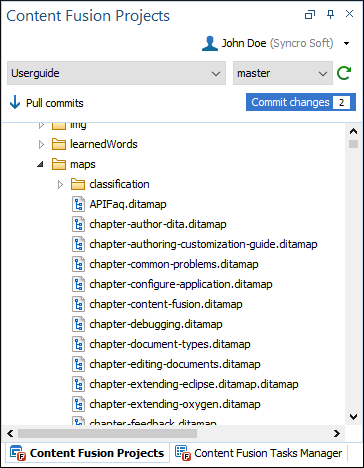
The Content Fusion Projects view contains the following components:
- User Name drop-down menu
-
Once connected and authorized, your user name appears in the upper-right corner of the view. The drop-down menu offers the following actions:
- Open Project in Content Fusion
- Opens the currently selected project in your default browser.
- Refresh Projects
- Forces a refresh to synchronize the project list with the Content Fusion server.
- Go to my account
- Opens the account profile page in Content Fusion.
- Connection Status
- Provides information such as the server address, plugin version, and connection status. This option can be used for troubleshooting purposes.
- Help
- Opens the Content Fusion user guide in your default browser.
- Preferences
- Opens the Oxygen Content Fusion Connector preferences page where you can change the server address.
- Disconnect
- Signs you out of Content Fusion. To re-establish the connection, you need to click Connect and then Authorize.
- Project and Branch Selection
-
At the top of the view, you can select a project from the Project combo box. Once a project is selected, you can choose a branch from the Branch combo box. The project tree will automatically update to show the files from the selected branch.
A Refresh button is available next to the project selection to manually refresh the project list from the server.
- Project Tree
-
The main area displays a tree view of all files and folders in the selected project branch. You can:
- Double-click a file to open it in the editor.
- Right-click a file or folder to access the contextual menu.
- Expand and collapse folders to navigate the project structure.
- Pull and Commit Changes Buttons
-
At the bottom of the view, two buttons are available:
- Pull Changes
- Pulls incoming changes from the Content Fusion server to your local workspace. The button displays the number of incoming commits (if any are available).
- Commit Changes
- Commits your local changes to the Content Fusion server. The button displays the number of outgoing commits (if any are available).
The status of incoming and outgoing commits is automatically updated every 10 seconds while the view is active and the application window is not minimized.
Working with Project Files
You can work with project files in several ways:
- Opening Files: Double-click a file or use the Open in Editor action from the contextual menu to open it in Oxygen XML Editor/Author. Files opened from the Projects view are opened from the Content Fusion server, allowing you to edit them directly in Oxygen.
- Editing Files: Once a file is opened, you can edit it just like any other file in Oxygen XML Editor/Author. Your changes are tracked locally until you commit them to the server.
- Creating Folders: Use the New Folder action from the contextual menu to create new folders in your project structure.
- Synchronizing Changes: Use the Pull Changes button to get the latest changes from the server, and the Commit Changes button to commit your local changes to the server.
Working with Branches
The Content Fusion Projects view allows you to switch between different branches of a project. When you select a different branch from the Branch combo box, the project tree automatically updates to show the files from that branch.
Browsing Content Fusion Projects from Open/Save Dialogs
The Content Fusion Connector add-on adds a Browse Content Fusion (or Open from Content Fusion) action to the Open URL and Save As dialog boxes in Oxygen XML Editor/Author. This allows you to browse and select files directly from your Content Fusion projects without having to manually enter URLs.
- Open the Open URL dialog box (from ) or the Save As dialog box (from ).
- Click the Browse drop-down button (or Open from button, depending on the dialog type).
- Select Browse Content Fusion (or Open from Content Fusion) from the menu.
- A dialog box will appear showing the file tree from the currently selected project in the Content Fusion Projects view. Navigate through the project structure and select the file or folder you want to open or save to.
- Click OK to confirm your selection. The URL will be automatically filled in the dialog box.
- Be connected to the Content Fusion server.
- Have a Content Fusion server version 9.0 or later that supports the Projects API.
- Have a user account with the Content Fusion Author role assigned.
- Have at least one project selected in the Content Fusion Projects view
If you are not connected or do not meet the requirements, a message will be displayed indicating what is needed. The dialog box will show the file tree from the project and branch currently selected in the Content Fusion Projects view. If you change the project or branch selection in the Projects view, the browse dialog box will reflect those changes when you open it again.
The dialog box also includes a Selected Path field that displays the path of the currently selected file or folder. You can manually type or edit the path in this field if needed. The path is automatically updated when you select items in the tree.