
DITA Topic Document Type
includes a variety of features that were designed specifically for DITA topic document types. Most of these features can be accessed through actions available on the DITA framework-specific toolbar or from the contextual menu.
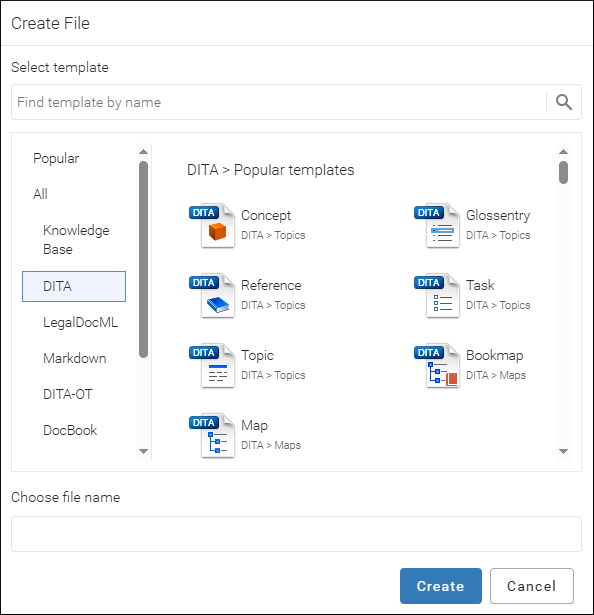
DITA New Document Templates
includes a variety of predefined new document templates that make it easy to create various types of DITA documents with some of the document structure already present.
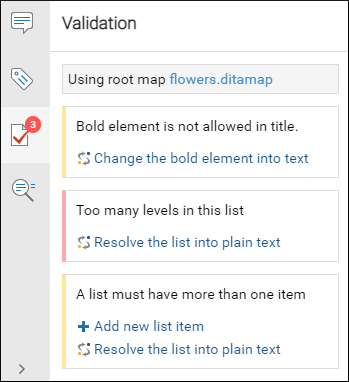
DITA Validation
DITA documents are automatically validated as you type and warning messages are displayed in the Validation pane. Many of the DITA validation issues that are detected also include Quick Fix proposals to help you solve the problems.
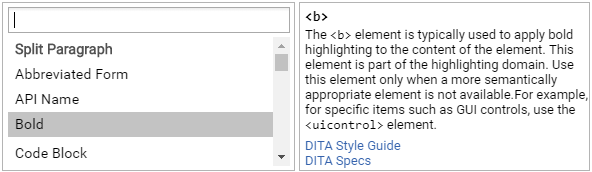
DITA Content Completion
includes an inline content completion assistant to help you insert and manage DITA markup without having to take your fingers off the keyboard. By default, it appears when you press the Enter key and it offers proposals that are valid at the current location within the DITA document with the most logical choices listed first. Most proposals also include a description to help you understand exactly what the particular selection will do.
DITA CSS Styles
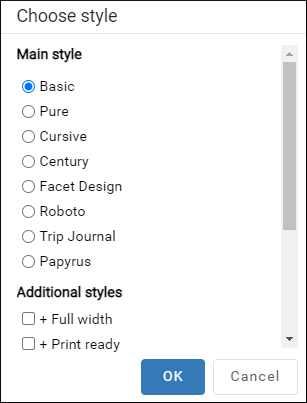
There is an option to adjust the rendering of documents simply by choosing from various styles. Each style is based on a corresponding CSS file stored in the built-in DITA framework. There are numerous different styles available for DITA documents. You can choose one main style and multiple additional styles that act as layers, with choices such as switching to a full-width mode, a print preview mode, or adding inline hints to help you understand the type of content that is expected within the DITA structure.
To select a CSS style, select Choose style from
the  More drop-down menu. This
opens a dialog box where you can select a main css style that applies to the
whole document and one or more alternate css styles that behave like layers and
are merged sequentially with the main style.
More drop-down menu. This
opens a dialog box where you can select a main css style that applies to the
whole document and one or more alternate css styles that behave like layers and
are merged sequentially with the main style.
DITA Toolbar Actions
The following default actions are readily available on the DITA toolbar when editing a DITA document:
 Bold
Bold- Surrounds the selected text with a
<b>(bold) tag.  Italic
- Surrounds the selected text with an
<i>(italic) tag.  Underline
- Surrounds the selected text with a
<u>(underline) tag.  Link Actions Drop-Down Menu
-
The following link actions are available from this menu:
 Insert
Section Drop-Down Menu
Insert
Section Drop-Down Menu-
The following insert actions are available from this menu:
 DITA Keys
- Opens a dialog box where all the keys defined in the current DITA map are collected.
You can filter the list or search for a specific key and you can insert links to
topics defined with a key or insert variables defined with a key. If the selected key
is defined point to an
@hrefvalue, it is inserted as a cross reference link (<xref>). If the selected key is defined with a<keyword>value, it is inserted as a variable reference (<ph>).  Insert
Ordered List (Ctrl + Shift +
F7 (Command + Shift +
F7 on OSX))
Insert
Ordered List (Ctrl + Shift +
F7 (Command + Shift +
F7 on OSX))- Inserts an ordered list at the cursor position. A child list item is also automatically inserted by default. You can also use this action to convert selected paragraphs or an existing other type of list to an ordered list.
 Insert
Unordered List (Ctrl + Shift
+F8 (Command + Shift
+F8 on OSX))
Insert
Unordered List (Ctrl + Shift
+F8 (Command + Shift
+F8 on OSX))- Inserts an unordered list at the cursor position. A child list item is also automatically inserted by default. You can also use this action to convert selected paragraphs or an existing other type of list to an unordered list.
DITA Contextual Menu Actions
There are various DITA-specific actions that are available in the contextual menu when editing DITA documents:
- Apply Image Map (Available when invoked on an image)
- This action applies an image map on the current image and opens the Image Map Editor dialog box. This feature allows you to create hyperlinks in specific areas of an image that will link to various destinations.
 Table submenu (Available when invoked on a table)
- Presents various actions for configuring the table, such as adding or deleting rows and columns, joining or splitting cells, and converting from a CALS table to a Simple table (and vice versa).
-
This submenu includes the following insert actions that are specific to the DITA framework:
 Insert Equation
- Inserts a MathML equation. Clicking on the equation will open a MathML Editor where you can edit the code.
- Insert Mermaid Diagram
- Inserts a Mermaid diagram at the current location. This opens a dialog box where you can configure and edit the diagram. Once inserted, you can click the Edit button at the bottom-left corner of the diagram to edit it.
 Insert
Note
Insert
Note- Inserts a new
<note>element at current cursor position.  Insert Code Block
- Inserts a new
<codeblock>element at current cursor position.  Insert Definition List
- Inserts a new
<dl>element with one entry at current cursor position.  Insert Paragraph
- Inserts a new paragraph at current cursor position.
- Style submenu
-
- Bold
- Surrounds the selected text with a
<b>(bold) tag. - Italic
- Surrounds the selected text with an
<i>(italic) tag. - Underline
- Surrounds the selected text with a
<u>(underline) tag.  Subscript
- Surrounds the selected text with a
<sub>(subscript) tag.  Superscript
- Surrounds the selected text with an
<sup>(superscript) tag. - Code
- Surrounds the selected text with a
<codeph>tag.
- Link submenu
-
The following link actions are available from this menu:
- Reuse submenu
-
This submenu includes the following actions regarding reusing content in DITA:
- Replace All References with Content
-
Replaces all referenced fragments (
@keyref,@conref, or@conkeyref) in the current document with the content. Attributes are preserved according to the following priority:- Attributes from the elements in the current
document that reference other content are preserved except for
attributes with a
-dita-use-conref-targetvalue. - Attributes from the referenced content are brought
into the replaced elements in the current document except for
@idattributes.
For keyrefs inside
<xref>or<link>elements, the@keyrefattribute is changed to an@hrefattribute, while the rest of the content for the keyref is replaced with its source content.If the source content includes references to other topics/resources (hrefs), the operation also resolves those references relative to the new location.
- Attributes from the elements in the current
document that reference other content are preserved except for
attributes with a
- About Element submenu
-
This submenu includes the following actions:
- Style Guide
- Opens the DITA Style Guide Best Practices for Authors in a preview window and displays a topic that is relevant to the element at the cursor position. You can use the Open in new tab button at the bottom of the preview window to open the guide in a separate browser tab.
 Browse reference manual
- Opens a reference to the documentation of the XML element closest to the cursor position in a web browser.
- Inspect Styles
- Opens the CSS Inspector pane that displays information about the CSS styles that are applied to the currently selected element.
DITA Floating Toolbar Actions
includes a dynamic feature where certain editing contexts will trigger a floating toolbar with common actions that are available in the current editing context.
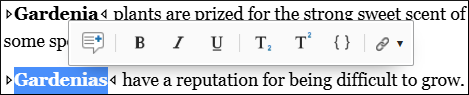
The following actions are available on the floating toolbar for DITA topics:
- Bold
- Surrounds the selected text with a
<b>(bold) tag. - Italic
- Surrounds the selected text with an
<i>(italic) tag. - Underline
- Surrounds the selected text with a
<u>(underline) tag. - Subscript
- Surrounds the selected text with a
<sub>(subscript) tag. - Superscript
- Surrounds the selected text with an
<sup>(superscript) tag. - Code
- Surrounds the selected text with a
<codeph>(code phrase) tag. - Link submenu
-
The following link actions are available from this menu: